

 veracrypt
Bad File Descriptor VeraCrypt::CoreService::StartElevated:567 (Bug)
I'm running Ubuntu 21.10. I've had the same issue on 21.04 as well. I am just about tired of having the issue so I'm posting about it. Basically, trying to mount an encrypted image, enter password, followed by entering admin password gets the error "Bad File Descriptor VeraCrypt::CoreService::StartElevated:567". But if you try to mount it again it succeeds. This happens with creating containers as well as mounting them. I've screen recorded it to show what I'm on about. I've tested this with EXT3, EXT4 and NTFS. All the same. I am the only account on the system and have SUDO permissions.
I've tried changing the exec= command in the .desktop file to "sudo /usr/bin/veracrypt" but it changes nothing, and using "pkexec /usr/bin/veracrypt" does requests my fingerprint or password but then displays nothing.
https://youtu.be/5Zt-M1LnwyI


I was not able to reproduce this issue on my various Ubuntu VMs. So there must be some configuration that triggers this behavior and this configuration doesn't look to be widespread.
The error message give some clues(it happens in line 567 of CoreService.cpp):
throw_sys_if (fcntl (outPipe->GetReadFD(), F_SETFL, 0) == -1);
"Bad File Descriptor" means that outPipe became invalid and the only possibility is that it was closed at line 506 because the forked sudo process is not responding after 6 seconds which triggers TimeOut exception.
It is strange that the sudo process doesn't exit or respond within 6 seconds. The only possibility I see is that the forked sudo process starts "too late" after we write the admin password to the pipe at line 461.
One idea is too add a 1 second sleep before writing admin password to forked process pipe.This may help.
Meanwhile, could you try starting VeraCrypt with the switch --use-dummy-sudo-password? This changes the way sudo forking is handled and it's possible that it will help.

I have implement the 1 second sleep idea explain above.
Can you please test using the attached packages? They are signed using official VeraCrypt PGP key.
Also testing with --use-dummy-sudo-password would be good.
Thank you.
veracrypt-1.25-RC3-Ubuntu-18.04-amd64.zip veracrypt-1.25-RC3-Ubuntu-21.10-amd64.zip
I think this can also happen if sudo is configured via PAM to be able to run without requiring a password. For example, I have a fingerprint reader and my /etc/pam.d/sudo looks like this:
#%PAM-1.0
auth        sufficient  pam_fprintd.so
auth		include		system-auth
account		include		system-auth
session		include		system-auth
So sudo will first ask for my physical fingerprint (e.g., in the console it displays "Place your right index finger on the fingerprint reader") and that is sufficient to authenticate. In the console, if you don't want to use your fingerprint, you can then Ctrl + C to get to the normal password prompt. So it seems that the fingerprint prompt blocks execution while Veracrypt is trying to pass it a password, leading to the sudo timeout error.
To get around it, I can just give Veracrypt a non-empty root password and put my finger on the fingerprint sensor while it's waiting, and it will mount. AKA, doing whatever PAM requires before the password prompt so that sudo succeeds and doesn't block Veracrypt.
IMO, it would be nice to have Veracrypt integrate with PAM directly for root privileges.

Hey @samueldy, thanks for the hint and the solution, works perfectly fine for me, even more, I was quite close to tearing down the encrypted partition as I was fearing it might be broken, when in fact it was the finger print sensor I recently installed. So you saved my data and a lot of time setting it all up again!

To get around it, I can just give Veracrypt a non-empty root password and put my finger on the fingerprint sensor while it's waiting, and it will mount. AKA, doing whatever PAM requires before the password prompt so that
sudosucceeds and doesn't block Veracrypt.
I've noticed that recently this workaround isn't working anymore. Attempting to use the fingerprint sensor to unlock sudo yields a "Not enough data" error dialogue in VeraCrypt. I resorted to the veracrypt command-line interface:
#!/bin/bash

 # Wrapper for veracrypt for when its GUI doesn't work

 op="$1"

 VCVOLUME="path-to-veracrypt-file"
 VCMOUNTPOINT="/media/your-mount-point"

 if [[ $op == "mount" ]]; then
     echo "Container password:"
     read -s pw
     if [[ ! -d "$VCMOUNTPOINT" ]]; then
         sudo mkdir "$VCMOUNTPOINT"
     fi
     sudo veracrypt --text --non-interactive --password="$pw" "$VCVOLUME" "$VCMOUNTPOINT"
     unset pw
     echo "Mounted."
 elif [[ $op == "unmount" ]]; then
     sudo veracrypt --text --non-interactive --dismount "$VCMOUNTPOINT"
     echo "Unmounted."
 fi
Now you get the fingerprint prompt as you would any other time using sudo in the terminal.
To get around it, I can just give Veracrypt a non-empty root password and put my finger on the fingerprint sensor while it's waiting, and it will mount. AKA, doing whatever PAM requires before the password prompt so that
sudosucceeds and doesn't block Veracrypt.I've noticed that recently this workaround isn't working anymore. Attempting to use the fingerprint sensor to unlock
sudoyields a "Not enough data" error dialogue in VeraCrypt. I resorted to theveracryptcommand-line interface:#!/bin/bash # Wrapper for veracrypt for when its GUI doesn't work op="$1" VCVOLUME="path-to-veracrypt-file" VCMOUNTPOINT="/media/your-mount-point" if [[ $op == "mount" ]]; then echo "Container password:" read -s pw if [[ ! -d "$VCMOUNTPOINT" ]]; then sudo mkdir /media/veracrypt5 fi sudo veracrypt --text --non-interactive --password="$pw" "$VCVOLUME" "$VCMOUNTPOINT" unset pw echo "Mounted." elif [[ $op == "unmount" ]]; then sudo veracrypt --text --non-interactive --dismount "$VCMOUNTPOINT" echo "Unmounted." fiNow you get the fingerprint prompt as you would any other time using
sudoin the terminal.
Thanks a lot for this comment! I'm on Pop!_OS 22.04 which is entirely based on Ubuntu 22.04.
And I'm getting the VeraCrypt::CoreService::StartElevated:570 error when using the GUI.
I tried running your script but it didn't work. However, I believe I'm doing something wrong, it's not the script's fault.
Could you please dumb it down for me a bit? Maybe using a different color for the parts of code which I'm supposed to change based on my file location, password, etc. Your help will be immensely appreciated!!

Hi, @valiantgenomics! To use this script, replace the values for VCVOLUME and VCMOUNTPOINT at the top of the script. VCVOLUME is the path to the Veracrypt archive file on your disk, e.g., /home/samueldy/Documents/important-files.veracrypt. This is the same file you would choose when clicking "Select File" in the GUI:
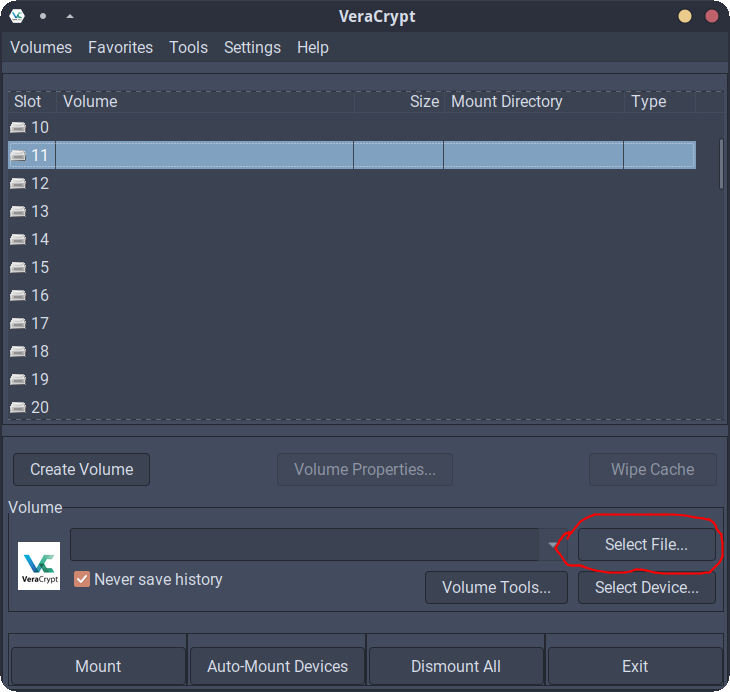
VCMOUNTPOINT is the place where you want the Veracrypt archive to be mounted in the filesystem. For my installation of Veracrypt, when I select a Veracrypt file and put it into Slot N, it usually mounts the archive at /media/veracryptN. I erroneously had it make a hard-coded veracrypt5 folder, but have corrected the script to create your specified mountpoint if it doesn't already exist. I've corrected the script in my original post so that the conditional folder check is now:
     if [[ ! -d "$VCMOUNTPOINT" ]]; then
         sudo mkdir "$VCMOUNTPOINT"
     fi
So, in short, just change the definitions of VCVOLUME and VCMOUNTPOINT near the top of the script.
Once you've downloaded the script, cd to the directory where you downloaded it and make it executable:
chmod u+x ./vc-mount.sh
Then simply run
./vc-mount.sh mount
to mount your archive. Then it should prompt you for your container password and sudo password or fingerprint and mount the archive. When you're done, run
./vc-mount.sh unmount
to close the archive and ensure no one can tamper with it.
Hope this helps!
@samueldy Wow, this is incredible! Thank you from the bottom of my heart for taking the time to explain the script!
Even though I'm brand new to Linux, installed it for the very first time 2 weeks ago, I think I managed to closely follow your instructions and created the script (and made it an executable file).
Then I opened terminal in the same directory of the executable file and ran the commands you listed.
And this it the result I got:
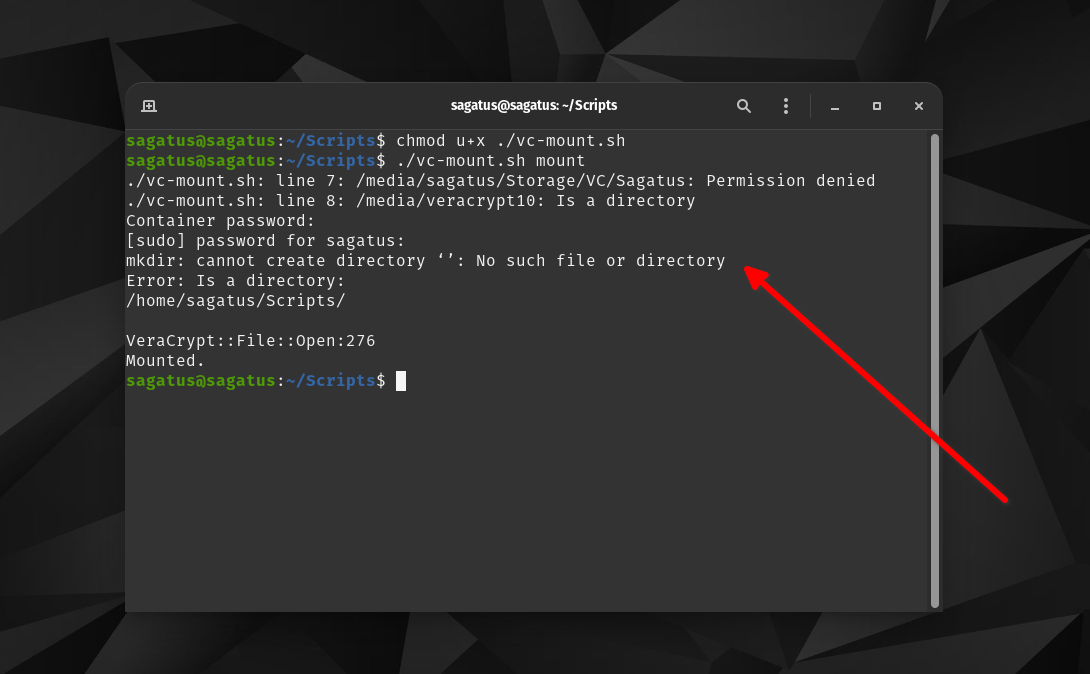
You can see it says mkdir cannot create directory. Not sure what does that means exactly.
And here's my actual script:
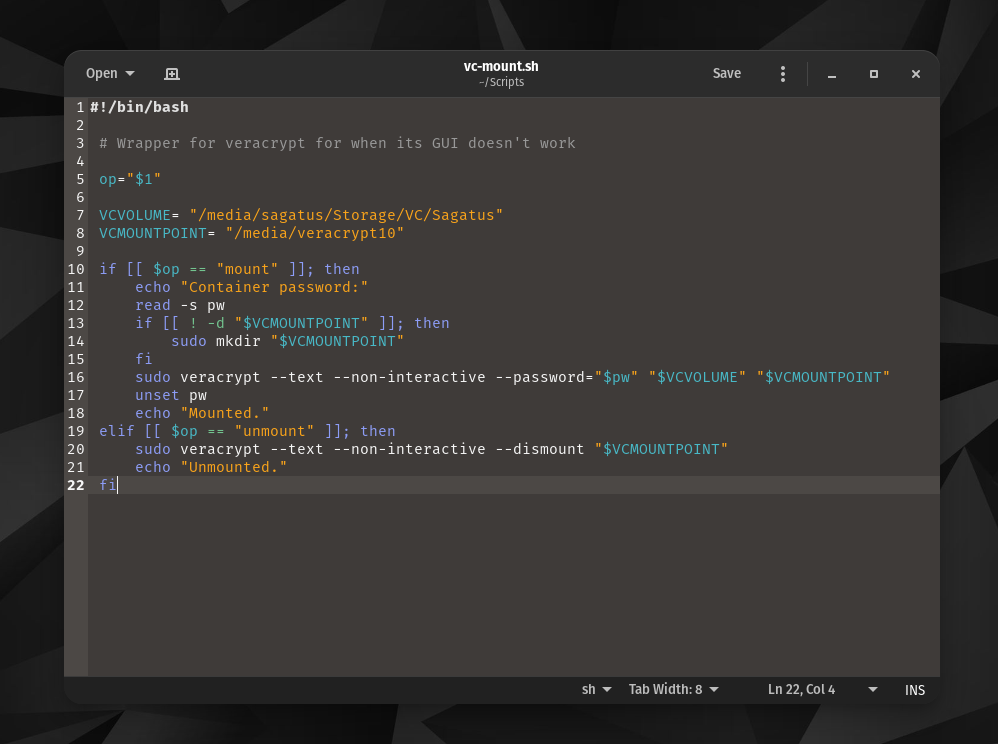
Thanks again, you're literally the ONLY one who has the know how and you are saving my files!
@valiantgenomics, it looks like Veracrypt can't find your archive file. Your Veracrypt archive is a file called Sagatus located inside the /media/sagatus/VC folder? And do you have read/write access to this file?
If the mount succeeds, you should be able to navigate to /media/veracrypt10 in your file manager and see your encrypted files.
I'm a little busy with a conference the next few days, but am happy to chat on Zoom sometime if you'd like me to take another look.
@samueldy Wow, are you some sort of a github guardian angel? Thank you so much for selflessly offering me help!
Yes my Veracrypt archive is called Sagatus and is located inside the following:
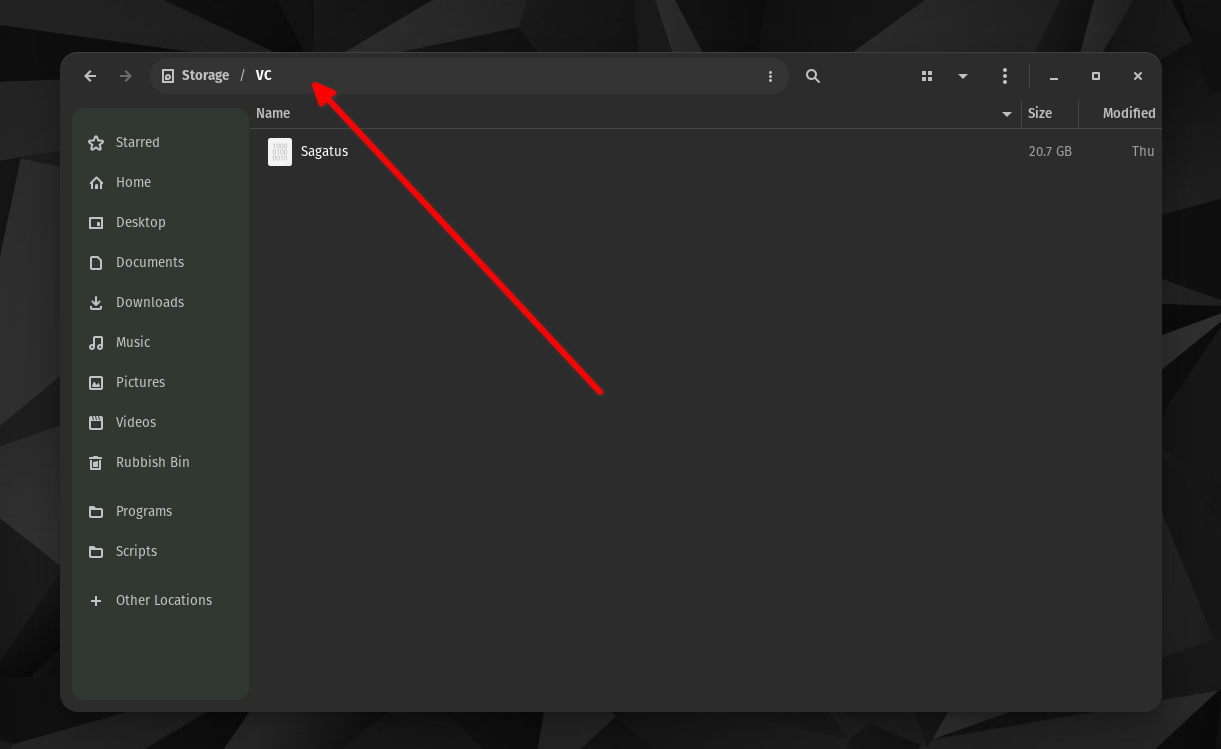
The way Linux displays the paths to folders is quite confusing. Coming from Windows, I could just at a glance see what the path/destination to that file is. But in Linux it's quite weird. As you can see on the screenshot it only shows me Storage / VC.
Storage is the label I gave my HDD drive. And VC is just a folder I created inside the Storage drive.
But I can't just copy and paste this path/destination like I could in Windows.
I have to manually write it. On top of that when I right click on Sagatus (archive) and select properties, it gives me a slightly altered path.
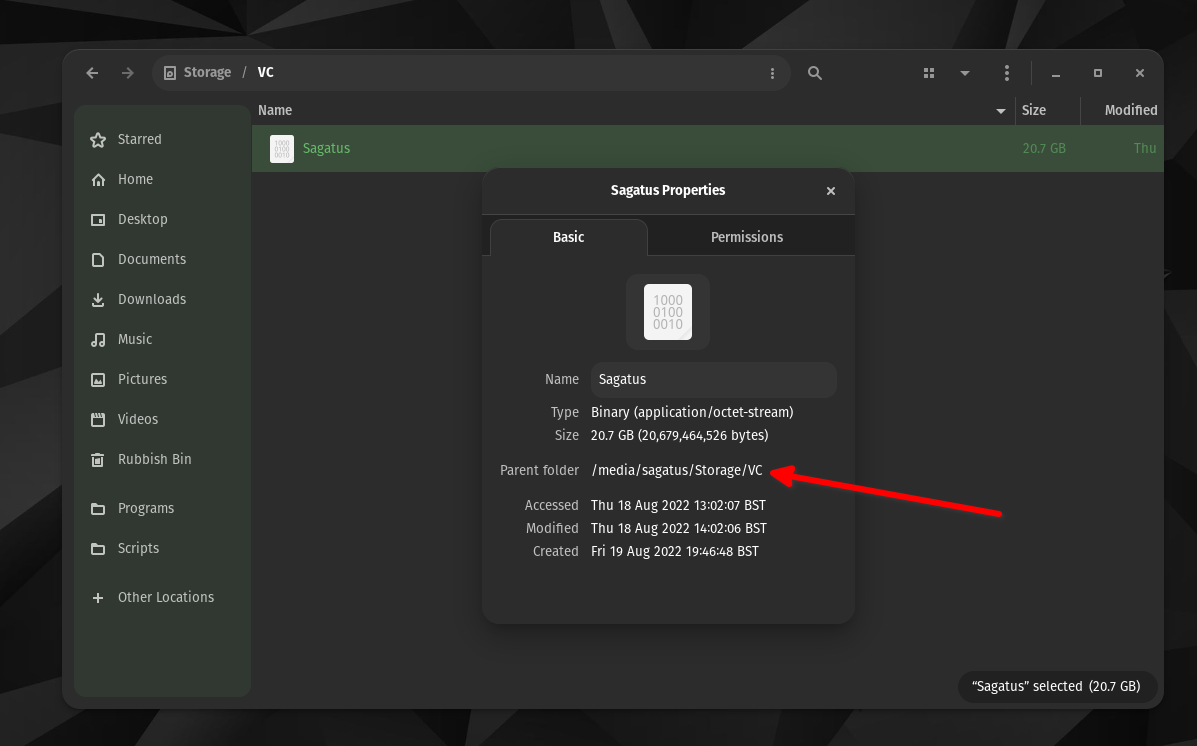
So you can see how for a Linux noob this can be quite confusing.
Nevertheless, before I replied to you initially, I tested both paths. Just Storage/VC/Sagatus and also /media/sagatus/Storage/VC
None of them worked.
And yes, I do have read & write permissions on this file. I even enabled read and write for "others" as well. Still didn't work.
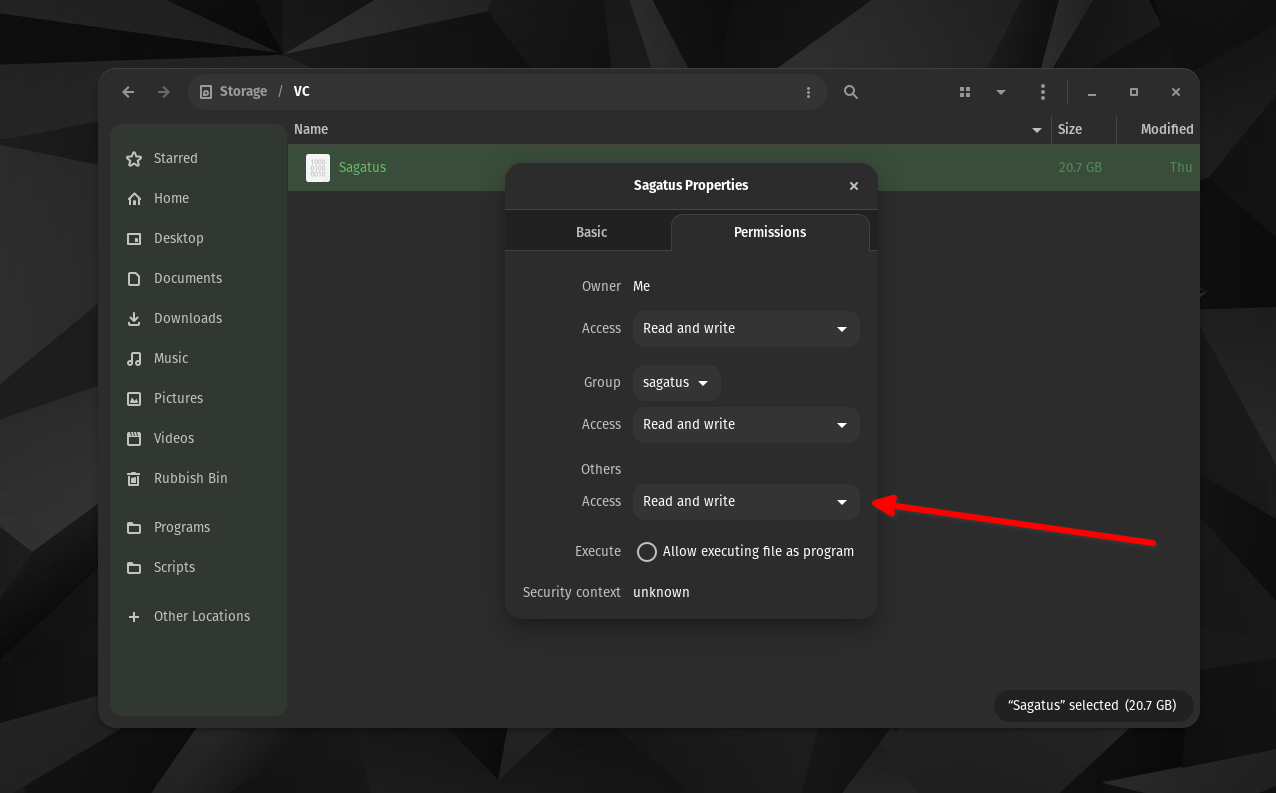
It's also important to mention that my Linux account username is called: sagatus (lower case)
I'm sure you immediately spotted that because you can decode stuff just at a glance, but for anyone else reading this thread in the future it might be confusing.
I'm definitely down to hop on a zoom call whenever you're free and whenever it's most convenient for you. And please, let me know your Cashapp, so I can pay you for all the help.
Thanks a ton!!!
That is strange. Looks you're setting the paths correctly. Perhaps there's something different from the Pop OS version of Veracrypt than mine, or problems with the permissions in the directory containing your archive. Not sure I can solve it, but I'm happy to meet and take a closer look.
Feel free to send me an email at [email protected] and we can set up a meeting. And no need to pay me :)
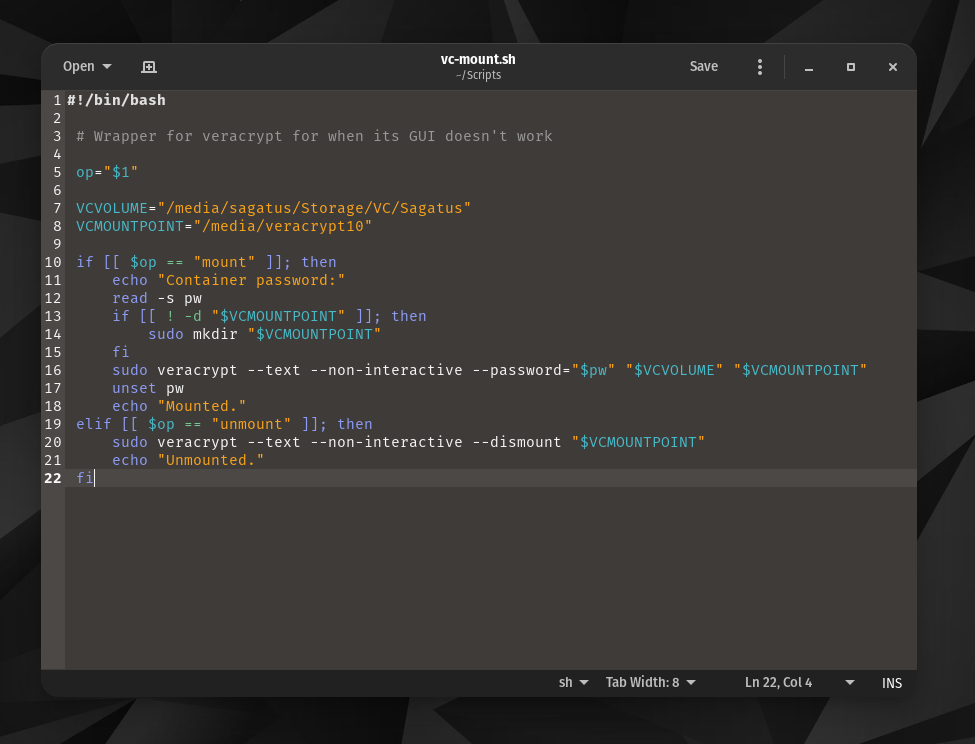
Also, you need to get rid of the spaces around the equals sign in lines 7 and 8 of your script. When assigning variables, it's just VARIABLENAME="value". Otherwise, Bash will treat it as you assigning a blank value to an environment variable (VCVOLUME= gives the value "" to VCVOLUME) and then attempting to find a program named "path-to-veracrypt-file" and running it. This is why you get the "Permission Denied" error on line 7: because it thinks you're trying to run a program located at /media/sagatus/Storage/VC/Sagatus with environment variable VCVOLUME set to "", but your later screenshot shows that your Sagatus Veracrypt volume is not set to be executable. (Not that setting it executable would work anyway.) Same for line 8, where it complains that it found a directory instead of a program. This is also why you get the mkdir: cannot create directory "": No such file or directory error: because the Veracrypt command was supposed to get the paths of your archive file and mount point in the VCVOLUME and VCMOUNTPOINT variables, but instead got blank values from those variables.
So change lines 7 and 8 of your script to:
VCVOLUME="/media/sagatus/Storage/VC/Sagatus"
VCMOUNTPOINT="/media/veracrypt10"
with no spaces around the = sign and see if that works. If not, email me and we'll jump on a Zoom call.
@samueldy Thanks for using your laser focus to spot that! I had a feeling, I'm probably messing up the spacing somewhere because it's so foreign to me.
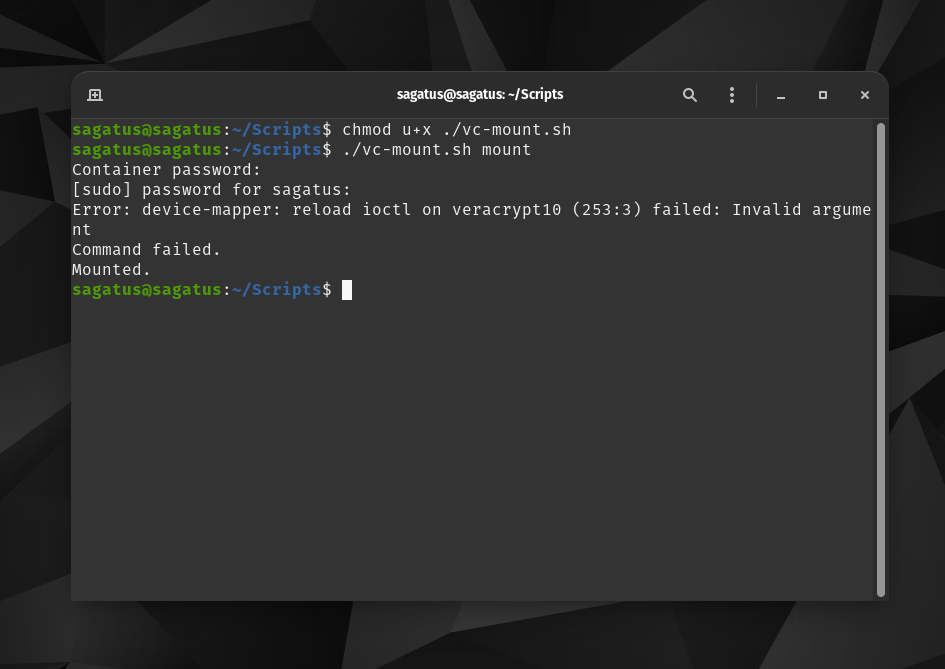
I made those changes, and now I don't see these errors anymore but I'm greeted with a totally new one : (
And my script should be correct this time, here's a screenshot:
I have a feeling this should be the last hurdle to making it work. But I'm not sure what this error is trying to say:
Error: device-mapper: reload ioctl on veracrypt10 (253:3) failed: Invalid argument
It looks like the veracrypt10 isn't the correct mounting volume or something like that?
From here and here, it looks like your Veracrypt volume may be encrypted using an algorithm that needs to be loaded by loading a kernel module. Usually AES containers work without a problem. If you know the particular encryption option you chose when making the container, there may be a kernel module that you can load to make this work.
But a much simpler solution is just to specify the -m=nokernelcrypto option to your veracrypt call. E.g., change your line 16 to:
sudo veracrypt --text -m=nokernelcrypto --non-interactive --password="$pw" "$VCVOLUME" "$VCMOUNTPOINT"
This uses software encryption instead of hardware (kernel) encryption, which is a little slower but doesn't require finding/compiling/loading a kernel module.
@samueldy Cha-ching!
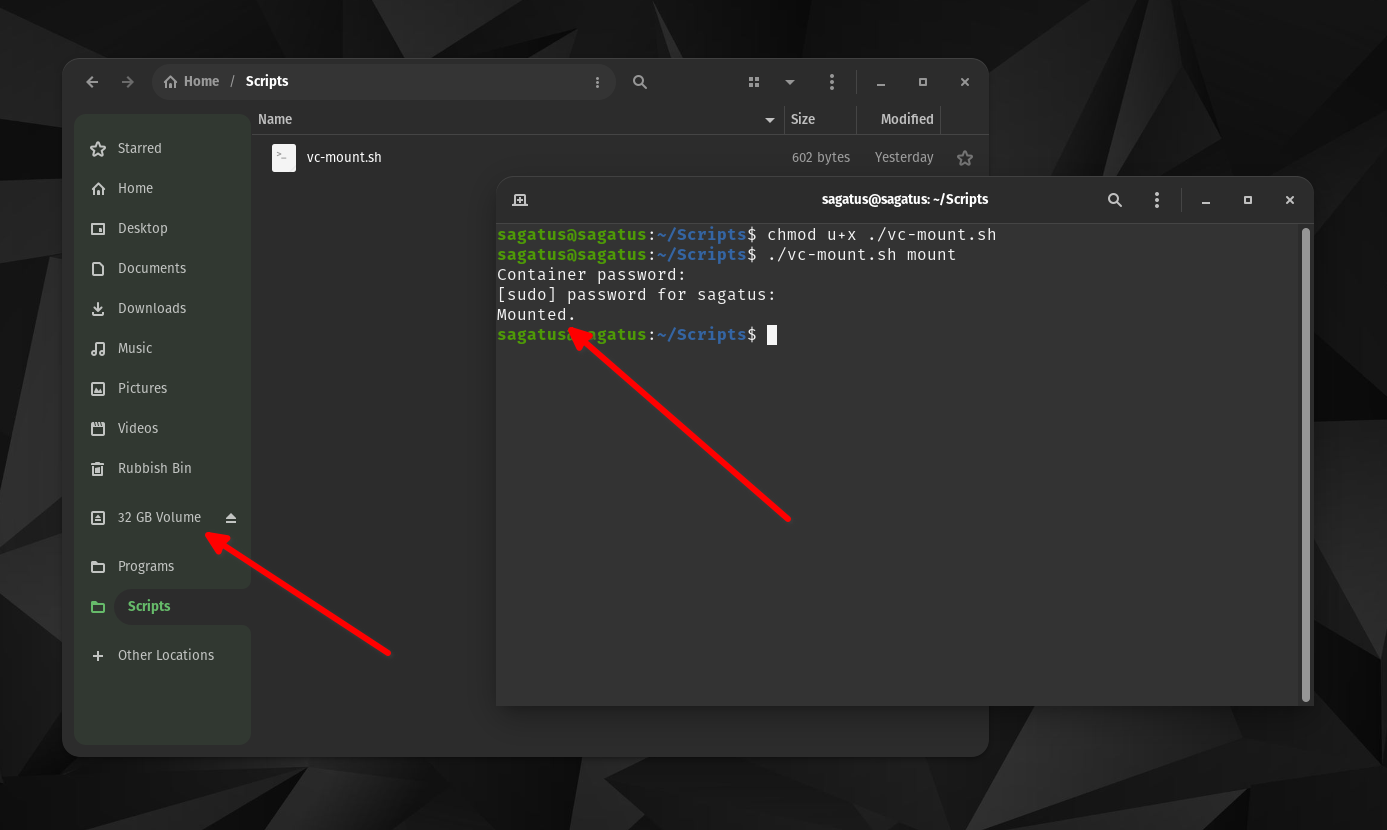
Thanks a ton for this final piece of info! As I said in my previous message, I had an intuition this will be the final hurdle!
The drive opened like a freshly picked coconut.
There's an issue with the files though. It seems like 30-35% of them are corrupted.
However, I did a live boot of Linux Mint and moved the veracrypt folder there, downloaded veracrypt (the same Debian edition), installed it and mounted the drive with 0 problems.
And on top of that all files are functional, none are corrupted.
So this seems to be an issue with PopOS itself.
I decided to create a new test encrypted folder using PopOS just to see if a veracrypt folder created using PopOS - can be opened using PopOS. Because the initial folder that you were helping open was made on Windows 10, before I moved to Linux. So that could be causing the issues.
But as I was finishing the formatting of this new TEST folder using PopOS, I received the same error:
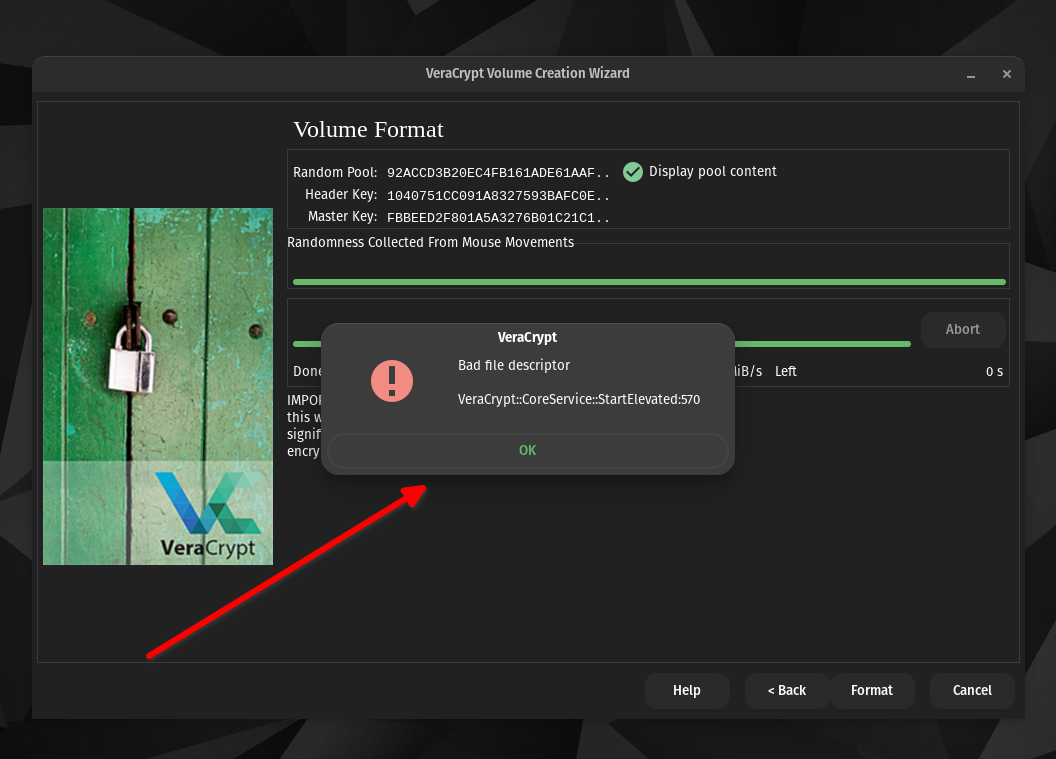
So it seems like there's simply an issue with veracrypt on PopOS. Which sucks because I really like PopOS but I might have to switch back to Linux Mint (which was my initial go at Linux).
Do you think that I should try opening the Veracrypt GUI using terminal and the sudo command?
I've read some horrific comments and articles online about how terrible it is to open GUIs on Linux using sudo.
Honestly, you're the best!
No worries, and glad you're able to read the files!! I'm not super familiar with Pop OS or Mint, but there's a possibility that the Pop OS version has some bugs that don't manifest under Linux Mint. I found this report of the same error a month ago, so you may not be alone.
Usually it is bad practice to run GUI programs as root. Running the Veracrypt GUI as a normal user is supposed to ask for root privileges only when it needs them (mounting/dismounting, creating volumes, etc.). You shouldn't need to run the GUI as root; the failure of the GUI to temporarily secure root privileges to make and format a new volume seems to be a Pop OS error. One other thing I have found to work under Manjaro Linux is to run the Veracrypt GUI from a terminal immediately after having run a sudo command in the same terminal. You authenticate with sudo, then before your sudo access times out, start veracrypt and mount the container using the GUI.
I think you also need to have kernel support for whatever filesystem your encrypted container uses. I usually use FAT32 on containers I know I'll need to be able to open on Windows or Mac. But if you're seeing some of the files under Pop OS, this may not be the issue. You may want to try creating a new container under Linux Mint with a FAT32 filesystem, copying over some of the files that appeared corrupted under Pop OS, and see if you can open those files when mounting the container under Pop OS.
If you do decide to go back to Linux Mint, there appears to be a way to get the elements of the Pop OS GUI (e.g., the Pop Shell GNOME extension) on Mint or other Ubuntu-based distros.
@samueldy Thanks a ton again! I've been tinkering for the fast few days with the recommendations that you provided and wanted to reach some conclusions before I replied, not to waste your time any further with "empty replies".
I actually thought of a way to make running veracrypt even more secure. I downloaded Tails OS, flashed it to a LIVE USB and added a persistent volume where I installed veracrypt.
Now every time I want to encrypt files, I simply boot Tails and encrypt them within a totally separate OS than my main one. This creates a much more controlled and isolated environment, and if my main OS is compromised, Tails will circumvent that.
So I'm sticking with Pop OS for now! And thanks so much for all of the help! You definitely need to give me your cashapp so I can at the very least buy you a coffee and lunch!