
serverless-microsoft-teams-gitlab-connector
 serverless-microsoft-teams-gitlab-connector copied to clipboard
 svhawks
This is a serverless gitlab connector for microsoft teams
Serverless Microsoft Teams Gitlab Connector

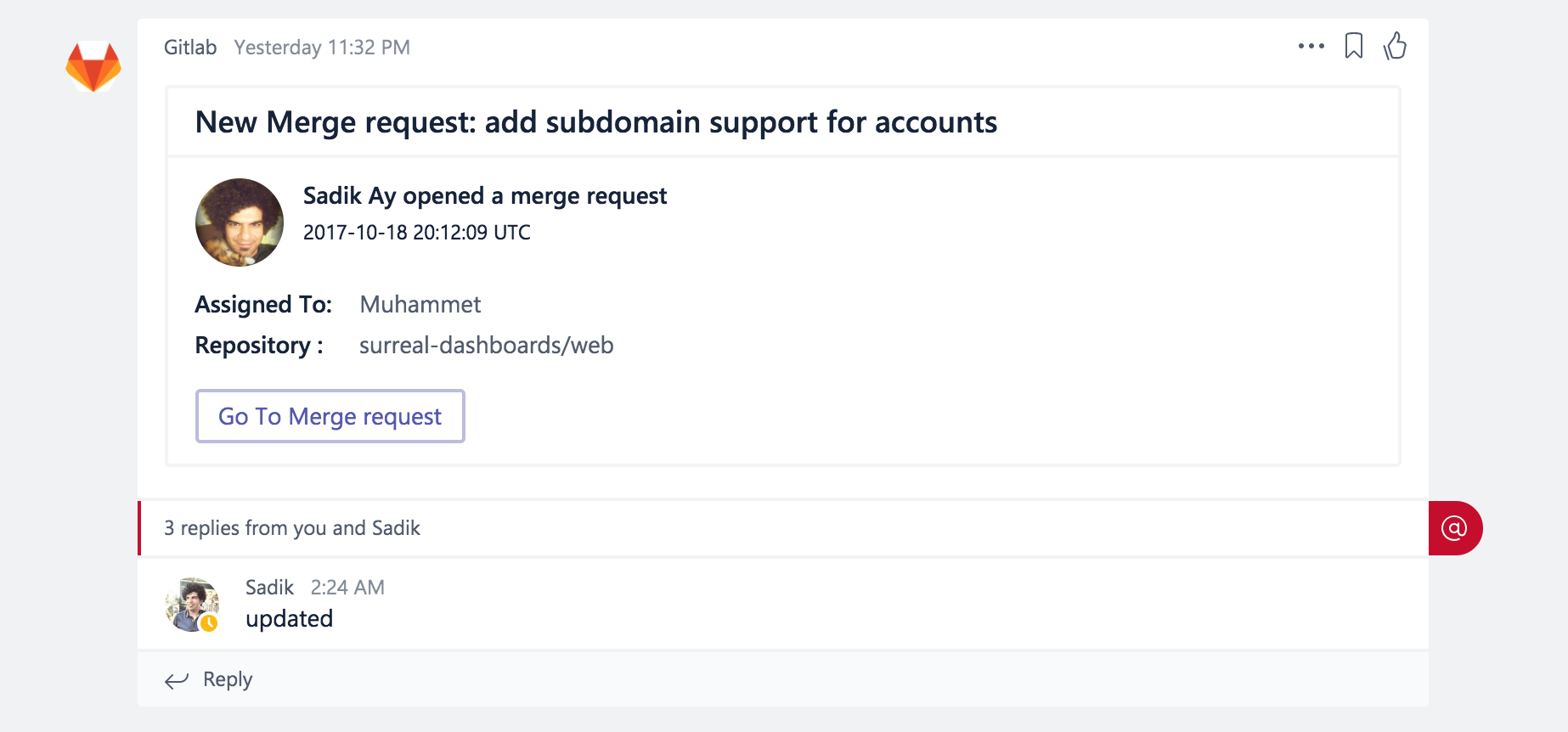
Easy integration to notify GitLab Merge Request and Issues to Microsoft Teams.
How to use
Microsoft Teams Side
Step :one:
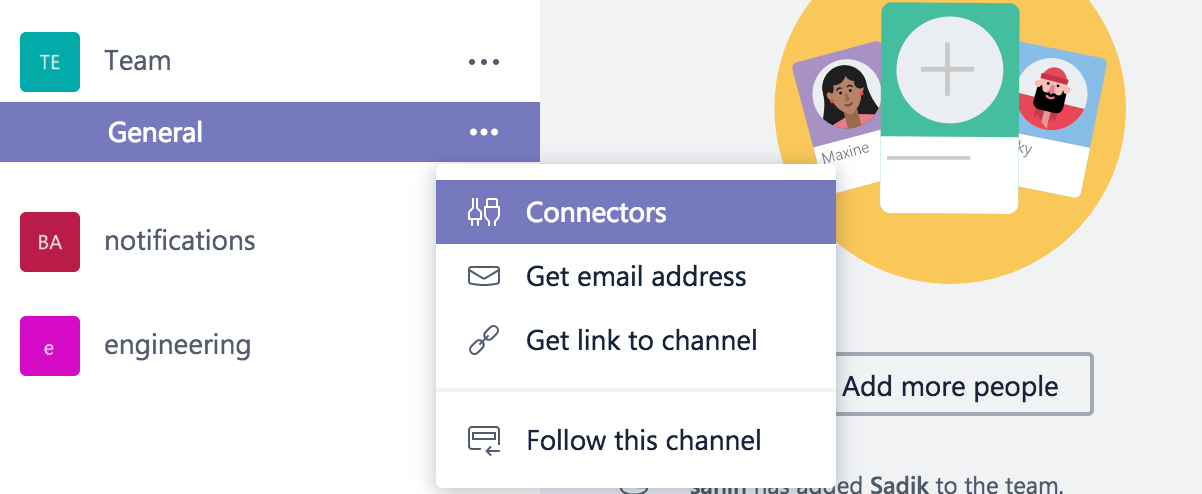
In Microsoft Teams, choose the More options (⋯) button next to the channel name in the list of channels and then choose Connectors.
Step :two:
In the list, click Add for the Incoming Webhook.

Step :three:
Enter the connector name as GitLab and upload an icon. Save and copy your connector url (channel_incoming_webhook_url).
GitLab Side
Step :one:
Go to your repo settings on GitLab and click Integrations section from left bar.
Copy this link:
https://0xjjw6j039.execute-api.us-east-1.amazonaws.com/prod/events?url=channel_incoming_webhook_url
and change channel_incoming_webhook_url part with your teams url.
Then paste it to url input area on GitLab.
Step :two:
Enable Issues events, Merge Request events and SSL Verification then save it.

Deploy to your aws acount
git clone [email protected]:svtek/serverless-microsoft-teams-gitlab-connector.git
cd serverless-microsoft-teams-gitlab-connector
npm install
If you don't want to add the channel_incoming_webhook_url as params to your function endpoint url: Follow Microsoft Teams steps, copy the url and add it to you env variables.
export channel_incoming_webhook_url=https://outlook.office.com/webhook/...
Deploy:
serverless deploy
Then follow the GitLab steps and add https://your-function-endpoint-url/events to url input area on GitLab.
Testing Locally:
serverles offline start
./ngrok http 3000
# add `/events` path to output url and paste (https://123456.ngrok.io/events) to GitLab url input.
Features
- [x] Merge Request
- [x] Issues
- [ ] Push
- [ ] Comments
- [ ] Jobs
Authors
 |
Sahin Boydas Founder @ Remoteteam.com  |
 |
Muhammet Developer @ MojiLaLa  |
 |
Sadik Developer @ MojiLaLa |
|---|
 svhawks