
markdown-timeline
 markdown-timeline copied to clipboard
Published
4 months ago
•
 recklyss
recklyss
An Obsidian plugin to record the events in a Flashback timeline
Obsidian Timeline
A plugin for Obsidian that creates a timeline view of your notes.
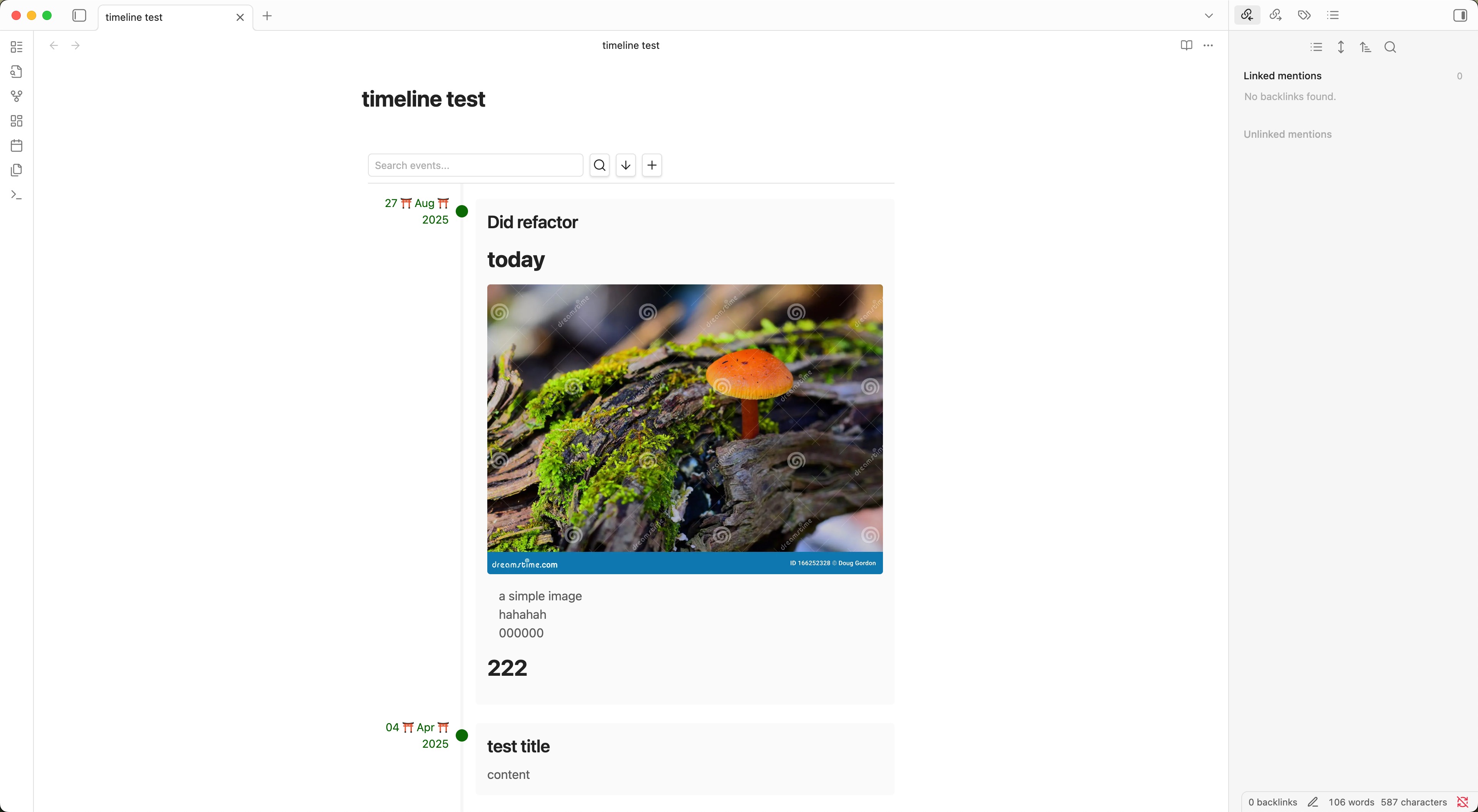
Features
- Create beautiful timelines from your markdown notes
- Support for both positive and negative years (BCE/CE dates)
- Customizable date formats
- Ascending or descending timeline order
- Search and filter timeline events
- Add new events directly from the timeline view
Usage
Create a timeline by using the timeline code block:
```timeline
# 2024-03-21
## Launch of Timeline Plugin
First release of the Timeline plugin for Obsidian.

---

# -500-03-15
## Ancient Event
This event happened in 500 BCE.
### Date Format Options

You can customize how dates are displayed in the timeline through the plugin settings. The following format tokens are supported:

- `YYYY`: Year (supports both positive and negative years)
  - Examples: "2024", "-500", "-50"
- `MM`: Month as a zero-padded number (01-12)
- `MMM`: Month as a short name (Jan, Feb, Mar...)
- `MMMM`: Month as a full name (January, February, March...)
- `DD`: Day of the month as a zero-padded number (01-31)

You can combine these tokens with any separator. Some examples:

- `YYYY-MM-DD` → "2024-03-21" or "-500-03-15"
- `DD MMM YYYY` → "21 Mar 2024" or "15 Mar -500"
- `MMMM DD, YYYY` → "March 21, 2024" or "March 15, -500"
- `YYYY/MM/DD` → "2024/03/21" or "-500/03/15"

The format will automatically adapt to handle missing month or day values:
- Year only: "-500" (regardless of format)
- Year and month: "Mar -500" (for format "MMM YYYY")
- Complete date: "March 15, -500" (for format "MMMM DD, YYYY")

### Timeline Entry Format

Each timeline entry should follow this format:

```markdown
# YYYY[-MM[-DD]]
## Title
Content (in markdown)
- The date line starts with a single
#and can include:- Year (required): Any number, including negative years for BCE
- Month (optional): 1-12
- Day (optional): 1-31
- The title line starts with
## - The content can include any valid markdown
- Entries are separated by
---
Installation
- Open Obsidian Settings
- Go to Community Plugins and disable Safe Mode
- Click Browse and search for "Timeline"
- Install the plugin and enable it
Settings
- Date Format: Choose how dates are displayed in the timeline
- Default Sort Order: Choose whether to show oldest or newest events first
- Show Header Buttons: Toggle visibility of timeline operation buttons
License
MIT License
 recklyss