

 python-pillow
How to handle and save image with mode sRGB
Hello, when i handle an image with mode sRGB use pillow, how to save it with mode sRGB? Thanks very much!

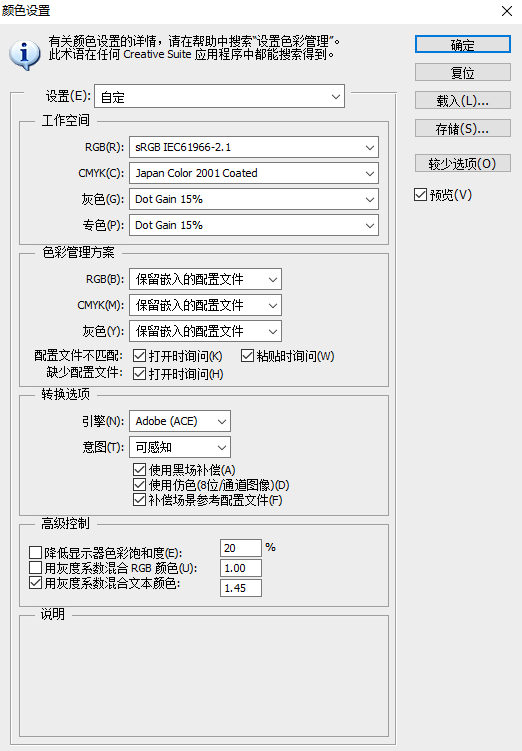

I use pillow with new、 resize、paste、 crop、rotate and so on functions to handle the picture
The following code will let you save an image with an sRGB profile.
from PIL import Image, ImageCms

im = Image.new("RGB", (1, 1))

profile = ImageCms.createProfile("sRGB")
im.save("out.jpg", icc_profile=ImageCms.ImageCmsProfile(profile).tobytes())
After running it, here is what exiftool reports
$ exiftool out.jpg | grep Profile
Profile CMM Type                : Little CMS
Profile Version                 : 4.3.0
Profile Class                   : Display Device Profile
Profile Connection Space        : XYZ
Profile Date Time               : 2022:08:01 10:00:47
Profile File Signature          : acsp
Profile Creator                 : Little CMS
Profile ID                      : 0
Profile Description             : sRGB built-in
Profile Copyright               : No copyright, use freely
from PIL import Image
current_image = Image.open("1.jpeg")
print(current_image.info.get("icc_profile"))
How to know the icc profile is sRGB or not sRGB? If this icc profile is not sRGB, how to transform the image old icc profile to sRGB profile?
Thanks!
Try this.
import io
from PIL import Image, ImageCms
current_image = Image.open("out.jpg")
profile = current_image.info.get("icc_profile")
print(ImageCms.getProfileName(io.BytesIO(profile)))
With the file I created earlier, it prints
sRGB built-in
print(ImageCms.getProfileName(io.BytesIO(profile)))
If the profile name is not sRGB,how to transform it to sRGB?
If you're asking how to apply an sRGB profile to an image with a different profile, that sounds like ImageCms.profileToProfile().
import io
from PIL import Image, ImageCms

current_image = Image.open("out.jpg")
profile = current_image.info["icc_profile"]
srgb_profile = ImageCms.createProfile("sRGB")

new_image = ImageCms.profileToProfile(current_image, io.BytesIO(profile), srgb_profile)
Hello, I used this way, but when i save with the sRgb icc profile,it failed:
import io
from PIL import Image, ImageCms

current_image = Image.open("out.jpg")
profile = current_image.info["icc_profile"] # Display P3 profile

# new sRGB profile
srgb_profile = ImageCms.createProfile("sRGB")
transformed_profile = ImageCms.buildTransformFromOpenProfiles(io.BytesIO(profile), srgb_profile, current_image.mode, "RGB")
current_image = ImageCms.applyTransform(current_image, transformed_profile)
# save error
current_image.save("out2.jpg", icc_profile=ImageCms.ImageCmsProfile(transformed_profile).tobytes())
How to save it with the transformed_profile ?
Is your up code can transform display P3 profile to sRGB profile? Or my code can achieve this function?
ImageCms.buildTransformFromOpenProfiles() returns an instance of ImageCmsTransform, not a profile.
If you're trying to save the image with an sRGB profile, then you could change your last line to
current_image.save("out2.jpg", icc_profile=ImageCms.ImageCmsProfile(srgb_profile).tobytes())
Hello, now i am puzzled, your code:
new_image = ImageCms.profileToProfile(current_image, io.BytesIO(profile), srgb_profile)
and my code:
transformed_profile = ImageCms.buildTransformFromOpenProfiles(io.BytesIO(profile), srgb_profile, current_image.mode, "RGB")
current_image = ImageCms.applyTransform(current_image, transformed_profile)
Which one is the right way to transform a different profile to sRGB?
Hello, now i am puzzled, your code:
new_image = ImageCms.profileToProfile(current_image, io.BytesIO(profile), srgb_profile)
and my code:
transformed_profile = ImageCms.buildTransformFromOpenProfiles(io.BytesIO(profile), srgb_profile, current_image.mode, "RGB")
current_image = ImageCms.applyTransform(current_image, transformed_profile)
The ImageCms.profileToProfile fuction performs the same steps as your second example, so both of these do the same thing.
Which one is the right way to transform a different profile to sRGB?
Both code snippets convert an image from profile profile to the sRGB profile.

Hello, when i save image as jpg with icc_profile,the code below:
im.save("out.jpg", icc_profile=ImageCms.ImageCmsProfile(profile).tobytes())
I find a problem, I use Adobe Photoshop open the saved image, the result is below:
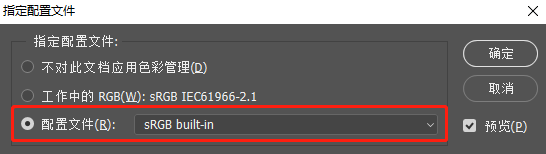
The photoshop shows the profile is sRGB built-in,not the sRGBIEC61966-2.1. I do not know what is the difference between sRGB built-in and sRGBIEC61966-2.1,but I want to save the image with sRGBIEC61966-2.1, how to do?
Thanks!
I found that we have a sRGB_IEC61966 ICC profile in our test suite - https://github.com/python-pillow/Pillow/blob/main/Tests/icc/sRGB_IEC61966-2-1_black_scaled.icc
So the following creates an image that have an sRGB_IEC61966 profile in macOS Preview and GIMP (I don't have Photoshop).
from PIL import Image, ImageCms

current_image = Image.open("out.jpg")
profile = ImageCms.ImageCmsProfile("Tests/icc/sRGB_IEC61966-2-1_black_scaled.icc")
current_image.save("out2.jpg", icc_profile=profile.tobytes())
In addition,I find a icm file in my Windows 10 operating system,the path is: C:\Windows\System32\spool\drivers\color\sRGB Color Space Profile.icm
can i use this icm file as ICC profile?
https://www.xritephoto.com/ph_product_overview.aspx?ID=652&Action=Support&SupportID=2994
The standard file extension for ICC profiles on Windows is "ICM". A Microsoft decision. Note however, the file format is the same as one ending in "ICC" and they are completely interchangeable.
So yes, you can use an ICM file as an ICC file.
![github-actions[bot] avatar](https://avatars.githubusercontent.com/in/15368?v=4 "Published by a pub.dev verified publisher")