plotly
Mesh3D at partial opacity generates strange rendering artifacts

I rendered a very simple obj triangle mesh using Mesh3D with: gob = go.Mesh3d(x=X[:,0], y=X[:,1], z=X[:,2], i=T[:,0], j=T[:,1], k=T[:,2], color=color, opacity=.45, facecolor = fc, flatshading=True)
The output render is attached and shows a lot of rendering artifacts. Setting opacity to 1 removes these artifacts, but then there's no transparency. Setting the opacity to .1 or lower makes the artifacts harder to see but they are definitely still present.

Remove flatshading=True. I generated a lot of meshes with low opacity and they did not exhibit any artifacts
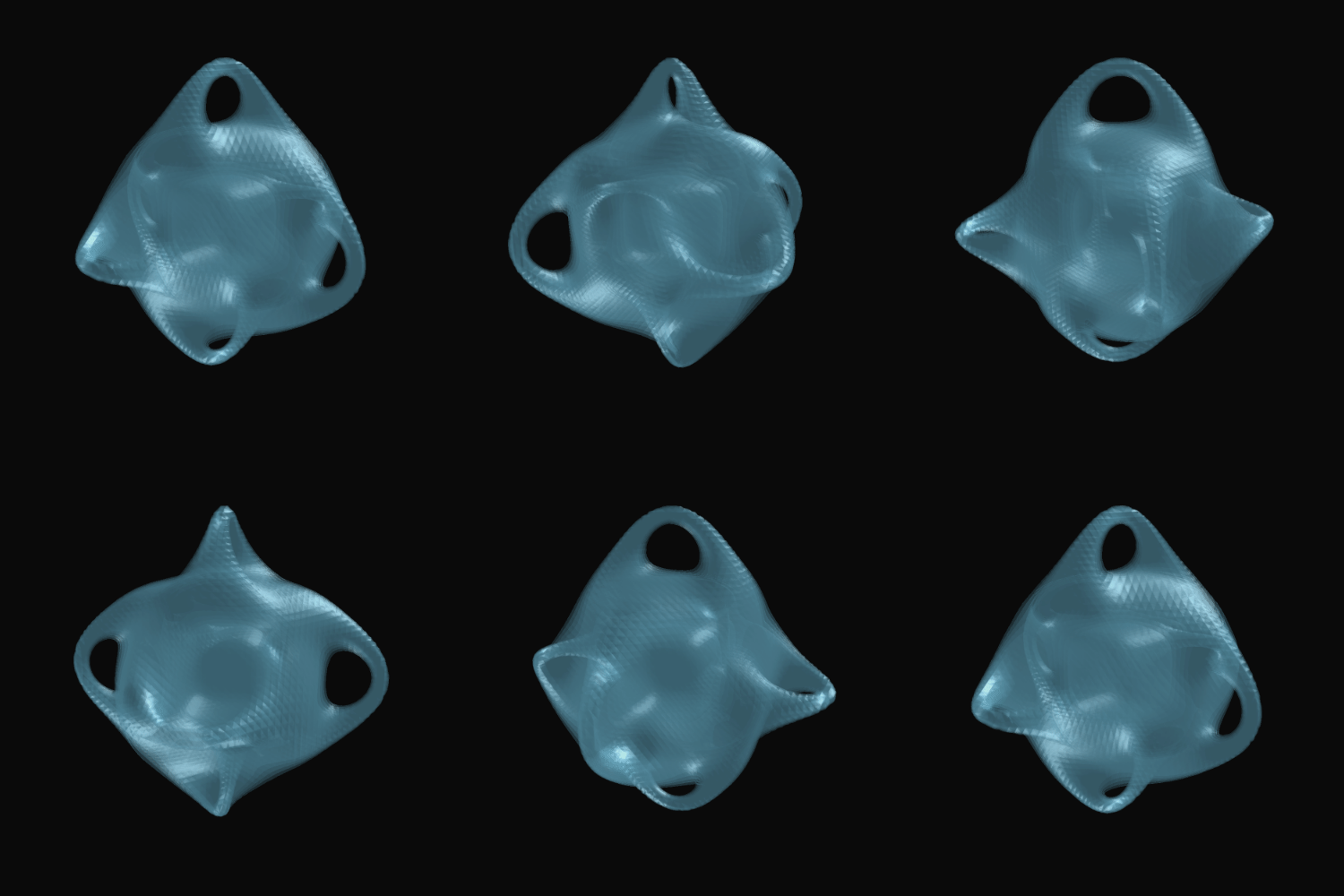

I am having the same issue. Flatshading does not seem to have an effect. It seems related to this from the plotly reference:
"Please note that in the case of using high opacity values for example a value greater than or equal to 0.5 on two surfaces (and 0.25 with four surfaces), an overlay of multiple transparent surfaces may not perfectly be sorted in depth by the webgl API. This behavior may be improved in the near future and is subject to change."

My code:
fig = go.Figure(data=[ go.Mesh3d( x=x, y=y, z=z, colorbar_title='field_value', colorscale=scale, intensity = field_values, i = p, j = q, k = r, # name=title, showscale=show_scale, opacity=0.3, ) ])

My Mesh in the gif posted above has opacity=0.2, and the lighting defined by:
lighting=dict(ambient= 0.55,
              diffuse= 0.5,
              specular= 0.75,
              roughness=0.25,
              fresnel= 0.25)
 I tried adding your lighting parameters. Though the lighting is nice, it hasn't fixed the artifacts.
lighting=dict(ambient= 0.55,diffuse= 0.5,specular= 0.75,roughness=0.25,fresnel= 0.25) gob = go.Mesh3d(x=X[:,0], y=X[:,1], z=X[:,2], i=T[:,0], j=T[:,1], k=T[:,2], opacity=opacity, lighting=lighting)
@empet any chance you'd be willing to share your notebook/mesh data? maybe it has to do with renderer settings. I haven't selected any renderer though so I'm just using whatever is default.
I used the "notebook" renderer, but it doesn't matter. The lighting parameters are not standard. You must tune them until you get a nice plot. This is the only "secret". https://plotly.com/python/v3/3d-surface-lighting/
I think these artifacts probably appear/more prominent with changing colors on the surface. I am able to remove those artifact when plotting the surface with grey color by setting specular=0 and diffuse=0. However, with a surface with varying colors, I will always see these artifacts no matter what I try. Would like to know if someone's able to find a setting that works for them.

Hi - we are tidying up stale issues and PRs in Plotly's public repositories so that we can focus on things that are still important to our community. Since this one has been sitting for a while, I'm going to close it; if it is still a concern, please add a comment letting us know what recent version of our software you've checked it with so that I can reopen it and add it to our backlog. If you'd like to submit a PR, we'd be happy to prioritize a review, and if it's a request for tech support, please post in our community forum. Thank you - @gvwilson