
reception
 reception copied to clipboard
 nxt-engineering
Entry page & reverse proxy for all your docker-compose projects. 🐳
Reception
A dashboard and reverse proxy for your docker-compose projects. It does not require any dependencies but Docker and docker-compose.
About
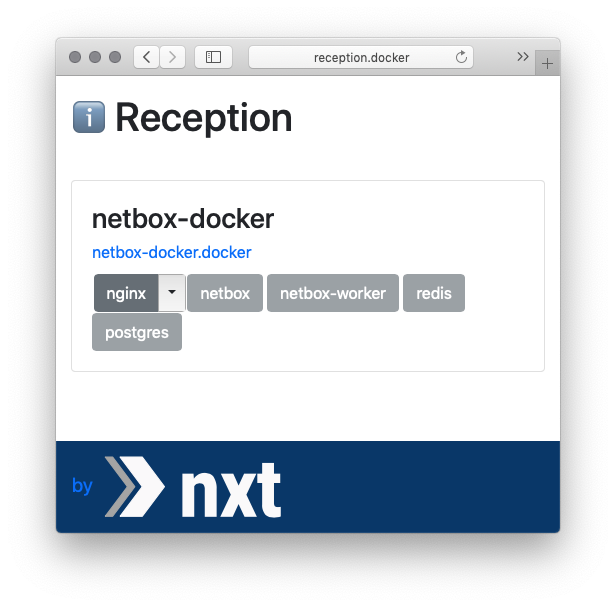
This program shows all docker-compose projects that are running on a handy overview page. It has a built-in reverse-proxy, so that any container's exposed port are accessible as 'container.compose-project.docker'. In order to be able to resolve 'anything.docker' to localhost, this tool also ships a tiny tiny DNS server.
As a result, you'll be able to access your docker-compose projects as 'container.compose-project.docker', and the traffic will automatically be forwarded to the corresponding port, even as you fire up and shut down new docker-compose projects.
Requirements
You need to have superuser privileges on your computer.
Installation
We assume you have Docker and docker-compose already installed.
But for resolving *.docker to localhost (i.e. 127.0.0.1 or ::1), changes to your host configuration are required.
Linux
Install reception:
git clone https://github.com/nxt-engineering/reception.git
make
Proceed according to your linux configuration:
Ubuntu 16.04/18.04
Instead of .docker as TLD it's the easiest to just use .localhost because that's already built-in in the systemd-resolver.service.
Now run reception:
sudo reception -tld localhost
Or install reception as systemd service:
sudo make install
Now try to go to http://reception.localhost.
Local dnsmasq resolver
If you use dnsmasq as your local resolver, add this line to your dnsmasq config:
address=/docker/127.0.0.1
It tells dnsmasq to resolve *.docker with the dnsserver listening at 127.0.0.1:53 (which will be reception).
Then restart dnsmasq:
service dnsmasq restart
And now run reception:
sudo reception
You should be able to http://reception.docker now.
Non-systemd linux
Check the content of /etc/hosts.
If it doesn't contain any nameservers pointing to 127.0.0.1, 127.0.0.53 or ::1, then this way of installation should work for you:
sudo -i
mkdir /etc/resolver
echo "nameserver ::1" > /etc/resolver/docker
echo "nameserver 127.0.0.1" >> /etc/resolver/docker
Now run reception:
sudo reception
Finally, try to go to http://reception.docker.
macOS
Install reception using homebrew:
brew tap nxt-engineering/reception
brew install nxt-engineering/reception/reception
Next you need to register reception as the resolver for the docker TLD. Run the
following on your command-line
sudo -s
mkdir /etc/resolver
echo "nameserver ::1" > /etc/resolver/docker
echo "nameserver 127.0.0.1" >> /etc/resolver/docker
At last, start the service:
sudo brew services start nxt-engineering/reception/reception
Now try to go to http://reception.docker.
Windows
🤷
Configuration
reception is customizable to some extend.
See reception -h for a complete list of configuration parameters.
$ ./reception --help
(c) 2017-2018 Nine Internet Solutions AG
(c) 2018-2019 nxt Engineering GmbH
Usage of ./reception:
  -dns.address string
    	Defines on which address and port the HTTP daemon listens. (default "localhost:53")
  -docker.endpoint string
    	How reception talks to Docker. (default "unix:///var/run/docker.sock")
  -http.address string
    	Defines on which address and port the HTTP daemon listens. (default "localhost:80")
  -tld string
    	Defines on which TLD to react for HTTP and DNS requests. Should end with a "." . (default "docker.")
  -v	Show version.
  -version
    	Show version.
Tips & Tricks
"Main" container
The "main" container defines, where the project address ends up (i.e. http://yourproject.docker):
The container should either have a docker-compose label of reception.main or should be called app:
version: '2'
services:
  app:    <----- like this
    image: nginx
    labels:
      reception.main: 'true'  <--- or like this
    ports:
      - 80
Ports
In your docker-compose.yaml file, we advice to not specify a local port and to not export any
unnecessary ports either. docker-compose will bind your exported port to any available local port,
and reception will make sure, that there's a url for it.
This way, you can launch several containers that expose the same port without conflict and therefore avoid port collisions across projects.
Do
version: '2'
services:
    app:
    image: nginx
    depends_on: pgsql
    ports:
        - 80    <----- like this
    pgsql:
    image: postgresql
Don't
version: '2'
services:
    app:
    image: nginx
    depends_on: pgsql
    ports:
        - 80:80    <----- and _not_ like this (local port)
    pgsql:
    image: postgresql
    ports:
        - 5432:5432    <----- and _not_ like this (unnecessary port)
HTTP Port
In order to detect which port of you container "the http port" is, reception looks for the well-known ports
80, 8080 and 3000. You can override this behaviour by setting the label reception.http-port to a port of your choice:
version: '2'
services:
    app:
    image: special
    labels:
        reception.http-port: '1234'  <--- like this
    ports:
        - 1234
Troubleshooting
Reception can't bind to the ports
You must run reception as privileged user (i.e. root) for it to be able to bind to port 53 (dns) and port 80 (http).
docker-compose projects can't start because of port conflicts
Most probably you assigned a fixed port mapping for an exposed port. Look for something like the following:
version: 2
services:
  app:
    ports:
      - "8000:80"  <---- like this
In the case above, you would just replace "8000:80" with 80.
reception.docker does not resolve
First, check if reception is actually running.
Then see if nslookup reception.docker resolves to 127.0.0.1 or ::1 (respectively nslookup reception.localhost on Ubuntu).
If it doesn't, please flush the DNS cache:
# macOS
sudo killall -HUP mDNSResponder

# Linux
systemctl restart named
# or
systemctl restart nscd
Development
This projects requires Go 1.11 or newer.
There is a Makefile with targets for any common task.
Don't just use go build, as it will not bundle the resources!
Build
To build the project, run:
make
Run
To run a snapshot of the project, run:
make run
Release
To cut a release of the project, adjust the VERSION file and run:
make release
Debug the Makefile
To see the commands executed by make, run make as follows:
make <target> VERBOSE=1
To run make without having it execute any command, run make as follows:
make -n <target>
Clean
To cleanup afterwards, run:
make clean
License
This program is available as open source under the terms of the MIT License.
About
This piece of software is currently maintained and funded by nxt.
Metadata
Owner
 nxt-engineering
Metadata
Entry page & reverse proxy for all your docker-compose projects. 🐳