keymanapp
fix(developer): Ctrl key to select key was conflicting with shortcuts
Fixes #7425.
In the layout editor, the "Select Key" dialog was being shown sometimes when using shortcuts such as Ctrl+V. The reason this happened was that the shortcut handler in Delphi was capturing the keydown of the V key, so the Ctrl event handler never saw it. Then, if you pressed Ctrl+V, and released the Ctrl key before releasing the V key (which often happens when you press a shortcut rapidly), the Ctrl event handler would receive notification of the Ctrl key release and trigger the "Select Key" dialog.
This fix shifts the Ctrl key event handler out of the keyboard editor and into the top-level application events handler -- this is the best place where we can preview key events before they are passed to the shortcut handler and controls for processing.
This necessitated adding a general ControlKeyPressedAndReleased event function to the TIKE editor base class. This is currently only used by UfrmKeymanWizard and UfrmOSKEditor.
I noted that the OSK editor did not currently support the Ctrl key event to select a new key. As a part of this fix, I added support for this, to bring it into line with the Layout Editor and the Touch Layout Editor.
User Testing
All tests are done in Keyman Developer.
GROUP_LAYOUT_EDITOR: Test in the Keyboard editor, Layout tab, Design view. GROUP_OSK_EDITOR: Test in the Keyboard editor, On-Screen tab, Design view. GROUP_OSK_STANDALONE_EDITOR: Open a .kvks file from File/Open, and test in the standalone OSK editor.
-
TEST_SELECT_KEY: Verify that the Select Key dialog works. Press and release Ctrl to activate the Select Key Dialog. Press any character key on the keyboard and verify that the correct key is selected, and that you can edit it. Do this with several different keys, including keys with a modifier combination such as Alt+M.
-
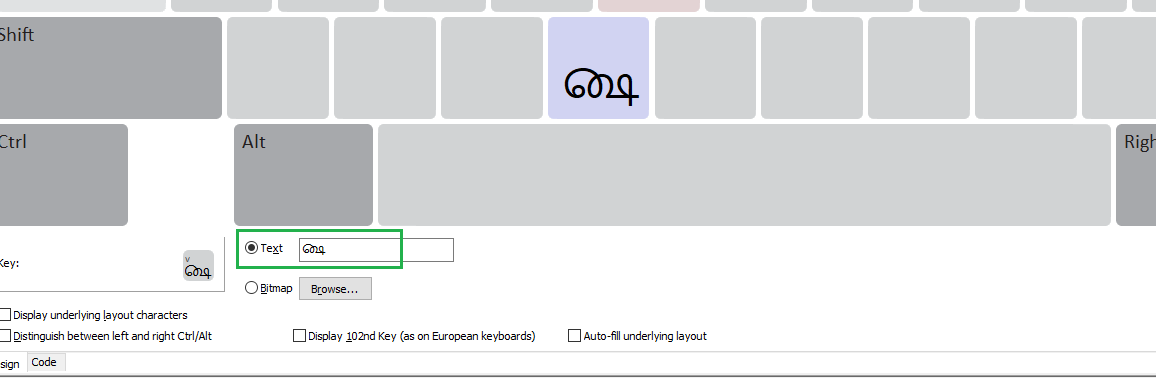
TEST_CTRL_V: Copy a single letter to the clipboard. With the key's "Output Character"/"Text" text field focused, press Ctrl+V to paste it. Try this several times, with special attention to the order in which you release the two keys -- try releasing Ctrl first, and try releasing V first (this can be a little tricky because you want to avoid the key repeating if you hold it too long!)
-
TEST_PASTE_INTO_CODE: Switch to the Code view for the current editor. Ensure that Ctrl+V works. Make sure that pressing and releasing Ctrl has no effect here.

User Test Results
Test specification and instructions
-
✅ GROUP_LAYOUT_EDITOR: Test in the Keyboard editor, Layout tab, Design view.
3 tests PASSED
- ✅ TEST_SELECT_KEY (PASSED): Tested this with attached Keyman Developer 16.0.78-alpha-test-7430 build in Windows 10 OS and here is my observations: Able to see the Select Key dialog, after pressing the Ctrl Key. Also, the correct key was selected after pressing the corresponding character key on the keyboard. (notes)
- ✅ TEST_CTRL_V (PASSED): Tested this as per the instructions. Verified the Ctrl + V in the "Output Character" text field. Tried it by releasing the Ctrl key first, and tried with releasing the V key first in this text field. I did not see the Select key dialog after releasing the Control key first. Seems to be working fine. (notes)
- ✅ TEST_PASTE_INTO_CODE (PASSED): Verified that the Ctrl+V key works in the Code view. (ie., able to paste a letter in this code view without having any problem). Pressing and releasing Control key has no effect here. (notes)
-
✅ GROUP_OSK_EDITOR: Test in the Keyboard editor, On-Screen tab, Design view.
3 tests PASSED
- ✅ TEST_SELECT_KEY (PASSED): Tested this with attached Keyman Developer 16.0.78-alpha-test-7430 build in Windows 10 OS and here is my observations: Able to see the Select Key dialog, after pressing the Ctrl Key. Also, the correct key was selected after pressing the corresponding character key on the keyboard. (notes)
- ✅ TEST_CTRL_V (PASSED): Tested this as per the instructions. Verified the Ctrl + V in the "Output Character" text field. Tried it by releasing the Ctrl key first, and tried with releasing the V key first in this text field. I did not see the Select key dialog after releasing the Control key first. Seems to be working fine. (notes)
- ✅ TEST_PASTE_INTO_CODE (PASSED): Verified that the Ctrl+V key works in the Code view. (ie., able to paste a letter in this code view without having any problem). Pressing and releasing Control key has no effect here. (notes)
-
✅ GROUP_OSK_STANDALONE_EDITOR: Open a .kvks file from File/Open, and test in the standalone OSK editor.
3 tests PASSED
- ✅ TEST_SELECT_KEY (PASSED): Tested this with attached Keyman Developer 16.0.78-alpha-test-7430 build in Windows 10 OS and here is my observations: Able to see the Select Key dialog, after pressing the Ctrl Key. Also, the correct key was selected after pressing the corresponding character key on the keyboard. (notes)
- ✅ TEST_CTRL_V (PASSED): Tested this as per the instructions. Verified the Ctrl + V in the "Output Character" text field. Tried it by releasing the Ctrl key first, and tried with releasing the V key first in this text field. I did not see the Select key dialog after releasing the Control key first. Seems to be working fine. (notes)
- ✅ TEST_PASTE_INTO_CODE (PASSED): Verified that the Ctrl+V key works in the Code view. (ie., able to paste a letter in this code view without having any problem). Pressing and releasing Control key has no effect here. (notes)
Test Artifacts
- Developer
- Keyboards
![keymanapp-test-bot[bot] avatar](https://avatars.githubusercontent.com/in/133554?v=4 "Published by a pub.dev verified publisher")
GROUP_LAYOUT_EDITOR: Test in the Keyboard editor, Layout tab, Design view.
-
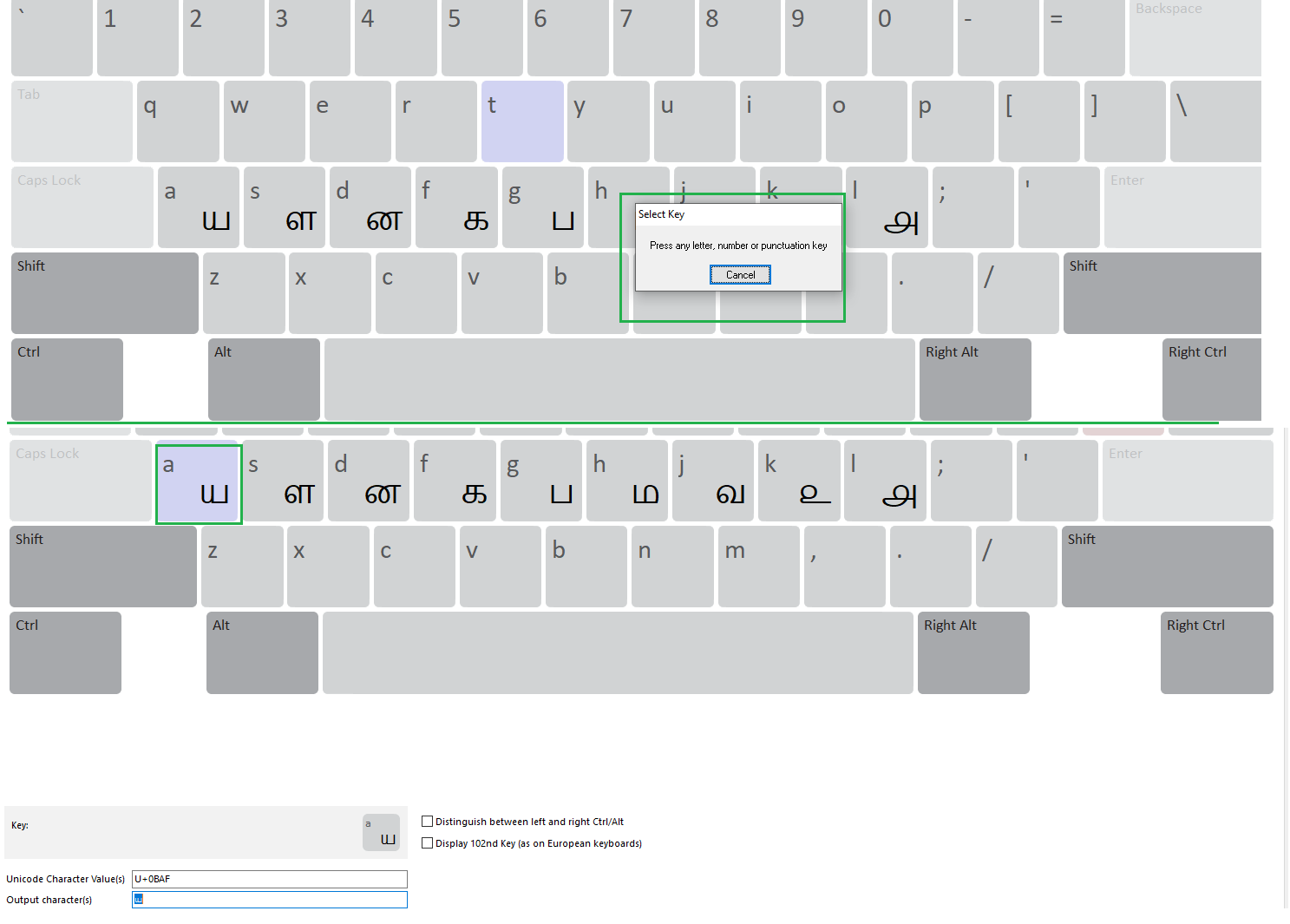
TEST_SELECT_KEY (PASSED): Tested this with attached Keyman Developer 16.0.78-alpha-test-7430 build in Windows 10 OS and here is my observations: Able to see the Select Key dialog, after pressing the Ctrl Key. Also, the correct key was selected after pressing the corresponding character key on the keyboard.
-
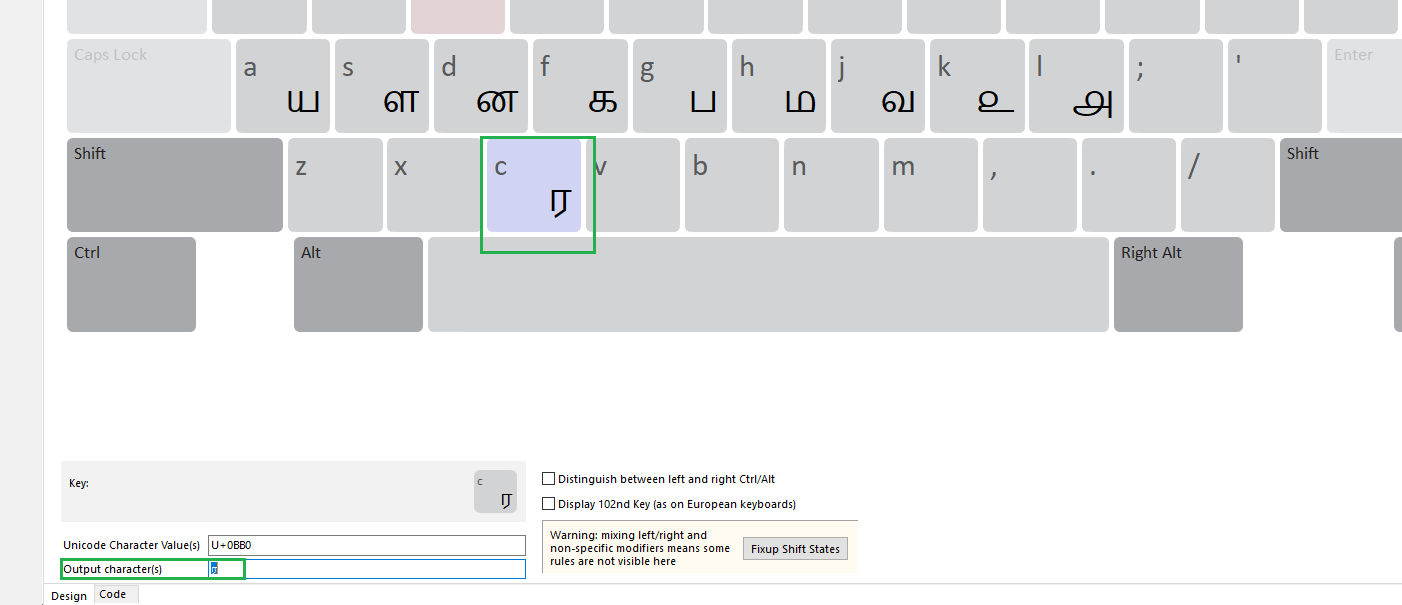
TEST_CTRL_V (PASSED): Tested this as per the instructions. Verified the Ctrl + V in the "Output Character" text field. Tried it by releasing the Ctrl key first, and tried with releasing the V key first in this text field. I did not see the Select key dialog after releasing the Control key first. Seems to be working fine.
-
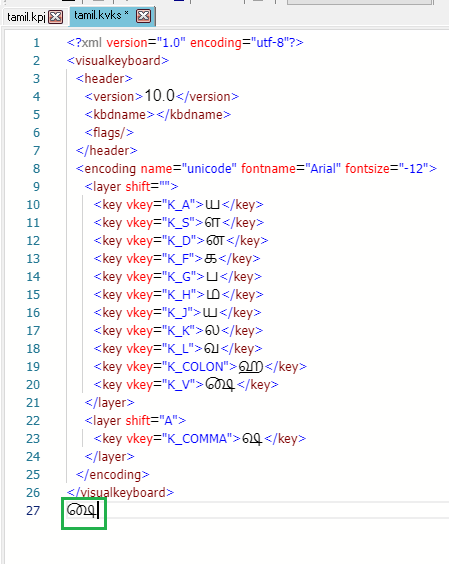
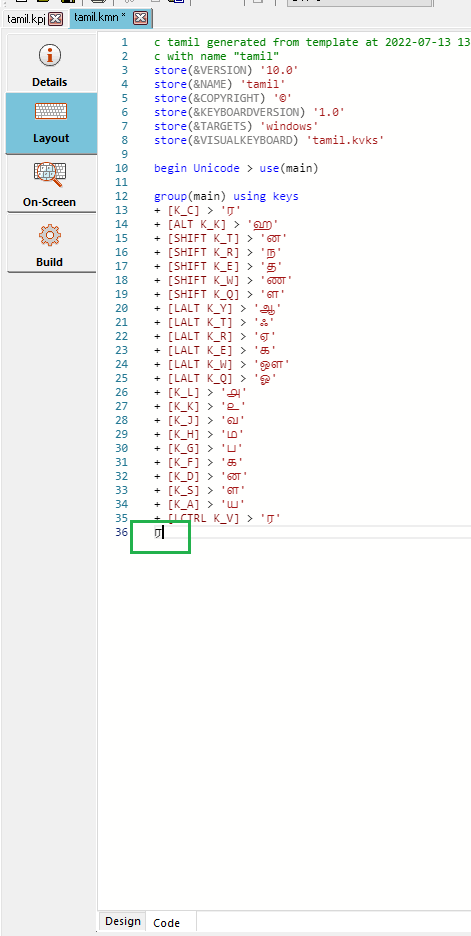
TEST_PASTE_INTO_CODE (PASSED): Verified that the Ctrl+V key works in the Code view. (ie., able to paste a letter in this code view without having any problem). Pressing and releasing Control key has no effect here.

GROUP_OSK_EDITOR: Test in the Keyboard editor, On-Screen tab, Design view.
-
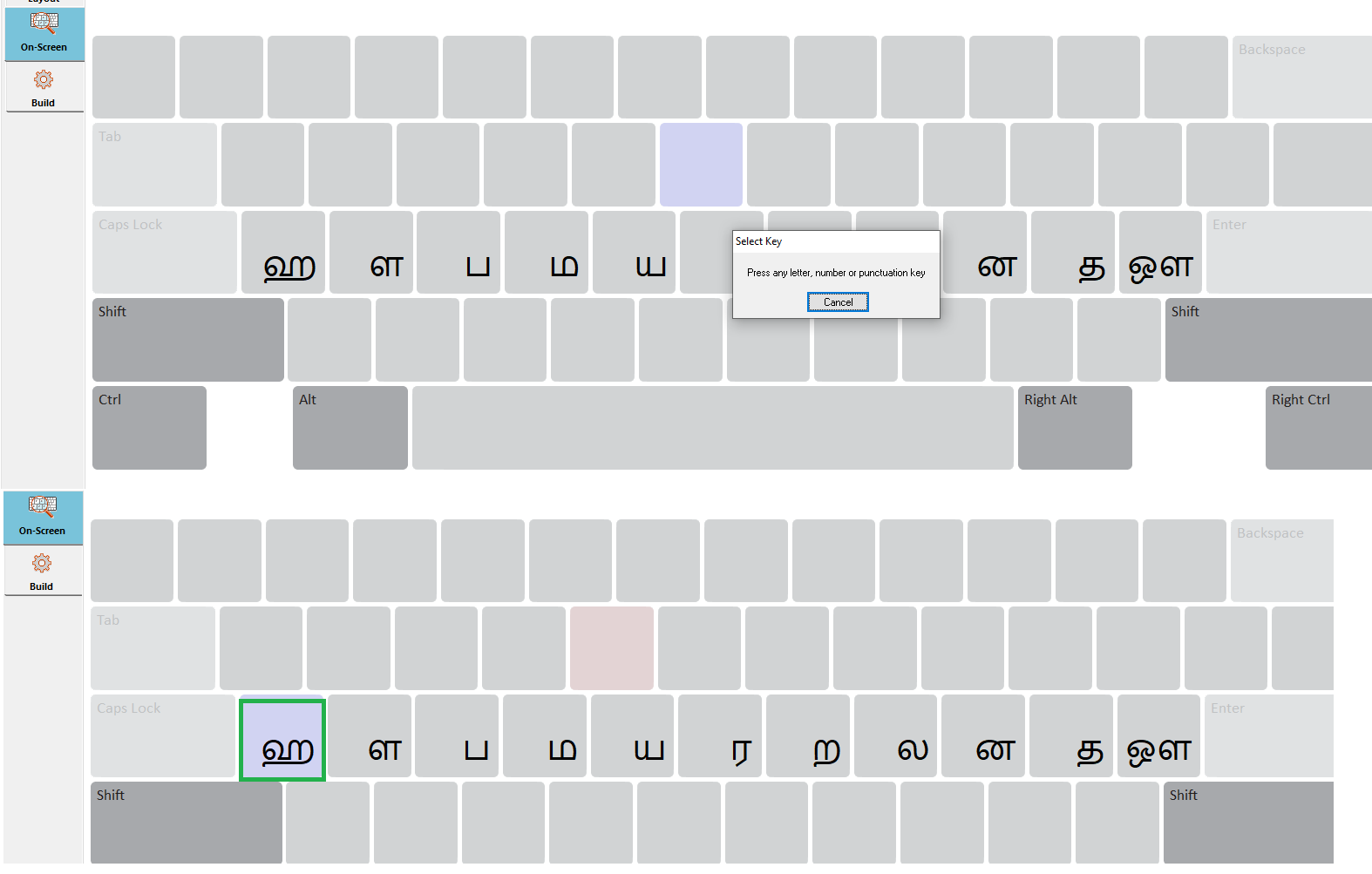
TEST_SELECT_KEY (PASSED): Tested this with attached Keyman Developer 16.0.78-alpha-test-7430 build in Windows 10 OS and here is my observations: Able to see the Select Key dialog, after pressing the Ctrl Key. Also, the correct key was selected after pressing the corresponding character key on the keyboard.
-
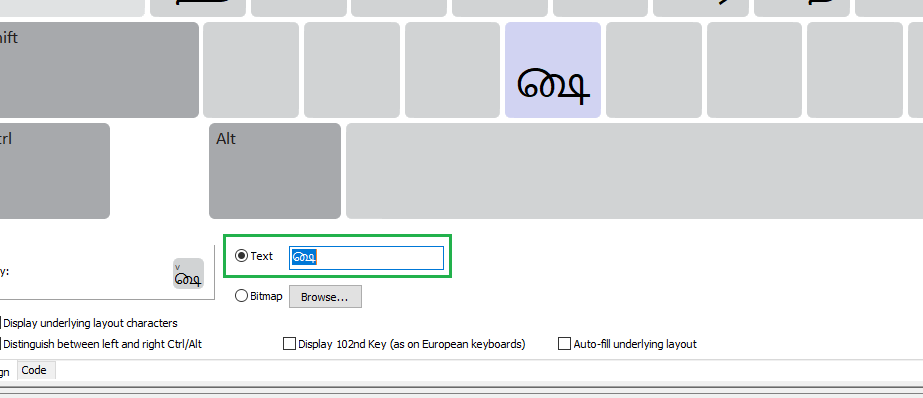
TEST_CTRL_V (PASSED): Tested this as per the instructions. Verified the Ctrl + V in the "Output Character" text field. Tried it by releasing the Ctrl key first, and tried with releasing the V key first in this text field. I did not see the Select key dialog after releasing the Control key first. Seems to be working fine.
-
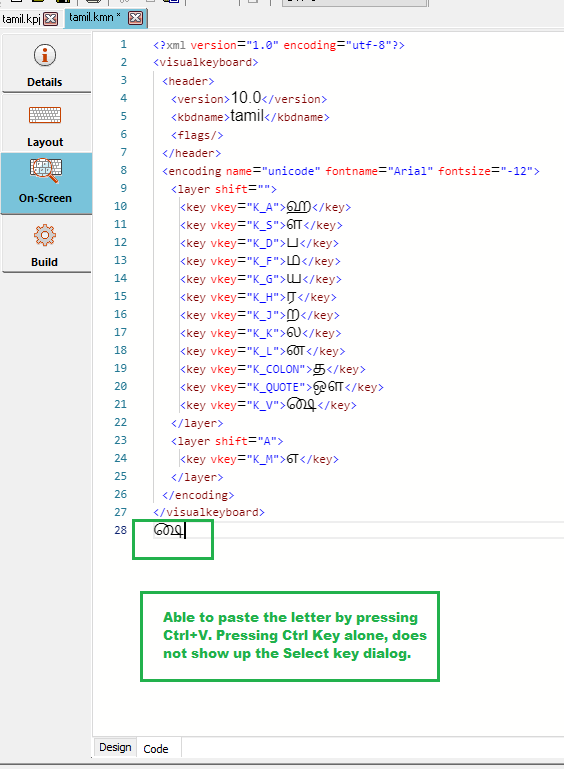
TEST_PASTE_INTO_CODE (PASSED): Verified that the Ctrl+V key works in the Code view. (ie., able to paste a letter in this code view without having any problem). Pressing and releasing Control key has no effect here.
GROUP_OSK_STANDALONE_EDITOR: Open a .kvks file from File/Open, and test in the standalone OSK editor.
-
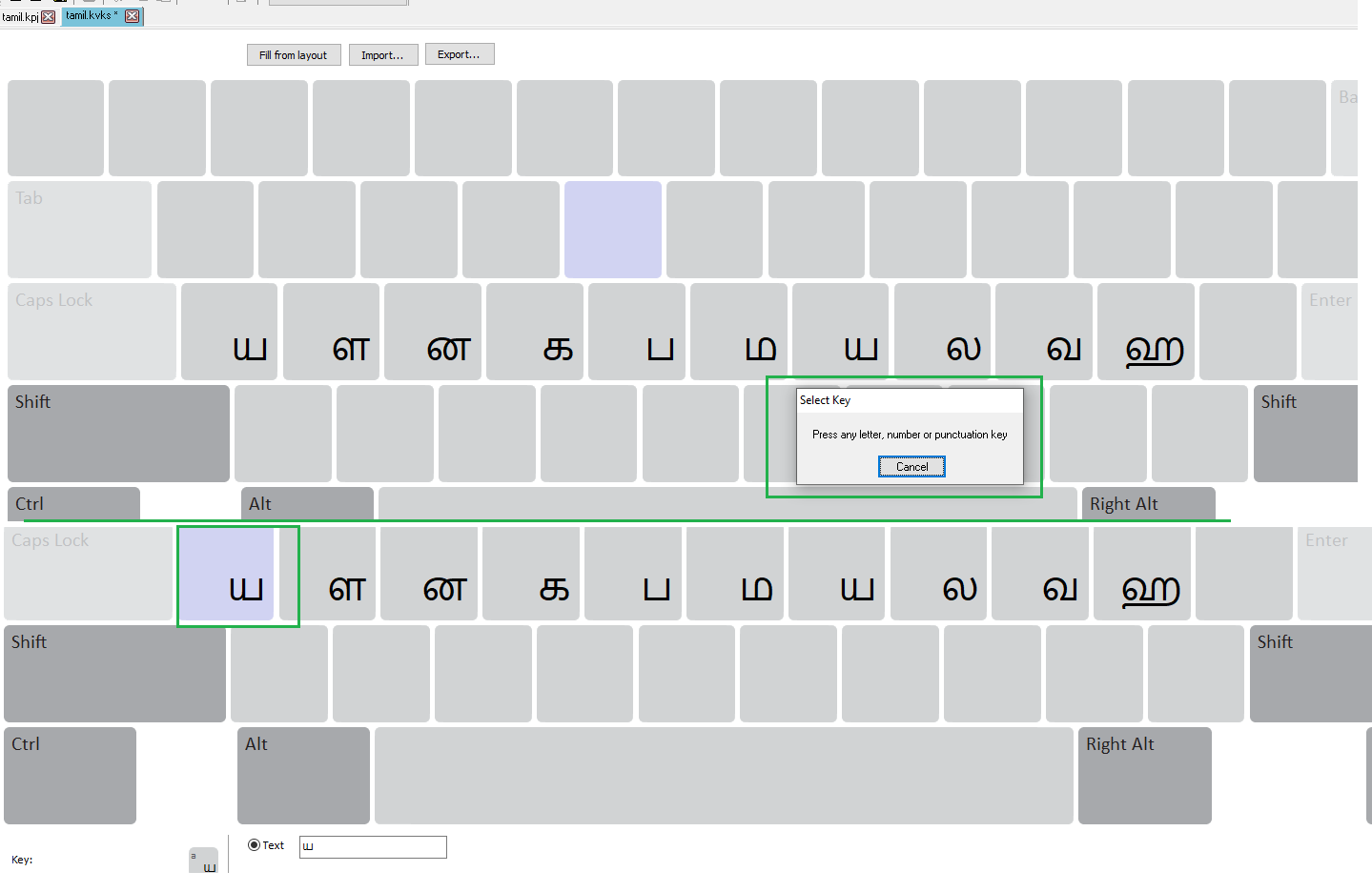
TEST_SELECT_KEY (PASSED): Tested this with attached Keyman Developer 16.0.78-alpha-test-7430 build in Windows 10 OS and here is my observations: Able to see the Select Key dialog, after pressing the Ctrl Key. Also, the correct key was selected after pressing the corresponding character key on the keyboard.
-
TEST_CTRL_V (PASSED): Tested this as per the instructions. Verified the Ctrl + V in the "Output Character" text field. Tried it by releasing the Ctrl key first, and tried with releasing the V key first in this text field. I did not see the Select key dialog after releasing the Control key first. Seems to be working fine.
-
TEST_PASTE_INTO_CODE (PASSED): Verified that the Ctrl+V key works in the Code view. (ie., able to paste a letter in this code view without having any problem). Pressing and releasing Control key has no effect here.