

 keymanapp
fix(mac): Prompt for required permissions at start time
Fixes #6110 Fixes #1725
Mac TCC (Transparency, Consent and Control) has increasingly restricted the services/data that applications have access to without explicit consent being granted by the user. In macOS Catalina (10.15), new restrictions were added that sometimes limit Keyman functionality, including breaking the shift layer and sometimes the OSK.
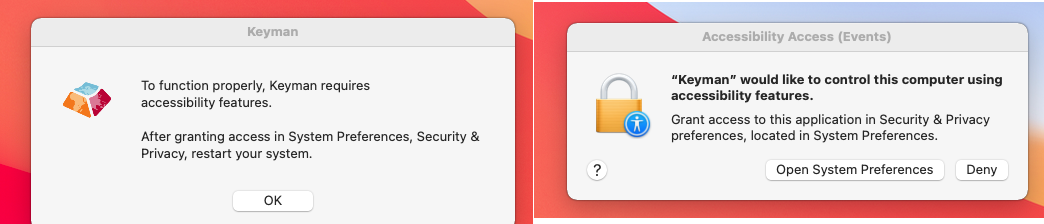
With this change, Keyman will check to see if it has the required permissions, and, if not, prompt the user with dialog No. 1:
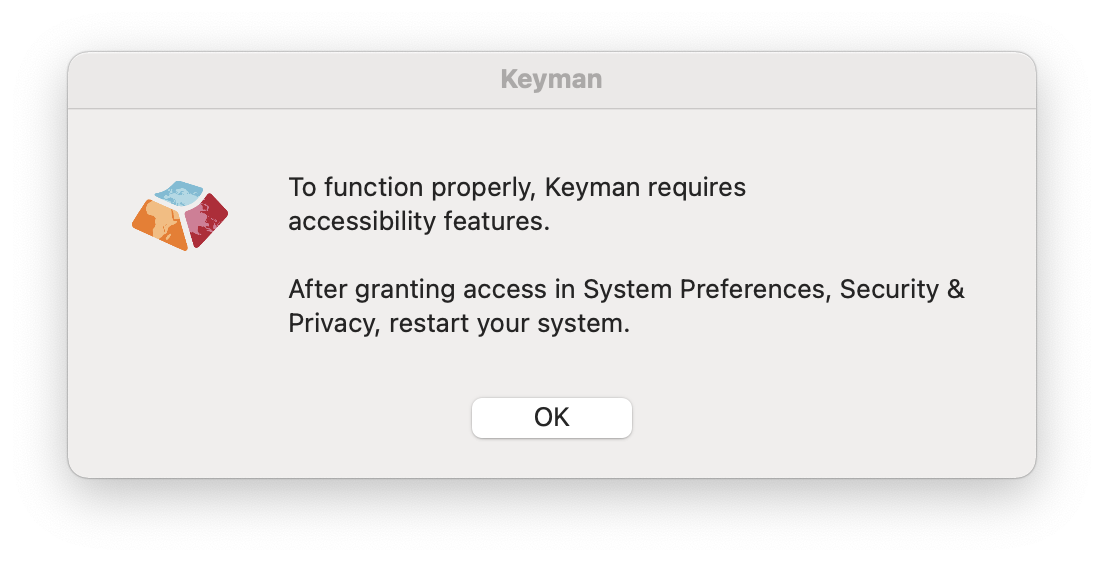
After the user dismisses the dialog, the system will prompt the user with dialog No. 2 to go to System Preferences and enable the permissions for Keyman:
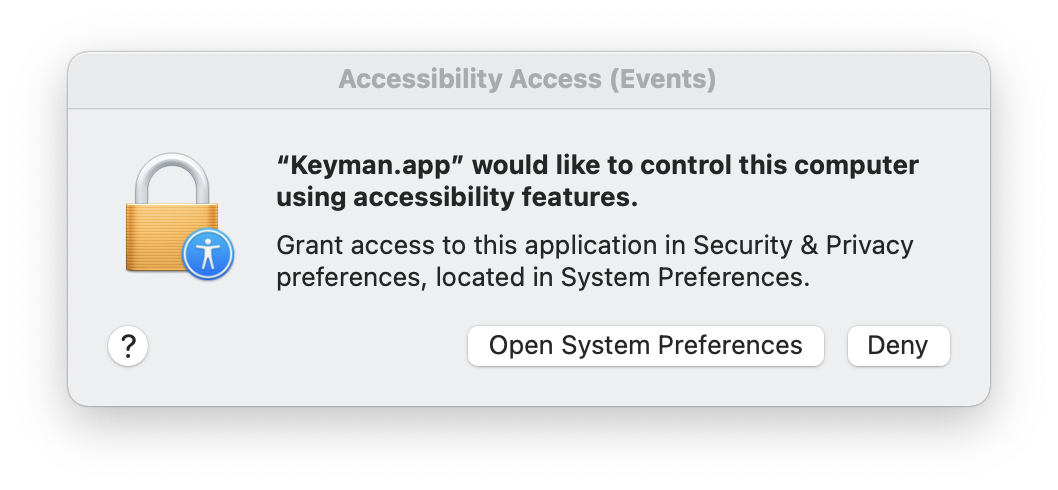
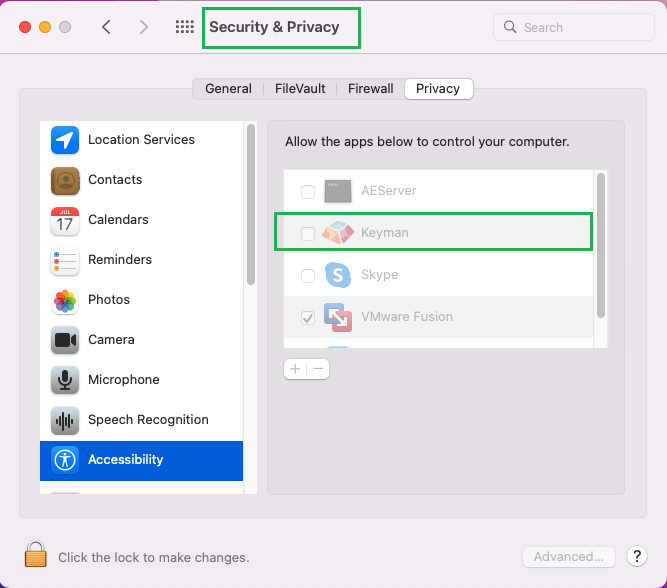
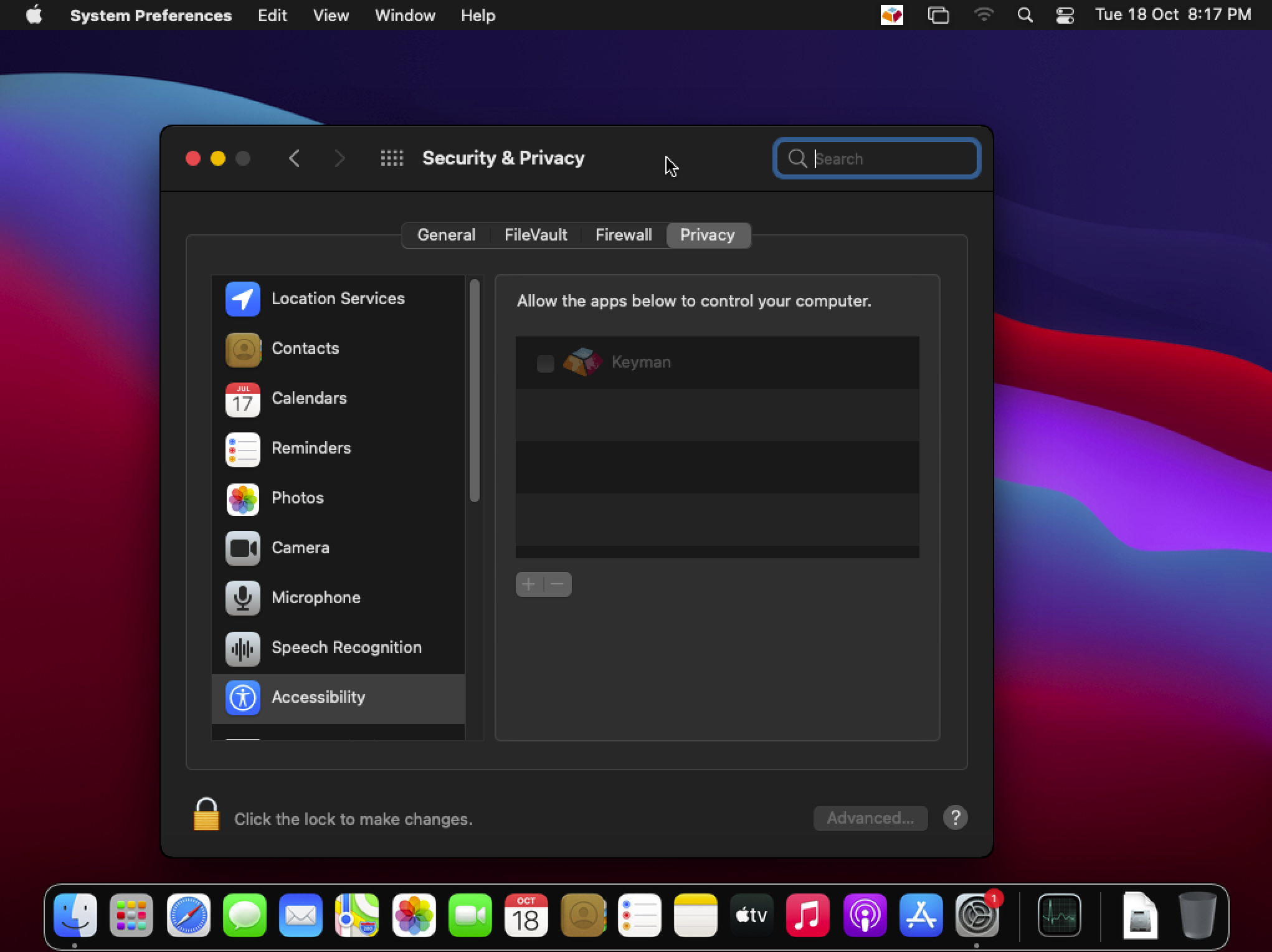
This prompt from the system will only ever happen one time -- unless record of the permission is removed by selecting Keyman in Security & Privacy Preferences where it is listed under Accessibility and deleting it.
If Accessibility is not enabled for Keyman, the first prompt from Keyman will be displayed each time that Keyman is run after restarting.
User Testing
GROUP_CATALINA_AND_LATER: Using a version of macOS 10.15 or later GROUP_PRE_CATALINA: ...
- TEST_ADD_ACCESS_WITH_CATALINA: - Using a version of macOS 10.15 or later, install Keyman
- Run Keyman for the first time by selecting it from the System Menu and confirm that dialog No. 1 is displayed.
- Dismiss dialog No. 1 by clicking OK and confirm that dialog No. 2 is displayed.
- Enable the permissions for Keyman as instructed.
- Switch to a keyboard in Keyman and confirm that the default layer types correctly but shift has no effect on what is being typed.
- Try to use the OSK and confirm that clicking on the keys does work (but not the shift layer)
- Restart the Mac.
- Test Keyman again and confirm that the shift layer now works as expected.
- TEST_ADD_ACCESS_PRE_CATALINA: - Using a version of macOS between 10.10 and 10.15, install Keyman
- Run Keyman for the first time by selecting it from the System Menu and confirm that dialog No. 1 is displayed.
- Dismiss dialog No. 1 by clicking OK and confirm that dialog No. 2 is displayed. (It will be almost identical to that displayed for the test case above.)
- Enable the permissions for Keyman as instructed.
- Switch to a keyboard in Keyman and confirm that the default layer types correctly but shift has no effect on what is being typed.
- Try to use the OSK and confirm that clicking on the keys does work (but not the shift layer)
- Restart the Mac.
- Test Keyman again and confirm that the shift layer now works as expected.
- TEST_DENY_ACCESS_AND_RESTART: - Using a version of macOS 10.15 or later, install Keyman
- Run Keyman for the first time by selecting it from the System Menu and confirm that dialog No. 1 is displayed.
- Dismiss dialog No. 1 by clicking OK and confirm that dialog No. 2 is displayed.
- Dismiss dialog No. 2 by clicking Deny.
- Restart the Mac
- Run Keyman again and confirm that dialog No. 1 is displayed.
- Dismiss the dialog and confirm that dialog No. 2 is not displayed.
- Go to Privacy & Security settings in System Preferences and confirm that Keyman is listed -- but unchecked -- for the Accessibility permission.

User Test Results
Test specification and instructions
-
✅ GROUP_CATALINA_AND_LATER: Using a version of macOS 10.15 or later
-
✅ GROUP_PRE_CATALINA: Using a version of macOS before 10.15
Test Artifacts
- macOS
![keymanapp-test-bot[bot] avatar](https://avatars.githubusercontent.com/in/133554?v=4 "Published by a pub.dev verified publisher")
-
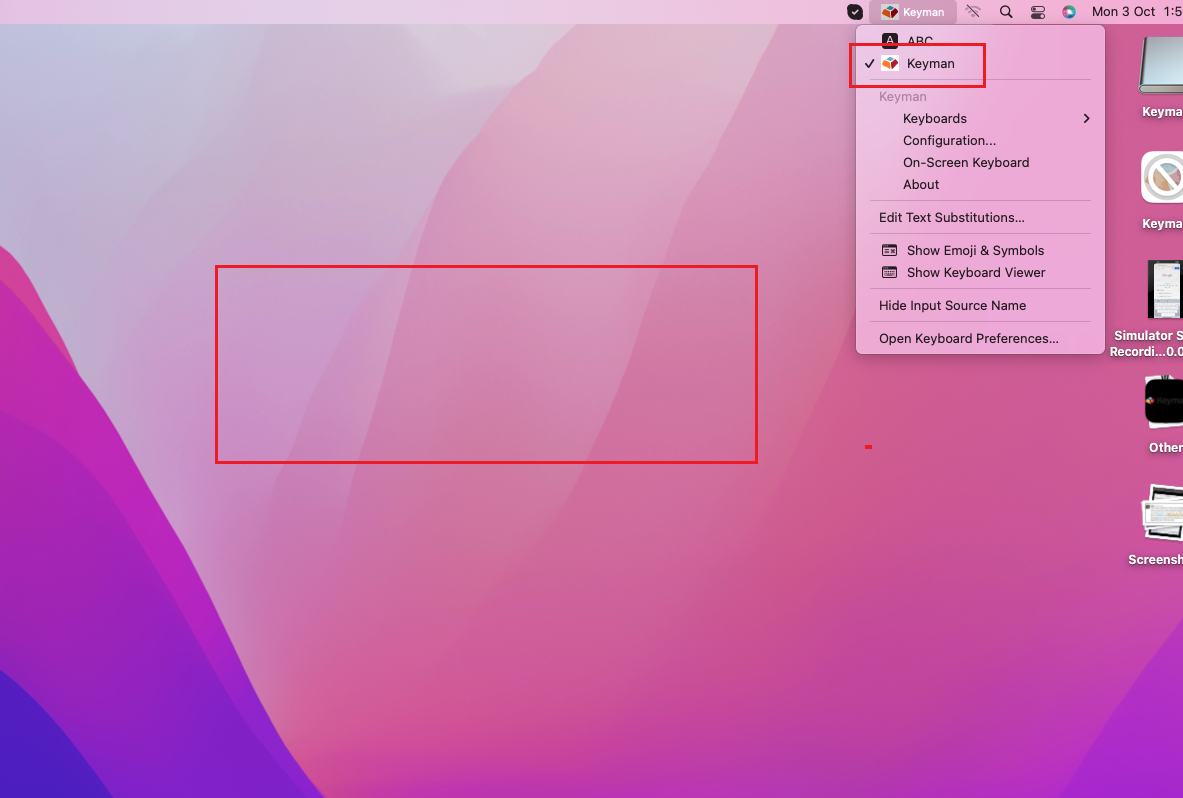
TEST_ADD_ACCESS_WITH_CATALINA (FAILED): Tested this with the attached PR build (Keyman 16.0.270-alpha-test-7354) in Macmini OS, Version 12.06 and I noticed that after opening Keyman I did not see the dialog No.1 on the Screen.
-
TEST_ADD_ACCESS_PRE_CATALINA (FAILED): Tested this with the attached PR build (Keyman 16.0.270-alpha-test-7354) in Macmini OS, Version 12.06 and I noticed that after opening Keyman I did not see the dialog No.1 on the Screen.
-
TEST_DENY_ACCESS_AND_RESTART (FAILED): Tested this with the attached PR build (Keyman 16.0.270-alpha-test-7354) in Macmini OS, Version 12.06 and I noticed that after opening Keyman I did not see the dialog No.1 on the Screen.

It looks like you used the same version of macOS with all three tests. Catalina is 10.15. Can you test with a version of macOS prior to 10.15 for the second test?
What is macOS version 12.06? I don't see any reference to that version. Did you mean 12.6?
Are you doing the tests with a completely new install -- no remnants of Keyman existing on the system? If there are entries in System Preferences, Privacy & Security to Keyman, then the tests will be invalid. Let me know if you need help with ensuring that everything from previous versions is removed.
Hi @sgschantz , I am using macOS Monterey 12.6 version. Here, what I did is: Completely uninstalled the existing Keyman 16.0 from System Preferences / Keyboard / Input Sources. Then, I installed the attached PR build in the Mac OS. After installing it, I just clicked the keyman from the system tray and noticed that no dialog has been displayed on the screen.
Hence, the first test failed, I failed the other 2 tests. (since, I don't have the old version of macOS)
Could you please, guide me how to test this PR with macOS 12.6? Or how to move back to the Older version (like 10.10 and 10.15) of macOS from the current version? Thanks.
Does @MakaraSok know a way to test with older versions of macOS? I haven't done that myself, but I thought he had a way...I hope.
To test this as if it is a new installation of Keyman, you must first remove all mention of Keyman from System Preferences, Security & Privacy, before removing the actual Keyman app:
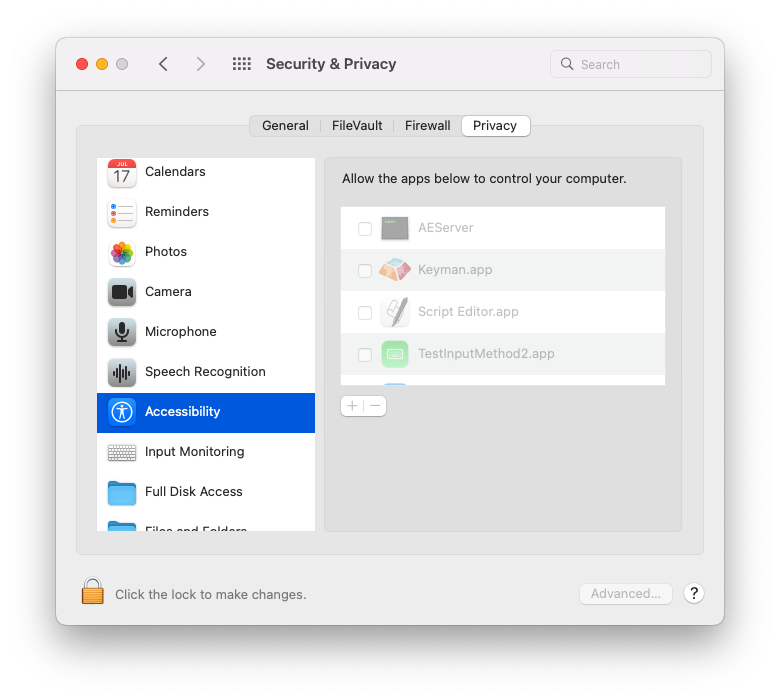
It is shown above in Accessibility, but it may also be listed under Input Monitoring and Full Disk Access or Files and Folders. Even though it is unchecked as shown, it must be deleted from the list. If Keyman is listed here and the app is then deleted from disk, then it will also disappear from all Security & Privacy lists. However, this does not mean that all settings are gone; they may automatically reappear when you install Keyman again.
Therefore, you must manually remove all Keyman references from Security & Privacy before trashing the Keyman app itself.
Let me know if you want to meet and go over any of this. It's a little tricky, and I'm still not sure how the system handles permissions for different versions of the same app.
Hi @sgschantz , I am using macOS Monterey 12.6 version. Here, what I did is: Completely uninstalled the existing Keyman 16.0 from System Preferences / Keyboard / Input Sources. Then, I installed the attached PR build in the Mac OS. After installing it, I just clicked the keyman from the system tray and noticed that no dialog has been displayed on the screen.
Hence, the first test failed, I failed the other 2 tests. (since, I don't have the old version of macOS)
Could you please, guide me how to test this PR with macOS 12.6? Or how to move back to the Older version (like 10.10 and 10.15) of macOS from the current version? Thanks.
Hi @sgschantz , Thank you so much for your guidance. Now, I am able to see the 2 dialogs after installing the Keyman 16.0.70-alpah-test-7354 in macOS. I will do my further testing on it.
@keymanapp-test-bot retest TEST_ADD_ACCESS_WITH_CATALINA TEST_ADD_ACCESS_PRE_CATALINA TEST_DENY_ACCESS_AND_RESTART
-
TEST_ADD_ACCESS_WITH_CATALINA (PASSED): Retested as per Shawn's guidance and here is my observations. After installing the Keyboard, the SHIFT layer is has no effect on what is being typed. I tried with the OSK and seeing the same behavior.
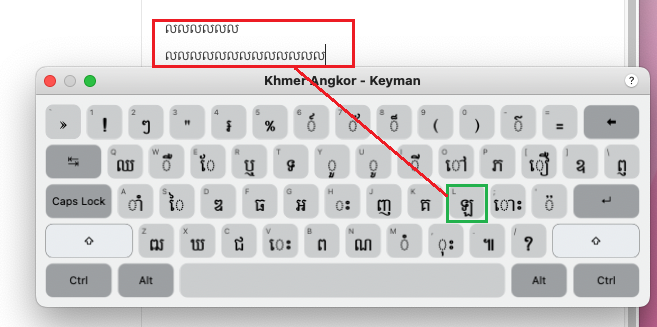
After restarting MacOS, I am able to use the Shift layer. (ie., typing with the shift layer produces the corresponding output) Seems to be working as expected.
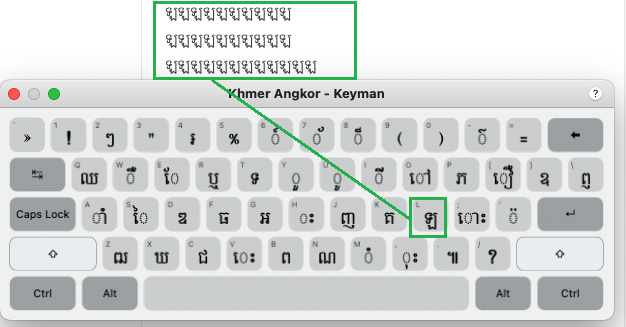
-
TEST_DENY_ACCESS_AND_RESTART (PASSED): Tested this as per the instructions and here is my observation. 1. Dialog no.2 is not displayed after restarting the Mac. 2. The Keyman app is unchecked under Security & Privacy Settings window. Seems to be working as expected.
- TEST_ADD_ACCESS_PRE_CATALINA (SKIPPED): Tried to downgrade the macOS from 12.6 to 10.5 with the help of our Network Admin. And it seems to be a tedious process. It would be better to test in a mac machine which has 10.10 / 10.15 OS. So, skipped this test. Thanks.
@keymanapp-test-bot retest TEST_ADD_ACCESS_WITH_CATALINA TEST_ADD_ACCESS_PRE_CATALINA TEST_DENY_ACCESS_AND_RESTART

Test Results
-
TEST_ADD_ACCESS_WITH_CATALINA (PASSED): test on macOS Big Sur 11.0.1 (20B29) using the dmg file of this PR
-
dialog No. 1 does appear when trigger Keyman for the first time.

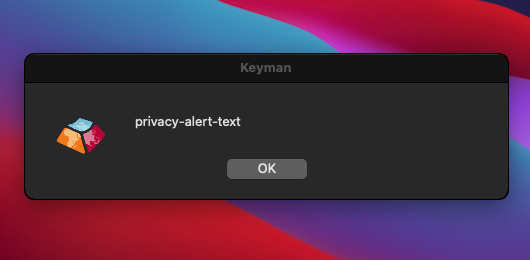
Note though, the message is shown as "privacy_alert_text" if the language chosen in other than English, i.e. Hausa
-
dialog No. 2 does appear after clicking
OKon dialog No. 1: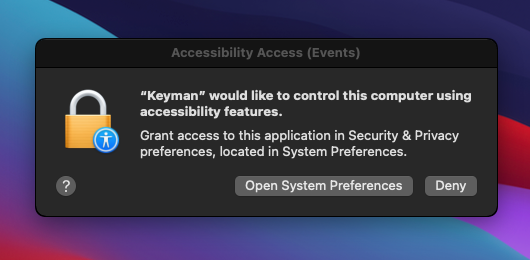
-
before restarting: the keyboard only work on default layer; shift doesn't do its job, so do right alt and shift+right alt. The same character as that of the key on default layer is output instead. With Khmer Angkor selected, on the hardware keyboard:
- press
k, output ក (✅) - press
K, output ក (❌) - expected គ - press
right alt+k, output ក (❌) - expected ឝ - press
right alt+K, output ក (❌) - expected ᧳
- press
-
after restarting:
- press
k, output ក (✅) - press
K, output គ (✅) - press
right alt+k, output ˚ (❌) - expected ឝ - press
right alt+K, output (❌) - expected ᧳
- press
-
-
TEST_ADD_ACCESS_PRE_CATALINA (FAILED): tested on macOS Mojave
10.14 (18A391)using the dmg file of this PR- dialog No. 1 does appear when trigger Keyman for the first time:
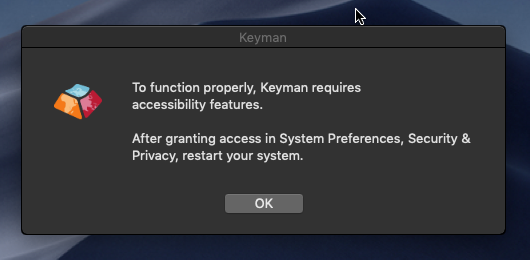
- dialog No. 2 does appear after clicking
OKon dialog No. 1:
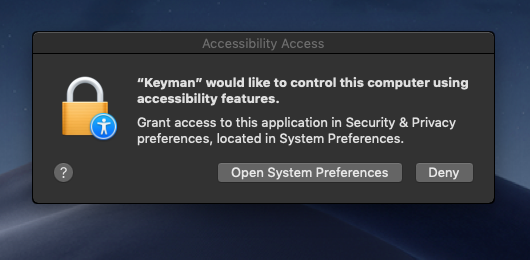
- both default and shift layers are working before restarting, except right alt and shift right alt. With Khmer Angkor selected, on the hardware keyboard:
- press
k, output ក (✅) - press
K, output គ (✅) - press
right alt+k, output ˚ (❌) - press
right alt+K, output (❌)
- press
- after restarting, the same behaviors observed -- the alt and shift+right alt layers are not working as expected.
right alt+kshould output ឝ andright alt+K᧳.
-
TEST_DENY_ACCESS_AND_RESTART (FAILED):
-
tested on macOS Mojave
10.14 (18A391)using the dmg file of this PR- dialog No. 2 does appear again after restarting or after force quit and restarting Keyman from the language dropdown menu.
- Keyman is listed and uncheckded in the System Preferences > Privacy & Security > Accessibility.
-
tested on macOS Big Sur
11.0.1 (20B29)using the dmg file of this PR- dialog No. 2 doesn't appear again after restarting the machine.
- Keyman is listed and uncheckded in the System Preferences > Privacy & Security > Accessibility.
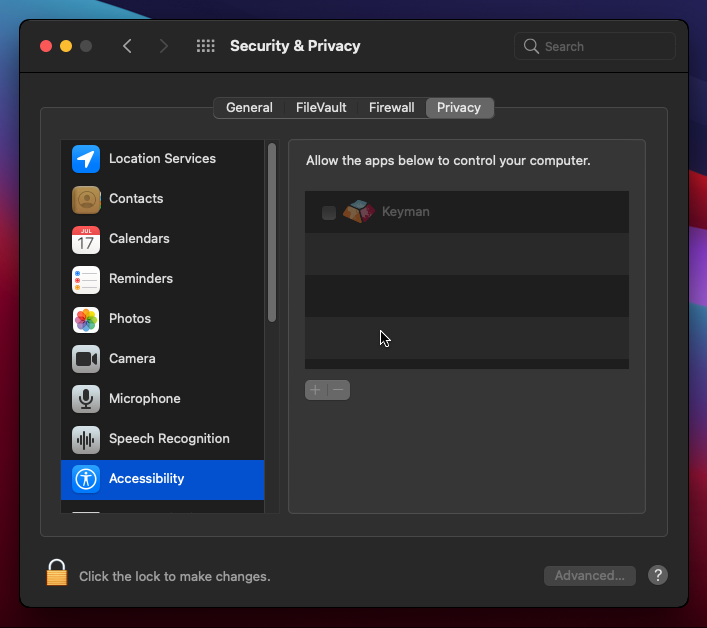
-
- TEST_DENY_ACCESS_AND_RESTART
@sgschantz, I think we should reorganise these tests using groups for the test bot.
GROUP_CATALINA: Using a version of macOS 10.15 or later GROUP_PRE_CATALINA: Using a version of macOS between 10.10 and 10.15
@MakaraSok, you marked the test as passing for TEST_ADD_ACCESS_WITH_CATALINA, but it seems like it wasn't working correctly?
after restarting:
- press
k, output ក (✅)- press
K, output គ (✅)- press
right alt+k, output ˚ (❌) - expected ឝ- press
right alt+K, output (❌) - expected ᧳

The behaviors observes when testing with the current stable version (15.0.270).
Press k on the default, shift, right alt and right alt + shift output the following:
- before allowing Keyman in the accessibility: កគ˚˚
- after allowing Keyman in the accessibility (before restarting the machine): កគឝ᧳˚
- after restarting the machine: កគឝ᧳˚
@MakaraSok, you marked the test as passing for TEST_ADD_ACCESS_WITH_CATALINA, but it seems like it wasn't working correctly?
@mcdurdin It works as indicated in the instructions. Shift is not expected to be working before restarting, but is afterwards. In an essence, it's only fair to say it's PASSED, isn't it?
- Switch to a keyboard in Keyman and confirm that the default layer types correctly but shift has no effect on what is being typed.
- Try to use the OSK and confirm that clicking on the keys does work (but not the shift layer)
- Restart the Mac.
- Test Keyman again and confirm that the shift layer now works as expected.
The behaviors on the right alt and right alt+shift are extra observation while testing with Khmer Angkor with those layers utilized.
The behaviors on the right alt and right alt+shift are extra observation while testing with Khmer Angkor with those layers utilized.
I see. Can you call those out as a separate issue then?
GROUP_CATALINA_AND_LATER: Using a version of macOS 10.15 or later
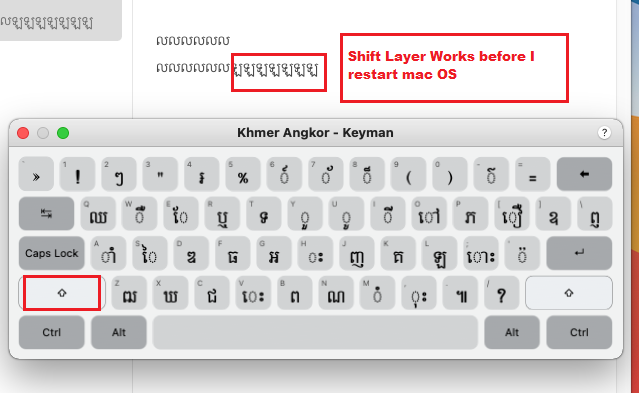
- TEST_ADD_ACCESS_PRE_CATALINA (FAILED): Tested this with the attache PR build in "Big Sur 11.0.1" macOS (VM) and here is my observation: Able to see the first two dialogs after installing the Keyman build. However, the Shift Layer is working before I restarted the machine. Seems to be an issue.
.. 2 dialogues..
..Shift Layer is working before I restarted the machine.
GROUP_CATALINA_AND_LATER: Using a version of macOS 10.15 or later
-
TEST_DENY_ACCESS_AND_RESTART (PASSED): Tested this with the attached PR build in "Big Sur 11.0.1" macOS (VM) and I noticed that after restarted the machine, the Keyman is listed - but unchecked - in the Accessibility permission.

GROUP_CATALINA_AND_LATER: Using a version of macOS 10.15 or later
- TEST_ADD_ACCESS_WITH_CATALINA (FAILED): Tested this with the attache PR build in "Big Sur 11.0.1" macOS (VM) and here is my observation: Able to see the first two dialogs after installing the Keyman build. The Shift layer is not working in the hardware keyboard. However, it is working in fine while using the OSK before I restarted the machine. Seems to be an issue.
GROUP_PRE_CATALINA: Using a version of macOS before 10.15
-
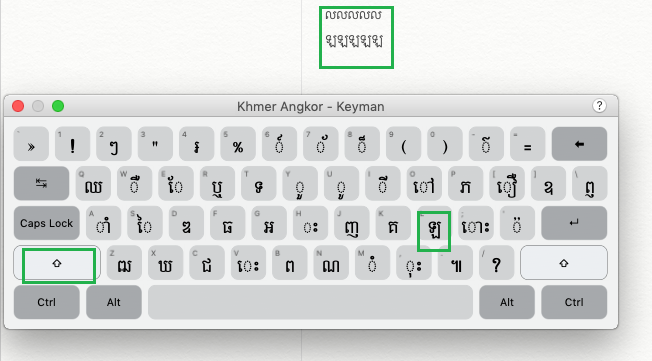
TEST_ADD_ACCESS (PASSED): Tested this in Mojave macOS 10.14.6 (VM) with Keyman 16.0.70-alpha-test-7354 build and here is my observation: Verified the two dialogues appears on the screen. Able to see the Keyboard is working in both the default layer and the shift layer.
-
TEST_DENY_ACCESS (PASSED): Tested this in Mojave macOS and verified that after restarting the OS, the System Preferences window is now displayed with Keyman unchecked for Accessibility

GROUP_CATALINA_AND_LATER: Using a version of macOS 10.15 or later
-
TEST_ADD_ACCESS (PASSED): Tested this in Big Sur 11.0.1 macOS (VM) with Keyman 16.0.70-alpha-test-7354 and verified that the two dialogues appear one after the other. Able to see the Keyboard is working in both the default layer and the shift layer.

-
TEST_DENY_ACCESS (PASSED): Tested this in Big Sur macOS and verified that after restarting the OS, the System Preferences window is now displayed with Keyman unchecked for Accessibility

@keymanapp-test-bot retest all
I'd like to retest this as the behaviors experienced previously were not consistent.
Test Results
GROUP_CATALINA_AND_LATER: Using a version of macOS 10.15 or later
Tested on a fresh macOS Big Sur 11.0.1 (20B29)
-
TEST_ADD_ACCESS (PASSED):
- Dialog No. 1 is indeed displayed when triggered Keyman from the dropdown menu.
- Dialog No. 2 does show up and the Security & Privacy is indeed displayed atop dialog No. 2 surfacing Accessibility with Keyman shown in the list of apps to be allowed (see the screenshot below).

- confirm that the OSK and "shift" layer work correctly after allowing Keyman in the Accessibility and restarting the system
-
TEST_DENY_ACCESS (PASSED):
- Dialog No. 1 is indeed displayed when triggered Keyman from the dropdown menu.
- Click the OK button does display the System Preferences window with dialog No. 2 in the background
- After denying and restarting the system, Keyman's dialog No. 1 shows up by itself without users' input (bug report - https://github.com/keymanapp/keyman/issues/7485); however, the Security & Privacy does show up with Keyman listed under Accessibility and it's unchecked (see the screenshot below).
GROUP_PRE_CATALINA: Using a version of macOS before 10.15
Tested on a fresh macOS Mojave 10.14 (18A391)
-
TEST_ADD_ACCESS (PASSED):
- Dialog No. 1 is indeed displayed when triggered Keyman from the dropdown menu.
- Dialog No. 2 does show up and the Security & Privacy is indeed displayed atop dialog No. 2 surfacing Accessibility with Keyman shown in the list of apps to be allowed (see the screenshot below).

- confirm that the OSK and "shift" layer work correctly after allowing Keyman in the Accessibility and restarting the system
-
TEST_DENY_ACCESS (PASSED):
- Dialog No. 1 is indeed displayed when triggered Keyman from the dropdown menu.
- Click the OK button does display the System Preferences window with dialog No. 2 in the background
- After denying and restarting the system, Keyman's dialog No. 1 shows up by itself without users' input (bug report - https://github.com/keymanapp/keyman/issues/7485); however, the Security & Privacy does show up with Keyman listed under Accessibility and it's unchecked (see the screenshot below).


