

 keymanapp
test(linux): Regression Tests for Keyman for Linux Alpha [please record the version number]
Keyman for Linux Acceptance Test Procedures
- These test procedures are to be run before moving from alpha to beta, or beta to stable, or before PRs are merged into stable branches.
- Copy these checklists of tests into a new issue (for tier transitions) or a comment on the PR.
- When annotating results, use
>at the start of a new line under the checkbox to note the result. (For an example, see #3973).
General remark to the groups below
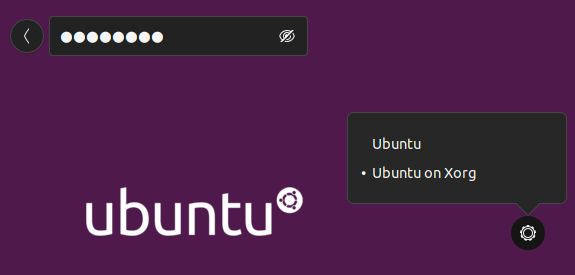
The login screen allows you to select different environments by clicking on the cog symbol. Different Ubuntu versions put it in different places and use slightly different icons. In the groups below the menu item to select is put in parenthesis and quotes, e.g. Ubuntu 18.04 Bionic with Gnome Shell and X11 ("Ubuntu").

Gather Assets for Testing
click to expand
Either VM or physical machine will work.
-
[ ] Ubuntu 18.04 Bionic with Gnome Shell and X11 ("Ubuntu")
-
[ ] Ubuntu 20.04 Focal with Gnome Shell and X11 ("Ubuntu")
-
[ ] Ubuntu 22.04 Jammy with Gnome Shell and X11 ("Ubuntu on Xorg")
Expand to see how to do and verify this
-
when login in, click the cog and select "Ubuntu on Xorg"
-
verify that you're using X11 by running the following command in a terminal:
echo $XDG_SESSION_TYPEThis should output
x11.
-
-
[ ] Ubuntu 22.04 Jammy with Gnome Shell and Wayland ("Ubuntu")
Expand to see how to do and verify this
-
when login in, click the cog and select "Ubuntu" (not "Ubuntu on Xorg")
-
verify that you're using Wayland by running the following command in a terminal:
echo $XDG_SESSION_TYPEThis should output
wayland.
-
-
[ ] Wasta 20.04 with Cinnamon ("Cinnamon (Default)")
Setup Steps
click to expand
-
[ ] Install latest updates on the system:
sudo apt update
sudo apt --autoremove upgrade
On Ubuntu 18.04 Bionic use the following commands instead:
sudo apt update sudo apt upgrade sudo apt autoremove -
[ ] Uninstall previous versions of Keyman for Linux on the system:
sudo apt --autoremove remove keyman ibus-keyman python3-keyman-config libkmnkbp0-0On Ubuntu 18.04 Bionic use these commands instead:
sudo apt remove keyman ibus-keyman python3-keyman-config libkmnkbp0-0 sudo apt autoremove -
[ ] Remove left-over artifacts by running:
rm -rf ~/.local/share/keyman/ sudo rm -rf /usr/local/share/keyman/ -
[ ] Remove all keyboards from Input Sources that except "English (US)"
- From Ubuntu, start "Settings" --> "Region & Language" (in newer Ubuntu versions: "Settings" --> "Keyboard")
- On Wasta Linux, open IBus Keyboards instead --> Input Method tab
-
[ ] Add the ppa (for pre-beta tests, replace
keyman-betawithkeyman-alpha):sudo add-apt-repository ppa:keymanapp/keyman-beta sudo apt update -
[ ] Add a second non-Keyman keyboard so that the language/keyboard dropdown shows (these are the steps for Ubuntu; for Wasta they are similar):
Expand to see the steps
-
From Ubuntu, start "Settings" --> "Region & Language" (in newer Ubuntu versions: "Settings" --> "Keyboard"; on Wasta Linux open IBus Preferences which can be opened by typing "ibus keyboards").
-
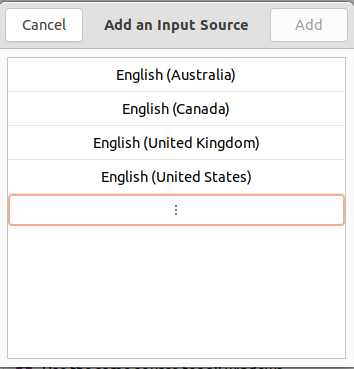
Below "Input Sources" click the "+" and then the three dots:
-
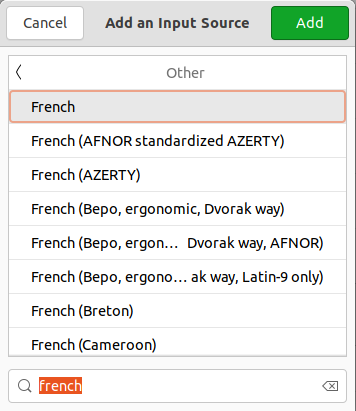
in the search field, type "French" (or any other language), "Other" and then of the French keyboards and finally the "Add" button.
-
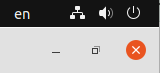
now the language/keyboard dropdown will show. If not, reboot.
-
-
[ ] Reboot
-
[ ] Install Nanum fonts for typing Korean:
sudo apt install fonts-nanum -
[ ] Change "Complex text layout" setting in LibreOffice Writer:
Expand to see the steps
-
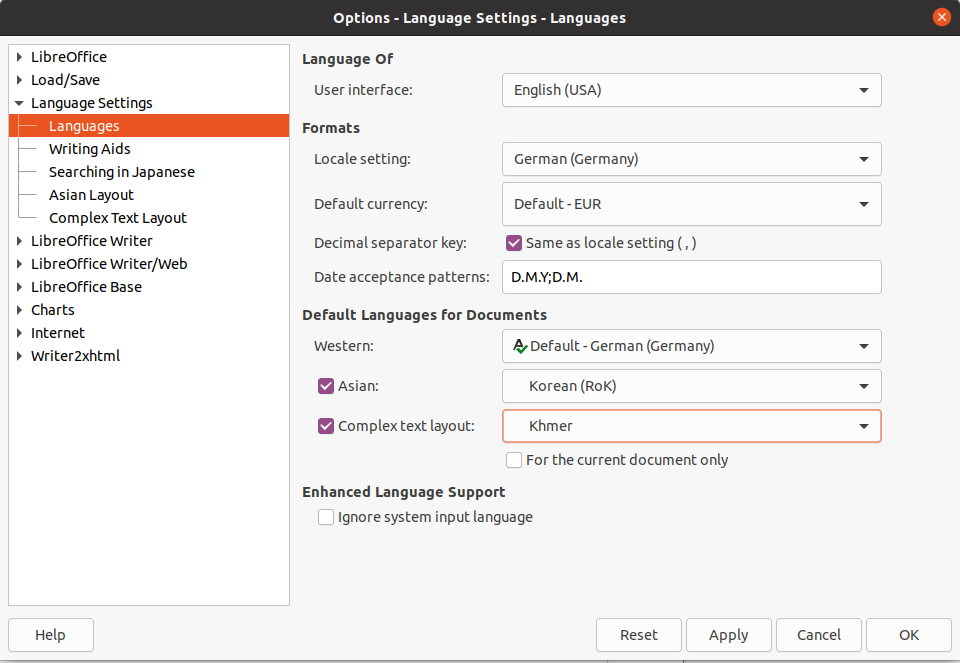
In LO Tools/Options, go to the Language Settings/Languages tab. Under "Default Languages for Documents" check the box for "Asian" and select "Korean (RoK)" as language, and check "Complex text layout" and select "Khmer" as language.
-
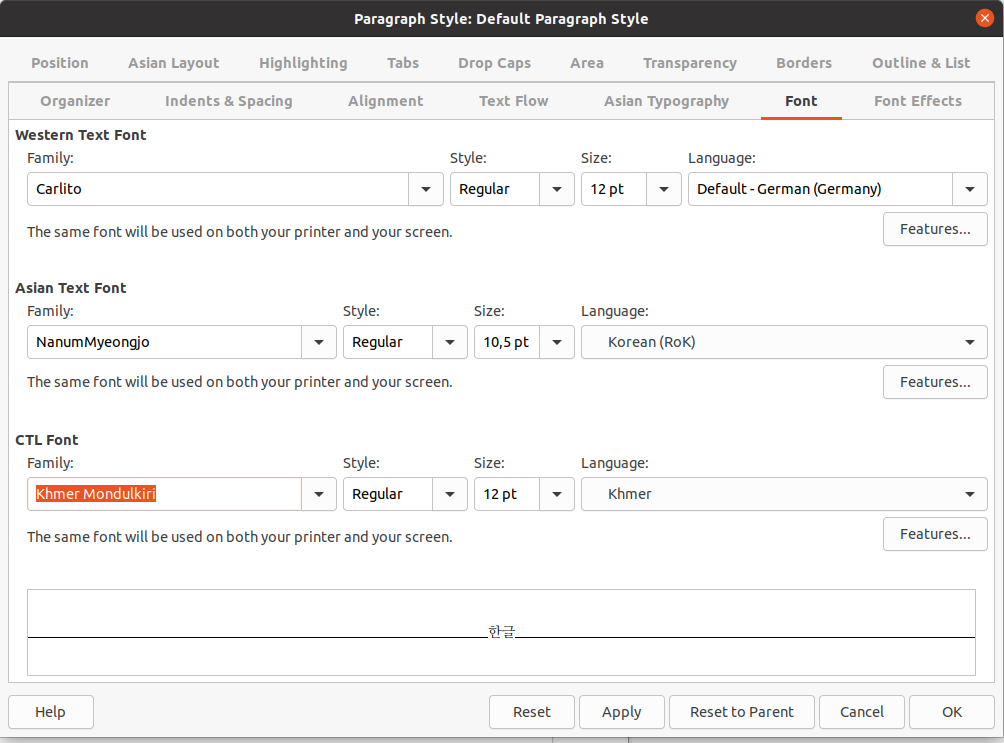
You'll also have to change the default style: go to Styles/Manage Styles, right-click on "Default Paragraph Style" and select Modify. Go to the Font tab. For Asian Text Font, select Family "NanumMyeongjo" and Language "Korean (RoK)". For CTL Font, select Family "Khmer Mondulkiri" (or another "Khmer" font) and Language "Khmer".
-
User Testing
click to expand
SUITE_INSPECT: Visual Inspection of master/beta branches
- TEST_CI_MASTER: Verify the master build for Linux reports green on https://status.keyman.com
- TEST_CI_BETA: Verify the beta build for Linux reports green on https://status.keyman.com
-
TEST_VERIFY_HISTORY: Verify
/HISTORY.mdcontains all the current changes
SUITE_INSTALLATION: Basic installation
- GROUP_BIONIC: Ubuntu 18.04 Bionic with Gnome Shell and X11 ("Ubuntu")
- GROUP_FOCAL: Ubuntu 20.04 Focal with Gnome Shell and X11 ("Ubuntu")
- GROUP_JAMMY_X11: Ubuntu 22.04 Jammy with Gnome Shell and X11 ("Ubuntu on Xorg")
- GROUP_JAMMY_WAYLAND: Ubuntu 22.04 Jammy with Gnome Shell and Wayland ("Ubuntu")
- GROUP_WASTA: Wasta 20.04 with Cinnamon ("Cinnamon (Default)")
Tests
-
TEST_INSTALL: Install keyman and onboard
-
in a terminal window, run:
sudo apt update sudo apt install keyman onboard-keyman -
verify that this works without showing any error
-
-
TEST_START: From the launcher, start "Keyman Configuration"
- Verify "Keyman Configuration" panel appears
-
TEST_KB_INSTALL: Download and install a keyboard
- Click "Download", enter search for "Khmer", and click the "Khmer Angkor" keyboard
- Click "Install keyboard"
- Verify that the Readme is shown in the "README" tab of the install window
- Click "Install" button
- Verify that the Welcome page appears after installation
- Verify the new keyboard appears in "Keyman Configuration"
-
TEST_KB_ADDED: Verify the installed appears in the keyboard dropdown
- Verify the language tag for the current keyboard appears in the keyboard/language dropdown list in the task bar (with language name (Khmer) and "Khmer Angkor" as the keyboard name)
- From Ubuntu, start "Settings" --> "Region & Language" (in newer Ubuntu versions: "Settings" --> "Keyboard")
- Verify the keyboard appears in the "Input Sources" list with the language name (Khmer) and keyboard name (Khmer Angkor)
-
TEST_KB_WORKS: Verify that typing with Keyman keyboard works in gedit
-
Type Windows-spacebar (on Ubuntu 18.04 Bionic: Ctrl-spacebar) to switch to the Khmer Angkor keyboard
-
verify that the language tag "km" appears in the taskbar

-
Open the text editor (gedit), verify that the newly installed keyboard can type
-
Open LibreOffice Writer, verify that the newly installed keyboard can type
-
Type Windows-spacebar to switch back to English keyboard
-
-
TEST_KB_ICELANDIC: Add a keyboard for an additional language
- From the launcher, start "Keyman Configuration"
- Verify "Keyman Configuration" dialog appears
- Click "Download", search for "icelandic", and click the "EuroLatin (SIL) (Icelandic language)" keyboard
- Click "Install keyboard"
- Verify that the readme appears in the install window
- Click "Install" button
- Verify that the welcome file appears after installation
- Verify the new keyboard appears in "Keyman Configuration"
- Verify the new keyboard appears on the top right of the screen (similar to "Icelandic (EuroLatin (SIL)) - is")
- Add the keyboard for an additional language in GNOME
- From Ubuntu, start "Settings" --> "Region & Language" (in newer Ubuntu versions: "Settings" --> "Keyboard")
- In "Input Sources", click "+" to add input source, click the three dots to get the search field
- Search for German and select the "German (EuroLatin (SIL))" keyboard
- Click "Add"
- Verify the language/keyboard combination appears in the "Input Sources" list, similar to "German (EuroLatin (SIL))"
- Verify the language tag for the new keyboard appears on the top right of the screen (similar to "German (EuroLatin (SIL)) - de")
- Click Windows-spacebar to switch to the Icelandic keyboard
- In a text editor (gedit), verify that the newly installed keyboard can type (e.g. typing
:ashould result inä)
-
TEST_KB_INST_PKG: Install a package from disk
- Open https://keyman.com/keyboards/sil_ipa in the browser. Download the
sil_ipa.kmpkeyboard linked after "Package Download". - In the "Keyman Configuration" dialog, click "Install"
- Browse to the local
sil_ipa.kmpfile on disk and click "Open" to install it - Verify that the readme file appears in the README tab of the install window
- Click "Install" button
- Verify that the welcome file appears after installation
- Verify the keyboard was added to GNOME
- From Ubuntu, start "Settings" --> "Region & Language" (in newer Ubuntu versions: "Settings" --> "Keyboard") Note: you might have to close and re-open the Settings dialog if you still had it open to properly show the keyboards
- Verify the keyboard appears in the "Input Sources" list (similar to "Undetermined (IPA SIL))")
- Verify the language tag for the current keyboard appears on the top right of the screen
- Click Windows-spacebar to switch to the IPA keyboard
- In a text editor, verify that the newly installed keyboard can type: typing
n>should result inŋ
- Open https://keyman.com/keyboards/sil_ipa in the browser. Download the
SUITE_UI: Keyman Configuration dialog
It is sufficient to run these tests on one platform only.
-
TEST_UI_ABOUT: About keyboard
- In the "Keyman Configuration" dialog, select a keyboard and click "About"
- Verify package and keyboard information is displayed
- For a keyboard downloaded from keyman.com, verify a QR Code link is displayed
-
TEST_UI_HELP: Keyboard help
- In the "Keyman Configuration" dialog, select a keyboard and click "Help"
- If the package does not include a welcome file verify that the "Help" button is disabled
- If the package includes a welcome file, verify that it appears.
-
TEST_UI_OPTIONS: Options
- In the "Keyman Configuration" dialog, select the "EuroLatin (SIL)" keyboard and click "Options"
- Verify the Options dialog appears.
- Select a different keyboard that doesn't provide options
- Verify the Options button is disabled.
SUITE_OSK: On Screen Keyboard tests
- GROUP_BIONIC: Ubuntu 18.04 Bionic with Gnome Shell and X11 ("Ubuntu")
- GROUP_FOCAL: Ubuntu 20.04 Focal with Gnome Shell and X11 ("Ubuntu")
- GROUP_JAMMY_X11: Ubuntu 22.04 Jammy with Gnome Shell and X11 ("Ubuntu on Xorg")
- GROUP_JAMMY_WAYLAND: Ubuntu 22.04 Jammy with Gnome Shell and Wayland ("Ubuntu") (TEST_OSK currently failing due to #6239)
- GROUP_WASTA: Wasta 20.04 with Cinnamon ("Cinnamon (Default)")
Tests
-
TEST_OSK: On Screen Keyboard tests
- From the launcher, start "onboard"
- Verify the OSK for the current keyboard appears at the bottom of the screen
- Verify that the default OSK (en-US) is shown if the current keyboard doesn't have one
- Click Windows-spacebar to switch to the Khmer Angkor keyboard
- Verify the OSK switches to match the Khmer Angkor keyboard
- In a text editor (gedit), verify clicking on an OSK key produces expected output
- Click Windows-spacebar and switch back to English keyboard
- Verify the OSK switches back to the English keyboard
-
TEST_OSK_CONFIG: On Screen Keyboard configuration
- From the launcher, start "onboard settings"
- Verify the "Onboard Preferences" panel appears
SUITE_CLI: Command line tools
It is sufficient to run these tests on one platform only.
Run the following tests in a terminal window.
km-package-get
-
TEST_CLI_GET: Run
km-package-get. Verify that you get an error message. -
TEST_CLI_GET_ID: Run
km-package-get hieroglyphic. Verify the file~/.cache/keyman/hieroglyphic.kmpgot downloaded. -
TEST_CLI_GET_MAN: Run
man km-package-get. Verify it shows the manual page explaining the parameters. - TEST_CLI_GET_WEB: Open https://help.keyman.com/products/linux/15.0/reference/km-package-get in the browser. Verify you get the same information as in the manual page.
km-package-install
-
TEST_CLI_INST: Run
km-package-install. Verify that you get an error message. -
TEST_CLI_INST_PKG: Run
km-package-install -p sil_korda_jamo. Verify that this adds the "Korean KORDA Jamo (SIL)" keyboard to the keyboard dropdown. -
TEST_CLI_INST_SHARED: Run
sudo km-package-install -s -f ~/.cache/keyman/hieroglyphic.kmp. Verify that this adds the "Hieroglyphic" keyboard for ancient Egyptian to the keyboard dropdown. -
TEST_CLI_INST_COMPL: Type
km-package-install -p gff_amhaand pressTABkey. Verify that this completes the command tokm-package-install -p gff_amharic. -
TEST_CLI_INST_MAN: Run
man km-package-install. Verify it shows the manual page explaining the parameters. - TEST_CLI_INST_WEB: Open https://help.keyman.com/products/linux/15.0/reference/km-package-install in the browser. Verify you get the same information as in the manual page.
km-package-list-installed
-
TEST_CLI_LIST: Run
km-package-list-installed. Verify that it lists the keyboards you previously installed. -
TEST_CLI_LIST_USER: Run
km-package-list-installed -u. Verify you get the same list as in the previous test. -
TEST_CLI_LIST_LONG: Run
km-package-list-installed --long. Verify that it lists the keyboards you previously installed, displaying details for each keyboard. -
TEST_CLI_LIST_SHARED: Run
km-package-list-installed -s. This should show the Hieroglyphic keyboard as the only one under "Installed shared Keyman keyboard packages". -
TEST_CLI_LIST_OS: Run
km-package-list-installed -o. There should be no keyboards under "Installed OS Keyman keyboard packages". -
TEST_CLI_LIST_MAN: Run
man km-package-list-installed. Verify it shows the manual page explaining the parameters. - TEST_CLI_LIST_WEB: Open https://help.keyman.com/products/linux/15.0/reference/km-package-list-installed in the browser. Verify you get the same information as in the manual page.
km-kvk2ldml
-
TEST_CLI_LDML: Run
km-kvk2ldml. Verify that you get an error message. -
TEST_CLI_LDML_FILE: Run
km-kvk2ldml -o /tmp/test.ldml ~/.local/share/keyman/khmer_angkor/khmer_angkor.kvk. Verify that this creates the file/tmp/test.ldml. -
TEST_CLI_LDML_PRNT: Run
km-kvk2ldml -p ~/.local/share/keyman/khmer_angkor/khmer_angkor.kvk. Verify that this prints information about the keyboard. -
TEST_CLI_LDML_KEYS: Run
km-kvk2ldml -k -p ~/.local/share/keyman/khmer_angkor/khmer_angkor.kvk. Verify that in addition to the information about the keyboard it prints the keys contained in the keyboard. -
TEST_CLI_LDML_MAN: Run
man km-kvk2ldml. Verify it shows the manual page explaining the parameters. - TEST_CLI_LDML_WEB: Open https://help.keyman.com/products/linux/15.0/reference/km-kvk2ldml in the browser. Verify you get the same information as in the manual page.
km-package-uninstall
-
TEST_CLI_UNINST: Run
km-package-uninstall. Verify that you get an error message. -
TEST_CLI_UNINST_PKG: Run
km-package-uninstall sil_euro_latin- Verify that this removes the "Icelandic (EuroLatin (SIL))" as well as the "German (EuroLatin (SIL))" keyboards from the keyboard dropdown
- Verify that the folder
~/.local/share/keyman/sil_euro_latinno longer exists
-
TEST_CLI_UNINST_SHARED: Run
sudo km-package-uninstall -s hieroglyphic- Verify that this removes the "Hieroglyphic" keyboard from the keyboard dropdown
- Verify that the folder
/usr/local/share/keyman/hieroglyphicno longer exists
-
TEST_CLI_UNINST_MAN: Run
man km-package-uninstall. Verify it shows the manual page explaining the parameters. - TEST_CLI_UNINST_WEB: Open https://help.keyman.com/products/linux/15.0/reference/km-package-uninstall in the browser. Verify you get the same information as in the manual page.
km-config
-
TEST_CLI_CFG: Run
km-config. Verify that it opens the "Keyman Configuration" dialog. -
TEST_CLI_CFG_VER: Run
km-config --version. Verify that it outputs the version number. -
TEST_CLI_CFG_INST1: Run
km-config -i file://$HOME/.cache/keyman/hieroglyphic.kmp. Verify that this opens the installation dialog for the hieroglyphic keyboard. -
TEST_CLI_CFG_INST2: Run
km-package-get el_dinka && km-config --install ~/.cache/keyman/el_dinka.kmp. Verify that this opens the installation dialog for the el_dinka/Thuɔŋjäŋ keyboard. -
TEST_CLI_CFG_PKG: Run
km-config keyman://download/keyboard/sil_pan_africa_positional?bcp47=bjt-latn- Verify that this brings up the installation dialog for the "Pan Africa Positional (SIL)" keyboard
- Click "Install" button
- Verify that the "Pan Africa Positional (SIL)" shows up for Balanta-Ganja in the keyboards dropdown list
-
TEST_CLI_CFG_MAN: Run
man km-config. Verify it shows the manual page explaining the parameters. - TEST_CLI_CFG_WEB: Open https://help.keyman.com/products/linux/15.0/reference/km-config in the browser. Verify you get the same information as in the manual page.
SUITE_KBDS: Verify specific keyboards
- GROUP_BIONIC: Ubuntu 18.04 Bionic with Gnome Shell and X11 ("Ubuntu")
- GROUP_FOCAL: Ubuntu 20.04 Focal with Gnome Shell and X11 ("Ubuntu")
- GROUP_JAMMY_X11: Ubuntu 22.04 Jammy with Gnome Shell and X11 ("Ubuntu on Xorg")
- GROUP_JAMMY_WAYLAND: Ubuntu 22.04 Jammy with Gnome Shell and Wayland ("Ubuntu")
- GROUP_WASTA: Wasta 20.04 with Cinnamon ("Cinnamon (Default)")
Tests
-
TEST_IPA_WRITER: Open LibreOffice Writer. Switch to "IPA (SIL)" keyboard. Type
n>. Verify that the result is "ŋ". -
TEST_IPA_GEDIT: Open gedit. Switch to "IPA (SIL)" keyboard. Type
n>. Verify that the result is "ŋ". -
TEST_KO_WRITER: Open LibreOffice Writer. Switch to "Korean KORDA Jamo (SIL)" keyboard. Type
han<space>geul<space>. Verify that the result is "한글". -
TEST_KO_GEDIT: Open gedit. Switch to "Korean KORDA Jamo (SIL)" keyboard. Type
han<space>geul<space>. Verify that the result is "한글". -
TEST_KM_WRITER: Open LibreOffice Writer. Switch to "Khmer Angkor" keyboard. Type
xEjmr. Verify that the output is "ខ្មែរ". -
TEST_KM_GEDIT: Open gedit. Switch to "Khmer Angkor" keyboard. Type
xEjmr. Verify that the output is "ខ្មែរ".
SUITE_UNINSTALL: Uninstallation
- GROUP_BIONIC: Ubuntu 18.04 Bionic with Gnome Shell and X11 ("Ubuntu")
- GROUP_FOCAL: Ubuntu 20.04 Focal with Gnome Shell and X11 ("Ubuntu")
- GROUP_JAMMY_X11: Ubuntu 22.04 Jammy with Gnome Shell and X11 ("Ubuntu on Xorg")
- GROUP_JAMMY_WAYLAND: Ubuntu 22.04 Jammy with Gnome Shell and Wayland ("Ubuntu")
- GROUP_WASTA: Wasta 20.04 with Cinnamon ("Cinnamon (Default)")
Sanity check
Run apt list python3-keyman-config. The output should contain [installed,automatic].
If it's just [installed], then go back to the Setup Steps and uninstall
Keyman. Afterwards run sudo apt install keyman before running the following tests.
Tests
-
TEST_UNINSTALL: Remove the keyman package
sudo apt --autoremove remove keyman(on Ubuntu 18.04 Bionic use these commands instead:
sudo apt remove keyman sudo apt autoremove- Verify no errors are displayed
- Verify the directory and files in
/usr/lib/python3/dist-packages/keyman_configare gone - Verify that the user installed keyboards didn't get removed, i.e. the subdirectories under
~/.local/share/keymanstill exist and still contain the*.kmxand other files.
SUITE_UPDATE: Update an existing installation
- GROUP_BIONIC: Ubuntu 18.04 Bionic with Gnome Shell and X11 ("Ubuntu")
- GROUP_FOCAL: Ubuntu 20.04 Focal with Gnome Shell and X11 ("Ubuntu")
- GROUP_JAMMY: Ubuntu 22.04 Jammy with Gnome Shell and X11 ("Ubuntu on Xorg") or Wayland ("Ubuntu")
- GROUP_WASTA: Wasta 20.04 with Cinnamon ("Cinnamon (Default)")
Preparation
-
remove keyman package
sudo apt --autoremove remove keyman -
remove beta and alpha ppas:
sudo rm /etc/apt/sources.list.d/keymanapp-ubuntu-keyman* -
add stable ppa
sudo add-apt-repository ppa:keymanapp/keyman -
install latest stable version
sudo apt update sudo apt install keyman onboard-keyman -
verify that this installed the latest stable version:
km-config --version -
re-add beta ppa:
sudo add-apt-repository ppa:keymanapp/keyman-betaFor pre-beta tests install the alpha ppa:
sudo add-apt-repository ppa:keymanapp/keyman-alpha -
reboot
Tests
-
TEST_UPGRADE: Upgrade Keyman
- Run the following command:
sudo apt update sudo apt upgrade - Verify that this installed the latest beta (alpha) version:
km-config --version - verify that the Keyman keyboards still show up in the keyboards dropdown
- switch to one of the Keyman keyboards and verify that typing with that keyboard still works
- Run the following command:
What's New Tests ???
- Refer to the new changes in
/history.mdand verify functionality

User Test Results
Test specification and instructions
✅ SUITE_INSPECT: Visual Inspection of master/beta branches
3 tests in 1 groups PASSED
- ✅ TEST_CI_MASTER (PASSED): Verified the master build (16.0.39-alpha) for Linux and it appears in green status in Keyman Status Site.
- ✅ TEST_CI_BETA (PASSED): Verified that beta build (15.0.259-beta) for Linux and it appears in (pale)green status in Keyman Status Site.
- ✅ TEST_VERIFY_HISTORY (PASSED): Verified that the History file contains all the current changes. (notes)
✅ SUITE_INSTALLATION: Basic installation
35 tests in 5 groups PASSED
-
✅ GROUP_BIONIC: Ubuntu 18.04 Bionic with Gnome Shell and X11 ("Ubuntu")
7 tests PASSED
- ✅ TEST_INSTALL (PASSED): Successfully installed the Keyman 16.0.39-alpha build as per the instructions. (notes)
- ✅ TEST_START (PASSED): Tested this as per the instructions and it is working as expected.
- ✅ TEST_KB_INSTALL (PASSED): Tested this as per the instructions and it is working as expected.
- ✅ TEST_KB_ADDED (PASSED): Tested this as per the instructions and it is working as expected.
- ✅ TEST_KB_WORKS (PASSED): Tested this as per the instructions and it is working as expected.
- ✅ TEST_KB_ICELANDIC (PASSED): Tested this as per the instructions and it is working as expected.
- ✅ TEST_KB_INST_PKG (PASSED): Tested this as per the instructions and it is working as expected.
-
✅ GROUP_FOCAL: Ubuntu 20.04 Focal with Gnome Shell and X11 ("Ubuntu")
7 tests PASSED
- ✅ TEST_INSTALL (PASSED): Successfully installed the Keyman 16.0.39-alpha build as per the instructions. (notes)
- ✅ TEST_START (PASSED): Tested this as per the instructions and it is working as expected.
- ✅ TEST_KB_INSTALL (PASSED): Tested this as per the instructions and it is working as expected.
- ✅ TEST_KB_ADDED (PASSED): Tested this as per the instructions and it is working as expected.
- ✅ TEST_KB_WORKS (PASSED): Tested this as per the instructions and it is working as expected.
- ✅ TEST_KB_ICELANDIC (PASSED): Tested this as per the instructions and it is working as expected.
- ✅ TEST_KB_INST_PKG (PASSED): Tested this as per the instructions and it is working as expected.
-
✅ GROUP_JAMMY_X11: Ubuntu 22.04 Jammy with Gnome Shell and X11 ("Ubuntu on Xorg")
7 tests PASSED
- ✅ TEST_INSTALL (PASSED): Successfully installed the Keyman 16.0.39-alpha build as per the instructions. (notes)
- ✅ TEST_START (PASSED): Tested this as per the instructions and it is working as expected.
- ✅ TEST_KB_INSTALL (PASSED): Tested this as per the instructions and it is working as expected.
- ✅ TEST_KB_ADDED (PASSED): Tested this as per the instructions and it is working as expected.
- ✅ TEST_KB_WORKS (PASSED): Tested this as per the instructions and it is working as expected.
- ✅ TEST_KB_ICELANDIC (PASSED): Tested this as per the instructions and it is working as expected.
- ✅ TEST_KB_INST_PKG (PASSED): Tested this as per the instructions and it is working as expected.
-
✅ GROUP_JAMMY_WAYLAND: Ubuntu 22.04 Jammy with Gnome Shell and Wayland ("Ubuntu")
7 tests PASSED
- ✅ TEST_INSTALL (PASSED): Successfully installed the Keyman 16.0.39-alpha build as per the instructions. (notes)
- ✅ TEST_START (PASSED): Tested this as per the instructions and it is working as expected.
- ✅ TEST_KB_INSTALL (PASSED): Tested this as per the instructions and it is working as expected.
- ✅ TEST_KB_ADDED (PASSED): Tested this as per the instructions and it is working as expected.
- ✅ TEST_KB_WORKS (PASSED): Tested this as per the instructions and it is working as expected.
- ✅ TEST_KB_ICELANDIC (PASSED): Tested this as per the instructions and it is working as expected.
- ✅ TEST_KB_INST_PKG (PASSED): Tested this as per the instructions and it is working as expected.
-
✅ GROUP_WASTA: Wasta 20.04 with Cinnamon ("Cinnamon (Default)")
7 tests PASSED
- ✅ TEST_INSTALL (PASSED): Successfully installed the Keyman 16.0.39-alpha build as per the instructions. (notes)
- ✅ TEST_START (PASSED): Tested this as per the instructions and it is working as expected.
- ✅ TEST_KB_INSTALL (PASSED): Tested this as per the instructions and it is working as expected.
- ✅ TEST_KB_ADDED (PASSED): Tested this as per the instructions and it is working as expected.
- ✅ TEST_KB_WORKS (PASSED): Tested this as per the instructions and it is working as expected.
- ✅ TEST_KB_ICELANDIC (PASSED): Tested this as per the instructions and it is working as expected.
- ✅ TEST_KB_INST_PKG (PASSED): Tested this as per the instructions and it is working as expected.
✅ SUITE_UI: Keyman Configuration dialog
3 tests in 1 groups PASSED
- ✅ TEST_UI_ABOUT (PASSED): Tested this in Ubuntu Bionic 18.04 Linux OS (Virtual Machine) and it is showing the expected result. (notes)
- ✅ TEST_UI_HELP (PASSED): Tested this in Ubuntu Bionic 18.04 Linux OS (Virtual Machine) and it is showing the expected result. (notes)
- ✅ TEST_UI_OPTIONS (PASSED): Tested this in Ubuntu Bionic 18.04 Linux OS (Virtual Machine) and it is showing the expected result. (notes)
🟩 SUITE_OSK: On Screen Keyboard tests
-
✅ GROUP_BIONIC: Ubuntu 18.04 Bionic with Gnome Shell and X11 ("Ubuntu")
-
✅ GROUP_FOCAL: Ubuntu 20.04 Focal with Gnome Shell and X11 ("Ubuntu")
-
✅ GROUP_JAMMY_X11: Ubuntu 22.04 Jammy with Gnome Shell and X11 ("Ubuntu on Xorg")
-
🟩 GROUP_JAMMY_WAYLAND: Ubuntu 22.04 Jammy with Gnome Shell and Wayland ("Ubuntu") (TEST_OSK currently failing due to #6239)
-
✅ GROUP_WASTA: Wasta 20.04 with Cinnamon ("Cinnamon (Default)")
✅ SUITE_CLI: Command line tools
35 tests in 1 groups PASSED
- ✅ TEST_CLI_GET (PASSED): Tested this as per the instructions in Wasta 20.04 Linux OS and it is working as expected.
- ✅ TEST_CLI_GET_ID (PASSED): Tested this as per the instructions in Wasta 20.04 Linux OS and it is working as expected.
- ✅ TEST_CLI_GET_MAN (PASSED): Tested this as per the instructions in Wasta 20.04 Linux OS and it is working as expected.
- ✅ TEST_CLI_GET_WEB (PASSED): Tested this as per the instructions in Wasta 20.04 Linux OS and it is working as expected.
- ✅ TEST_CLI_INST (PASSED): Tested this as per the instructions in Wasta 20.04 Linux OS and it is working as expected.
- ✅ TEST_CLI_INST_PKG (PASSED): Tested this as per the instructions in Wasta 20.04 Linux OS and it is working as expected.
- ✅ TEST_CLI_INST_SHARED (PASSED): Tested this as per the instructions in Wasta 20.04 Linux OS and it is working as expected.
- ✅ TEST_CLI_INST_COMPL (PASSED): Tested this as per the instructions in Wasta 20.04 Linux OS and it is working as expected.
- ✅ TEST_CLI_INST_MAN (PASSED): Tested this as per the instructions in Wasta 20.04 Linux OS and it is working as expected.
- ✅ TEST_CLI_INST_WEB (PASSED): Tested this as per the instructions in Wasta 20.04 Linux OS and it is working as expected.
- ✅ TEST_CLI_LIST (PASSED): Tested this as per the instructions in Wasta 20.04 Linux OS and it is working as expected.
- ✅ TEST_CLI_LIST_USER (PASSED): Tested this as per the instructions in Wasta 20.04 Linux OS and it is working as expected.
- ✅ TEST_CLI_LIST_LONG (PASSED): Tested this as per the instructions in Wasta 20.04 Linux OS and it is working as expected.
- ✅ TEST_CLI_LIST_SHARED (PASSED): Tested this as per the instructions in Wasta 20.04 Linux OS and it is working as expected.
- ✅ TEST_CLI_LIST_OS (PASSED): Tested this as per the instructions in Wasta 20.04 Linux OS and it is working as expected.
- ✅ TEST_CLI_LIST_MAN (PASSED): Tested this as per the instructions in Wasta 20.04 Linux OS and it is working as expected.
- ✅ TEST_CLI_LIST_WEB (PASSED): Tested this as per the instructions in Wasta 20.04 Linux OS and it is working as expected.
- ✅ TEST_CLI_LDML (PASSED): Tested this as per the instructions in Wasta 20.04 Linux OS and it is working as expected.
- ✅ TEST_CLI_LDML_FILE (PASSED): Tested this as per the instructions in Wasta 20.04 Linux OS and it is working as expected.
- ✅ TEST_CLI_LDML_PRNT (PASSED): Tested this as per the instructions in Wasta 20.04 Linux OS and it is working as expected.
- ✅ TEST_CLI_LDML_KEYS (PASSED): Tested this as per the instructions in Wasta 20.04 Linux OS and it is working as expected.
- ✅ TEST_CLI_LDML_MAN (PASSED): Tested this as per the instructions in Wasta 20.04 Linux OS and it is working as expected.
- ✅ TEST_CLI_LDML_WEB (PASSED): Tested this as per the instructions in Wasta 20.04 Linux OS and it is working as expected.
- ✅ TEST_CLI_UNINST (PASSED): Tested this as per the instructions in Wasta 20.04 Linux OS and it is working as expected.
- ✅ TEST_CLI_UNINST_PKG (PASSED): Tested this as per the instructions in Wasta 20.04 Linux OS and it is working as expected.
- ✅ TEST_CLI_UNINST_SHARED (PASSED): Tested this as per the instructions in Wasta 20.04 Linux OS and it is working as expected.
- ✅ TEST_CLI_UNINST_MAN (PASSED): Tested this as per the instructions in Wasta 20.04 Linux OS and it is working as expected.
- ✅ TEST_CLI_UNINST_WEB (PASSED): Tested this as per the instructions in Wasta 20.04 Linux OS and it is working as expected.
- ✅ TEST_CLI_CFG (PASSED): Tested this as per the instructions in Wasta 20.04 Linux OS and it is working as expected.
- ✅ TEST_CLI_CFG_VER (PASSED): Tested this as per the instructions in Wasta 20.04 Linux OS and it is working as expected.
- ✅ TEST_CLI_CFG_INST1 (PASSED): Tested this as per the instructions in Wasta 20.04 Linux OS and it is working as expected.
- ✅ TEST_CLI_CFG_INST2 (PASSED): Tested this as per the instructions in Wasta 20.04 Linux OS and it is working as expected.
- ✅ TEST_CLI_CFG_PKG (PASSED): Tested this as per the instructions in Wasta 20.04 Linux OS and it is working as expected.
- ✅ TEST_CLI_CFG_MAN (PASSED): Tested this as per the instructions in Wasta 20.04 Linux OS and it is working as expected.
- ✅ TEST_CLI_CFG_WEB (PASSED): Tested this as per the instructions in Wasta 20.04 Linux OS and it is working as expected.
🟩 SUITE_KBDS: Verify specific keyboards
-
✅ GROUP_BIONIC: Ubuntu 18.04 Bionic with Gnome Shell and X11 ("Ubuntu")
6 tests PASSED
- ✅ TEST_IPA_WRITER (PASSED): Tested this as per the instructions and it is working as expected.
- ✅ TEST_IPA_GEDIT (PASSED): Tested this as per the instructions and it is working as expected.
- ✅ TEST_KO_WRITER (PASSED): Tested this as per the instructions and it is working as expected.
- ✅ TEST_KO_GEDIT (PASSED): Tested this as per the instructions and it is working as expected.
- ✅ TEST_KM_WRITER (PASSED): Tested this as per the instructions and it is working as expected.
- ✅ TEST_KM_GEDIT (PASSED): Tested this as per the instructions and it is working as expected.
-
✅ GROUP_FOCAL: Ubuntu 20.04 Focal with Gnome Shell and X11 ("Ubuntu")
6 tests PASSED
- ✅ TEST_IPA_WRITER (PASSED): Tested this as per the instructions and it is working as expected.
- ✅ TEST_IPA_GEDIT (PASSED): Tested this as per the instructions and it is working as expected.
- ✅ TEST_KO_WRITER (PASSED): Tested this as per the instructions and it is working as expected.
- ✅ TEST_KO_GEDIT (PASSED): Tested this as per the instructions and it is working as expected.
- ✅ TEST_KM_WRITER (PASSED): Tested this as per the instructions and it is working as expected.
- ✅ TEST_KM_GEDIT (PASSED): Tested this as per the instructions and it is working as expected.
-
✅ GROUP_JAMMY_X11: Ubuntu 22.04 Jammy with Gnome Shell and X11 ("Ubuntu on Xorg")
6 tests PASSED
- ✅ TEST_IPA_WRITER (PASSED): Tested this as per the instructions and it is working as expected.
- ✅ TEST_IPA_GEDIT (PASSED): Tested this as per the instructions and it is working as expected.
- ✅ TEST_KO_WRITER (PASSED): Tested this as per the instructions and it is working as expected.
- ✅ TEST_KO_GEDIT (PASSED): Tested this as per the instructions and it is working as expected.
- ✅ TEST_KM_WRITER (PASSED): Tested this as per the instructions and it is working as expected.
- ✅ TEST_KM_GEDIT (PASSED): Tested this as per the instructions and it is working as expected.
-
🟩 GROUP_JAMMY_WAYLAND: Ubuntu 22.04 Jammy with Gnome Shell and Wayland ("Ubuntu")
- ✅ TEST_IPA_WRITER (PASSED): Tested this as per the instructions and it is working as expected.
- ✅ TEST_IPA_GEDIT (PASSED): Tested this as per the instructions and it is working as expected.
- 🟩 TEST_KO_WRITER (SKIPPED): currently failing due to #4273
- ✅ TEST_KO_GEDIT (PASSED): Tested this as per the instructions and it is working as expected.
- 🟩 TEST_KM_WRITER (SKIPPED): currently failing due to #4273
- ✅ TEST_KM_GEDIT (PASSED): Tested this as per the instructions and it is working as expected.
-
✅ GROUP_WASTA: Wasta 20.04 with Cinnamon ("Cinnamon (Default)")
6 tests PASSED
- ✅ TEST_IPA_WRITER (PASSED): Tested this as per the instructions in Wasta 20.04 Linux OS and it is working as expected.
- ✅ TEST_IPA_GEDIT (PASSED): Tested this as per the instructions in Wasta 20.04 Linux OS and it is working as expected.
- ✅ TEST_KO_WRITER (PASSED): Tested this as per the instructions in Wasta 20.04 Linux OS and it is working as expected.
- ✅ TEST_KO_GEDIT (PASSED): Tested this as per the instructions in Wasta 20.04 Linux OS and it is working as expected.
- ✅ TEST_KM_WRITER (PASSED): Tested this as per the instructions in Wasta 20.04 Linux OS and it is working as expected.
- ✅ TEST_KM_GEDIT (PASSED): Tested this as per the instructions in Wasta 20.04 Linux OS and it is working as expected.
✅ SUITE_UNINSTALL: Uninstallation
5 tests in 5 groups PASSED
-
✅ GROUP_BIONIC: Ubuntu 18.04 Bionic with Gnome Shell and X11 ("Ubuntu")
1 tests PASSED
- ✅ TEST_UNINSTALL (PASSED): Retested this as per Eberhard's suggestion and I noticed that the Keyman_Config file has been removed from /usr/lib/python3/dist-packages. Also, the .kmx files and other files still exists in the ~/.local/share/keyman folder. Seems to to be working as expected.
-
✅ GROUP_FOCAL: Ubuntu 20.04 Focal with Gnome Shell and X11 ("Ubuntu")
1 tests PASSED
- ✅ TEST_UNINSTALL (PASSED): Retested this as per Eberhard's suggestion and I noticed that the Keyman_Config file has been removed from /usr/lib/python3/dist-packages. Also, the .kmx files and other files still exists in the ~/.local/share/keyman folder. Seems to to be working as expected.
-
✅ GROUP_JAMMY_X11: Ubuntu 22.04 Jammy with Gnome Shell and X11 ("Ubuntu on Xorg")
1 tests PASSED
- ✅ TEST_UNINSTALL (PASSED): Retested this as per the updated instructions and it is working as expected. (ie., Keyman_Config folder has been removed from /usr/lib/python3/dist-packages path. Also, all other files including .kmx file appearing in ~/.local/share/keyman . Thanks. :-)
-
✅ GROUP_JAMMY_WAYLAND: Ubuntu 22.04 Jammy with Gnome Shell and Wayland ("Ubuntu")
1 tests PASSED
- ✅ TEST_UNINSTALL (PASSED): Retested this as per the updated instructions and it is working as expected. (ie., Keyman_Config folder has been removed from /usr/lib/python3/dist-packages path. Also, all other files including .kmx file appearing in ~/.local/share/keyman .
-
✅ GROUP_WASTA: Wasta 20.04 with Cinnamon ("Cinnamon (Default)")
1 tests PASSED
- ✅ TEST_UNINSTALL (PASSED): Retested this as per the updated instructions and it is working as expected. (ie., Keyman_Config folder has been removed from /usr/lib/python3/dist-packages path. Also, all other files including .kmx file appearing in ~/.local/share/keyman .
✅ SUITE_UPDATE: Update an existing installation
4 tests in 4 groups PASSED
-
✅ GROUP_BIONIC: Ubuntu 18.04 Bionic with Gnome Shell and X11 ("Ubuntu")
1 tests PASSED
- ✅ TEST_UPGRADE (PASSED): Tested this as per the instructions and it is working as expected.
-
✅ GROUP_FOCAL: Ubuntu 20.04 Focal with Gnome Shell and X11 ("Ubuntu")
1 tests PASSED
- ✅ TEST_UPGRADE (PASSED): Tested this as per the instructions and it is working as expected.
-
✅ GROUP_JAMMY: Ubuntu 22.04 Jammy with Gnome Shell and X11 ("Ubuntu on Xorg") or Wayland ("Ubuntu")
1 tests PASSED
- ✅ TEST_UPGRADE (PASSED): Tested this as per the instructions and it is working as expected. (upgraded successfully to 16.0.40 Alpha build)
-
✅ GROUP_WASTA: Wasta 20.04 with Cinnamon ("Cinnamon (Default)")
1 tests PASSED
- ✅ TEST_UPGRADE (PASSED): Tested this as per the instructions and it is working as expected.
![keymanapp-test-bot[bot] avatar](https://avatars.githubusercontent.com/in/133554?v=4 "Published by a pub.dev verified publisher")
SUITE_INSPECT: Visual Inspection of master/beta branches
- TEST_CI_MASTER (PASSED): Verified the master build (16.0.39-alpha) for Linux and it appears in green status in Keyman Status Site.
- TEST_CI_BETA (PASSED): Verified that beta build (15.0.259-beta) for Linux and it appears in (pale)green status in Keyman Status Site.
- TEST_VERIFY_HISTORY (PASSED): Verified that the History file contains all the current changes.


SUITE_INSTALLATION: Basic installation
GROUP_BIONIC: Ubuntu 18.04 Bionic with Gnome Shell and X11 ("Ubuntu")
- TEST_INSTALL (PASSED): Successfully installed the Keyman 16.0.39-alpha build as per the instructions.

- TEST_START (PASSED): Tested this as per the instructions and it is working as expected.
- TEST_KB_INSTALL (PASSED): Tested this as per the instructions and it is working as expected.
- TEST_KB_ADDED (PASSED): Tested this as per the instructions and it is working as expected.
- TEST_KB_WORKS (PASSED): Tested this as per the instructions and it is working as expected.
- TEST_KB_ICELANDIC (PASSED): Tested this as per the instructions and it is working as expected.
- TEST_KB_INST_PKG (PASSED): Tested this as per the instructions and it is working as expected.
SUITE_INSTALLATION: Basic installation
GROUP_FOCAL: Ubuntu 20.04 Focal with Gnome Shell and X11 ("Ubuntu")
- TEST_INSTALL (PASSED): Successfully installed the Keyman 16.0.39-alpha build as per the instructions.

- TEST_START (PASSED): Tested this as per the instructions and it is working as expected.
- TEST_KB_INSTALL (PASSED): Tested this as per the instructions and it is working as expected.
- TEST_KB_ADDED (PASSED): Tested this as per the instructions and it is working as expected.
- TEST_KB_WORKS (PASSED): Tested this as per the instructions and it is working as expected.
- TEST_KB_ICELANDIC (PASSED): Tested this as per the instructions and it is working as expected.
- TEST_KB_INST_PKG (PASSED): Tested this as per the instructions and it is working as expected.
SUITE_INSTALLATION: Basic installation
GROUP_JAMMY_X11: Ubuntu 22.04 Jammy with Gnome Shell and X11 ("Ubuntu on Xorg")
-
TEST_INSTALL (PASSED): Successfully installed the Keyman 16.0.39-alpha build as per the instructions.

-
TEST_START (PASSED): Tested this as per the instructions and it is working as expected.
-
TEST_KB_INSTALL (PASSED): Tested this as per the instructions and it is working as expected.
-
TEST_KB_ADDED (PASSED): Tested this as per the instructions and it is working as expected.
-
TEST_KB_WORKS (PASSED): Tested this as per the instructions and it is working as expected.
-
TEST_KB_ICELANDIC (PASSED): Tested this as per the instructions and it is working as expected.
-
TEST_KB_INST_PKG (PASSED): Tested this as per the instructions and it is working as expected.
GROUP_JAMMY_WAYLAND: Ubuntu 22.04 Jammy with Gnome Shell and Wayland ("Ubuntu")
-
TEST_INSTALL (PASSED): Successfully installed the Keyman 16.0.39-alpha build as per the instructions.

-
TEST_START (PASSED): Tested this as per the instructions and it is working as expected.
-
TEST_KB_INSTALL (PASSED): Tested this as per the instructions and it is working as expected.
-
TEST_KB_ADDED (PASSED): Tested this as per the instructions and it is working as expected.
-
TEST_KB_WORKS (PASSED): Tested this as per the instructions and it is working as expected.
-
TEST_KB_ICELANDIC (PASSED): Tested this as per the instructions and it is working as expected.
-
TEST_KB_INST_PKG (PASSED): Tested this as per the instructions and it is working as expected.
SUITE_INSTALLATION: Basic installation
GROUP_WASTA: Wasta 20.04 with Cinnamon ("Cinnamon (Default)")
-
TEST_INSTALL (PASSED): Successfully installed the Keyman 16.0.39-alpha build as per the instructions.

-
TEST_START (PASSED): Tested this as per the instructions and it is working as expected.
-
TEST_KB_INSTALL (PASSED): Tested this as per the instructions and it is working as expected.
-
TEST_KB_ADDED (PASSED): Tested this as per the instructions and it is working as expected.
-
TEST_KB_WORKS (PASSED): Tested this as per the instructions and it is working as expected.
-
TEST_KB_ICELANDIC (PASSED): Tested this as per the instructions and it is working as expected.
-
TEST_KB_INST_PKG (PASSED): Tested this as per the instructions and it is working as expected.
SUITE_INSTALLATION: Basic installation
SUITE_UI: Keyman Configuration dialog
-
TEST_UI_ABOUT (PASSED): Tested this in Ubuntu Bionic 18.04 Linux OS (Virtual Machine) and it is showing the expected result.

-
TEST_UI_HELP (PASSED): Tested this in Ubuntu Bionic 18.04 Linux OS (Virtual Machine) and it is showing the expected result.

-
TEST_UI_OPTIONS (PASSED): Tested this in Ubuntu Bionic 18.04 Linux OS (Virtual Machine) and it is showing the expected result.

SUITE_OSK: On Screen Keyboard tests
GROUP_BIONIC: Ubuntu 18.04 Bionic with Gnome Shell and X11 ("Ubuntu")
- TEST_OSK (PASSED): Tested this as per the instructions and it is working as expected.
- TEST_OSK_CONFIG (PASSED): Tested this as per the instructions and it is working as expected.
GROUP_FOCAL: Ubuntu 20.04 Focal with Gnome Shell and X11 ("Ubuntu")
- TEST_OSK (PASSED): Tested this as per the instructions and it is working as expected.
- TEST_OSK_CONFIG (PASSED): Tested this as per the instructions and it is working as expected.
GROUP_JAMMY_X11: Ubuntu 22.04 Jammy with Gnome Shell and X11 ("Ubuntu on Xorg")
- TEST_OSK (PASSED): Tested this as per the instructions and it is working as expected.
- TEST_OSK_CONFIG (PASSED): Tested this as per the instructions and it is working as expected.
SUITE_OSK: On Screen Keyboard tests
GROUP_JAMMY_WAYLAND: Ubuntu 22.04 Jammy with Gnome Shell and Wayland ("Ubuntu") (TEST_OSK currently failing due to #6239)
- TEST_OSK (FAILED): Able to reproduce the issue #6239 with the latest Keyman 16.0.39 alpha build.
- TEST_OSK_CONFIG (PASSED): Verified the "Onboard Preferences" panel that appears correctly on the Screen.
SUITE_OSK: On Screen Keyboard tests
GROUP_WASTA: Wasta 20.04 with Cinnamon ("Cinnamon (Default)")
- TEST_OSK (PASSED): Tested this as per the instructions and it is working as expected.
- TEST_OSK_CONFIG (PASSED): Tested this as per the instructions and it is working as expected.
SUITE_CLI: Command line tools
- TEST_CLI_GET (PASSED): Tested this as per the instructions in Wasta 20.04 Linux OS and it is working as expected.
- TEST_CLI_GET_ID (PASSED): Tested this as per the instructions in Wasta 20.04 Linux OS and it is working as expected.
- TEST_CLI_GET_MAN (PASSED): Tested this as per the instructions in Wasta 20.04 Linux OS and it is working as expected.
- TEST_CLI_GET_WEB (PASSED): Tested this as per the instructions in Wasta 20.04 Linux OS and it is working as expected.
- TEST_CLI_INST (PASSED): Tested this as per the instructions in Wasta 20.04 Linux OS and it is working as expected.
- TEST_CLI_INST_PKG (PASSED): Tested this as per the instructions in Wasta 20.04 Linux OS and it is working as expected.
- TEST_CLI_INST_SHARED (PASSED): Tested this as per the instructions in Wasta 20.04 Linux OS and it is working as expected.
- TEST_CLI_INST_COMPL (PASSED): Tested this as per the instructions in Wasta 20.04 Linux OS and it is working as expected.
- TEST_CLI_INST_MAN (PASSED): Tested this as per the instructions in Wasta 20.04 Linux OS and it is working as expected.
- TEST_CLI_INST_WEB (PASSED): Tested this as per the instructions in Wasta 20.04 Linux OS and it is working as expected.
- TEST_CLI_LIST (PASSED): Tested this as per the instructions in Wasta 20.04 Linux OS and it is working as expected.
- TEST_CLI_LIST_USER (PASSED): Tested this as per the instructions in Wasta 20.04 Linux OS and it is working as expected.
- TEST_CLI_LIST_LONG (PASSED): Tested this as per the instructions in Wasta 20.04 Linux OS and it is working as expected.
- TEST_CLI_LIST_SHARED (PASSED): Tested this as per the instructions in Wasta 20.04 Linux OS and it is working as expected.
- TEST_CLI_LIST_OS (PASSED): Tested this as per the instructions in Wasta 20.04 Linux OS and it is working as expected.
- TEST_CLI_LIST_MAN (PASSED): Tested this as per the instructions in Wasta 20.04 Linux OS and it is working as expected.
- TEST_CLI_LIST_WEB (PASSED): Tested this as per the instructions in Wasta 20.04 Linux OS and it is working as expected.
- TEST_CLI_LDML (PASSED): Tested this as per the instructions in Wasta 20.04 Linux OS and it is working as expected.
- TEST_CLI_LDML_FILE (PASSED): Tested this as per the instructions in Wasta 20.04 Linux OS and it is working as expected.
- TEST_CLI_LDML_PRNT (PASSED): Tested this as per the instructions in Wasta 20.04 Linux OS and it is working as expected.
- TEST_CLI_LDML_KEYS (PASSED): Tested this as per the instructions in Wasta 20.04 Linux OS and it is working as expected.
- TEST_CLI_LDML_MAN (PASSED): Tested this as per the instructions in Wasta 20.04 Linux OS and it is working as expected.
- TEST_CLI_LDML_WEB (PASSED): Tested this as per the instructions in Wasta 20.04 Linux OS and it is working as expected.
- TEST_CLI_UNINST (PASSED): Tested this as per the instructions in Wasta 20.04 Linux OS and it is working as expected.
- TEST_CLI_UNINST_PKG (PASSED): Tested this as per the instructions in Wasta 20.04 Linux OS and it is working as expected.
- TEST_CLI_UNINST_SHARED (PASSED): Tested this as per the instructions in Wasta 20.04 Linux OS and it is working as expected.
- TEST_CLI_UNINST_MAN (PASSED): Tested this as per the instructions in Wasta 20.04 Linux OS and it is working as expected.
- TEST_CLI_UNINST_WEB (PASSED): Tested this as per the instructions in Wasta 20.04 Linux OS and it is working as expected.
- TEST_CLI_CFG (PASSED): Tested this as per the instructions in Wasta 20.04 Linux OS and it is working as expected.
- TEST_CLI_CFG_VER (PASSED): Tested this as per the instructions in Wasta 20.04 Linux OS and it is working as expected.
- TEST_CLI_CFG_INST1 (PASSED): Tested this as per the instructions in Wasta 20.04 Linux OS and it is working as expected.
- TEST_CLI_CFG_INST2 (PASSED): Tested this as per the instructions in Wasta 20.04 Linux OS and it is working as expected.
- TEST_CLI_CFG_PKG (PASSED): Tested this as per the instructions in Wasta 20.04 Linux OS and it is working as expected.
- TEST_CLI_CFG_MAN (PASSED): Tested this as per the instructions in Wasta 20.04 Linux OS and it is working as expected.
- TEST_CLI_CFG_WEB (PASSED): Tested this as per the instructions in Wasta 20.04 Linux OS and it is working as expected.
SUITE_KBDS: Verify specific keyboards
GROUP_WASTA: Wasta 20.04 with Cinnamon ("Cinnamon (Default)")
- TEST_IPA_WRITER (PASSED): Tested this as per the instructions in Wasta 20.04 Linux OS and it is working as expected.
- TEST_IPA_GEDIT (PASSED): Tested this as per the instructions in Wasta 20.04 Linux OS and it is working as expected.
- TEST_KO_WRITER (PASSED): Tested this as per the instructions in Wasta 20.04 Linux OS and it is working as expected.
- TEST_KO_GEDIT (PASSED): Tested this as per the instructions in Wasta 20.04 Linux OS and it is working as expected.
- TEST_KM_WRITER (PASSED): Tested this as per the instructions in Wasta 20.04 Linux OS and it is working as expected.
- TEST_KM_GEDIT (PASSED): Tested this as per the instructions in Wasta 20.04 Linux OS and it is working as expected.
SUITE_UNINSTALL: Uninstallation
GROUP_WASTA: Wasta 20.04 with Cinnamon ("Cinnamon (Default)")
-
TEST_UNINSTALL (FAILED): The removed files are still appears in the mentioned link /usr/lib/python3/dist-packages/keyman_config.
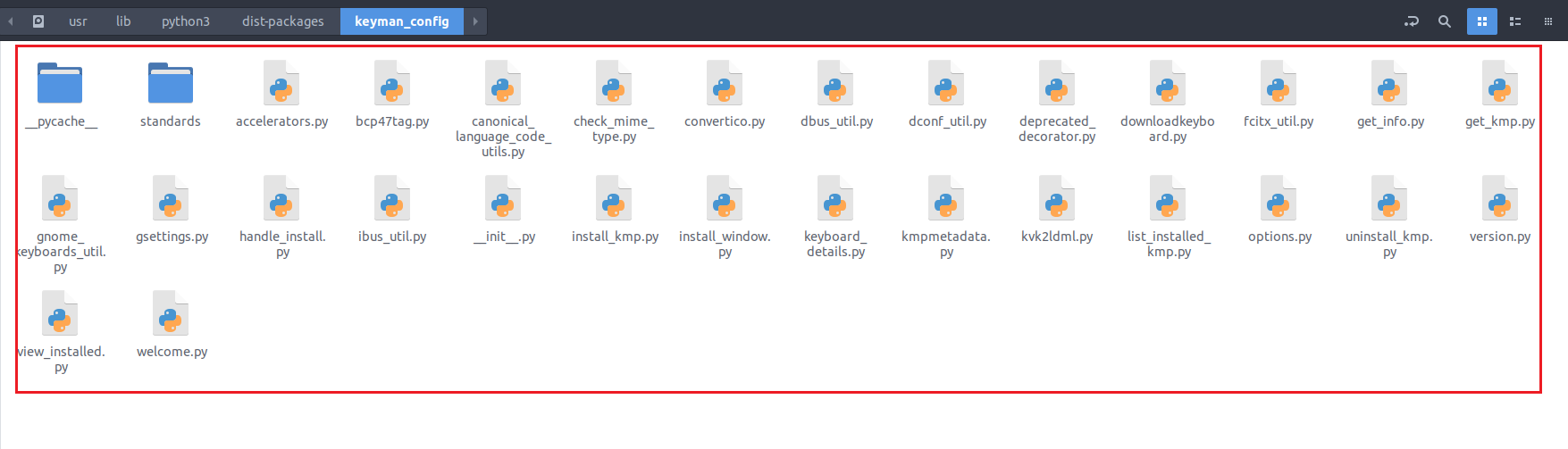
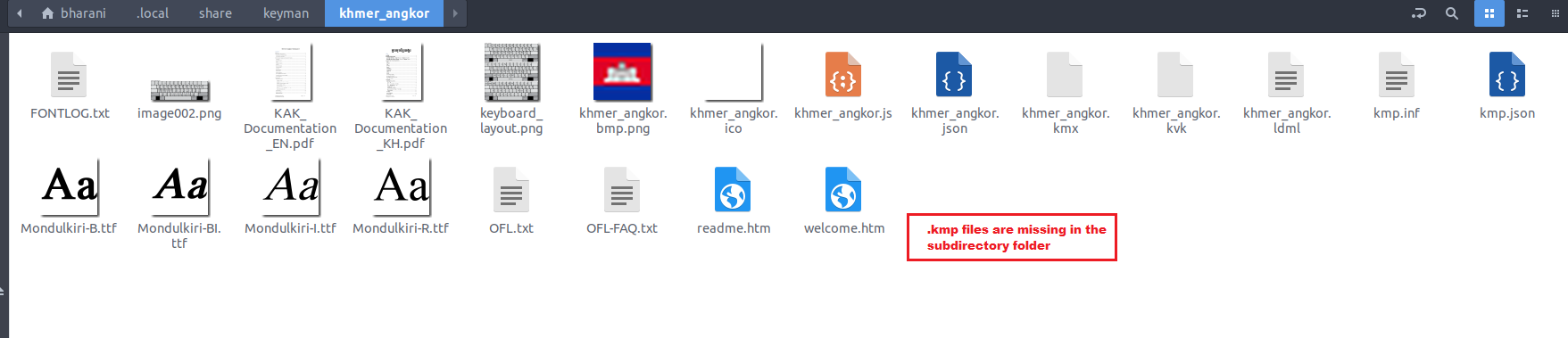
*.kmp files are missing in the subdirectories under ~/.local/share/keyman.
SUITE_UPDATE: Update an existing installation
GROUP_WASTA: Wasta 20.04 with Cinnamon ("Cinnamon (Default)")
- TEST_UPGRADE (PASSED): Tested this as per the instructions and it is working as expected.
SUITE_KBDS: Verify specific keyboards
GROUP_BIONIC: Ubuntu 18.04 Bionic with Gnome Shell and X11 ("Ubuntu")
- TEST_IPA_WRITER (PASSED): Tested this as per the instructions and it is working as expected.
- TEST_IPA_GEDIT (PASSED): Tested this as per the instructions and it is working as expected.
- TEST_KO_WRITER (PASSED): Tested this as per the instructions and it is working as expected.
- TEST_KO_GEDIT (PASSED): Tested this as per the instructions and it is working as expected.
- TEST_KM_WRITER (PASSED): Tested this as per the instructions and it is working as expected.
- TEST_KM_GEDIT (PASSED): Tested this as per the instructions and it is working as expected.
SUITE_UNINSTALL: Uninstallation
GROUP_BIONIC: Ubuntu 18.04 Bionic with Gnome Shell and X11 ("Ubuntu")
-
TEST_UNINSTALL (FAILED): The removed files are still appears in the mentioned link /usr/lib/python3/dist-packages/keyman_config.

*.kmp files are missing in the subdirectories under ~/.local/share/keyman.

SUITE_UPDATE: Update an existing installation
GROUP_BIONIC: Ubuntu 18.04 Bionic with Gnome Shell and X11 ("Ubuntu")
- TEST_UPGRADE (PASSED): Tested this as per the instructions and it is working as expected.
SUITE_KBDS: Verify specific keyboards
GROUP_FOCAL: Ubuntu 20.04 Focal with Gnome Shell and X11 ("Ubuntu")
- TEST_IPA_WRITER (PASSED): Tested this as per the instructions and it is working as expected.
- TEST_IPA_GEDIT (PASSED): Tested this as per the instructions and it is working as expected.
- TEST_KO_WRITER (PASSED): Tested this as per the instructions and it is working as expected.
- TEST_KO_GEDIT (PASSED): Tested this as per the instructions and it is working as expected.
- TEST_KM_WRITER (PASSED): Tested this as per the instructions and it is working as expected.
- TEST_KM_GEDIT (PASSED): Tested this as per the instructions and it is working as expected.
SUITE_UNINSTALL: Uninstallation
GROUP_FOCAL: Ubuntu 20.04 Focal with Gnome Shell and X11 ("Ubuntu")
- TEST_UNINSTALL (FAILED): I noticed that *.kmp files are missing in the subdirectories under ~/.local/share/keyman.
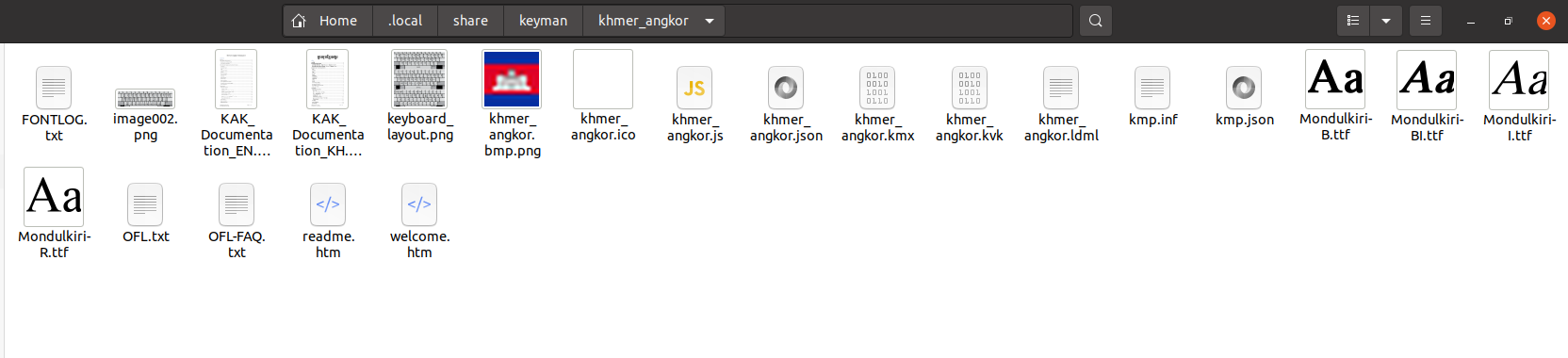
However, the Keyman_Config folder has been removed from the mentioned link /usr/lib/python3/dist-packages/keyman_config.
SUITE_UPDATE: Update an existing installation
GROUP_FOCAL: Ubuntu 20.04 Focal with Gnome Shell and X11 ("Ubuntu")
- TEST_UPGRADE (PASSED): Tested this as per the instructions and it is working as expected.
SUITE_KBDS: Verify specific keyboards
GROUP_JAMMY_X11: Ubuntu 22.04 Jammy with Gnome Shell and X11 ("Ubuntu on Xorg")
- TEST_IPA_WRITER (PASSED): Tested this as per the instructions and it is working as expected.
- TEST_IPA_GEDIT (PASSED): Tested this as per the instructions and it is working as expected.
- TEST_KO_WRITER (PASSED): Tested this as per the instructions and it is working as expected.
- TEST_KO_GEDIT (PASSED): Tested this as per the instructions and it is working as expected.
- TEST_KM_WRITER (PASSED): Tested this as per the instructions and it is working as expected.
- TEST_KM_GEDIT (PASSED): Tested this as per the instructions and it is working as expected.
SUITE_UNINSTALL: Uninstallation
GROUP_JAMMY_X11: Ubuntu 22.04 Jammy with Gnome Shell and X11 ("Ubuntu on Xorg")
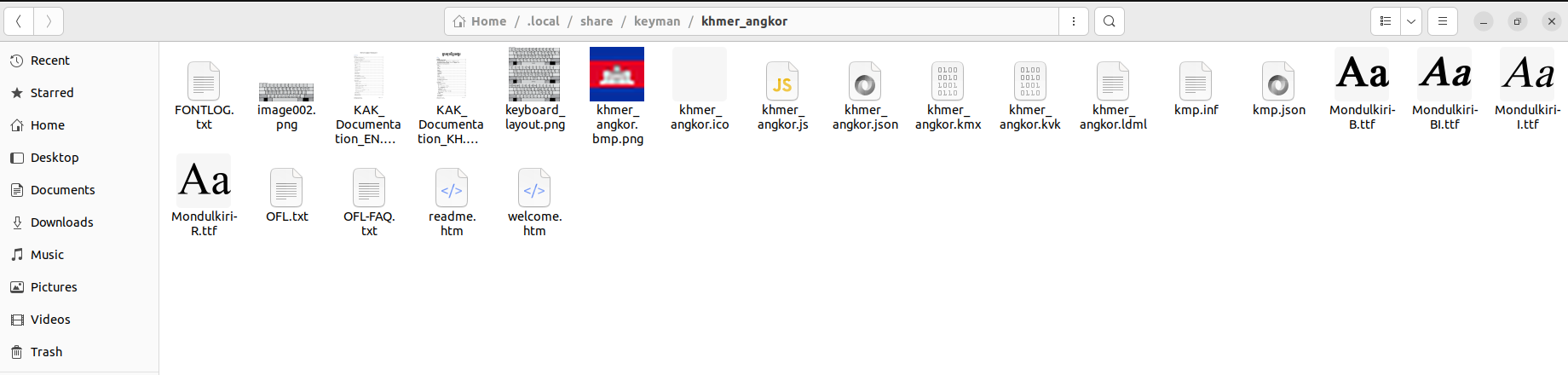
- TEST_UNINSTALL (FAILED): The removed files are still appears in the mentioned link /usr/lib/python3/dist-packages/keyman_config.

*.kmp files are missing in the subdirectories under ~/.local/share/keyman.
SUITE_UPDATE: Update an existing installation
GROUP_JAMMY: Ubuntu 22.04 Jammy with Gnome Shell and X11 ("Ubuntu on Xorg") or Wayland ("Ubuntu")
- TEST_UPGRADE (PASSED): Tested this as per the instructions and it is working as expected. (upgraded successfully to 16.0.40 Alpha build)
SUITE_KBDS: Verify specific keyboards
GROUP_JAMMY_WAYLAND: Ubuntu 22.04 Jammy with Gnome Shell and Wayland ("Ubuntu")
-
TEST_IPA_WRITER (PASSED): Tested this as per the instructions and it is working as expected.
-
TEST_IPA_GEDIT (PASSED): Tested this as per the instructions and it is working as expected.
-
TEST_KO_WRITER (FAILED): Tested this as per the instructions and it seems that it is not showing expected output.
-
TEST_KO_GEDIT (PASSED): Tested this as per the instructions and it is working as expected.
-
TEST_KM_WRITER (FAILED): Tested this as per the instructions and it seems that it is not showing expected output.

-
TEST_KM_GEDIT (PASSED): Tested this as per the instructions and it is working as expected.
SUITE_UNINSTALL: Uninstallation
GROUP_JAMMY_WAYLAND: Ubuntu 22.04 Jammy with Gnome Shell and Wayland ("Ubuntu")
- TEST_UNINSTALL (FAILED): The removed files are still appears in the mentioned link /usr/lib/python3/dist-packages/keyman_config. Also, *.kmp files are missing in the subdirectories under ~/.local/share/keyman.
Ahh, the test instructions were wrong. There are no *.kmp files to begin with, so there can't be any after uninstalling :smile: . I updated the instructions to look for *.kmx files.
I'm a bit puzzled about the files in /usr/lib/python3/dist-packages/keyman_config still being there after uninstallation. @bharanidharanj Could you please run the uninstall tests again? You don't have to run it for all groups, you can stop after you get the first failure. Would you please attach the files /var/log/apt/history.log and /var/log/apt/term.log from the machine you're getting the failure?
@keymanapp-test-bot retest TEST_UNINSTALL

@ermshiperete Okay. I will run the uninstall test once again and let you know the result. Thanks.
SUITE_UNINSTALL: Uninstallation
GROUP_BIONIC: Ubuntu 18.04 Bionic with Gnome Shell and X11 ("Ubuntu")
- TEST_UNINSTALL (PASSED): Retested this as per Eberhard's suggestion and I noticed that the Keyman_Config file has been removed from /usr/lib/python3/dist-packages. Also, the .kmx files and other files still exists in the ~/.local/share/keyman folder. Seems to to be working as expected.
SUITE_UNINSTALL: Uninstallation
GROUP_FOCAL: Ubuntu 20.04 Focal with Gnome Shell and X11 ("Ubuntu")
- TEST_UNINSTALL (PASSED): Retested this as per Eberhard's suggestion and I noticed that the Keyman_Config file has been removed from /usr/lib/python3/dist-packages. Also, the .kmx files and other files still exists in the ~/.local/share/keyman folder. Seems to to be working as expected.
SUITE_UNINSTALL: Uninstallation
GROUP_JAMMY_X11: Ubuntu 22.04 Jammy with Gnome Shell and X11 ("Ubuntu on Xorg")
- TEST_UNINSTALL (FAILED): Retested this (Keyman 16.0.42-alpha build) as per Eberhard's suggestion and I was able to reproduce the issue. I have attached the two log files (history.log and term.log) for reference.
@bharanidharanj Do you still have the Jammy VM in the state where the uninstall failed? If so, could you please run this command and show me the output: apt list python3-keyman-config
@ermshiperete Here, is the output for the command apt list python3-keyman-config in Jammy VM,

@bharanidharanj ok, so that's the problem. Somehow pyton3-keyman-config was not installed as a dependency but explicitly and so it didn't get uninstalled with --autoremove.
Please uninstall Keyman and then install it again by running these commands:
sudo apt remove keyman ibus-keyman python3-keyman-config libkmnkbp0-0
sudo apt install keyman
then run the test again.
I updated the test instructions and added a sanity check to run before the test.
@keymanapp-test-bot retest SUITE_UNINSTALL GROUP_JAMMY_X11 TEST_UNINSTALL
SUITE_OSK: On Screen Keyboard tests
GROUP_JAMMY_WAYLAND: Ubuntu 22.04 Jammy with Gnome Shell and Wayland ("Ubuntu")
- TEST_OSK (SKIPPED): currently failing due to #6239
SUITE_KBDS: Verify specific keyboards
GROUP_JAMMY_WAYLAND: Ubuntu 22.04 Jammy with Gnome Shell and Wayland ("Ubuntu")
- TEST_KO_WRITER (SKIPPED): currently failing due to #4273
- TEST_KM_WRITER (SKIPPED): currently failing due to #4273
@bharanidharanj ok, so that's the problem. Somehow
pyton3-keyman-configwas not installed as a dependency but explicitly and so it didn't get uninstalled with--autoremove.Please uninstall Keyman and then install it again by running these commands:
sudo apt remove keyman ibus-keyman python3-keyman-config libkmnkbp0-0
sudo apt install keyman
then run the test again.
I updated the test instructions and added a sanity check to run before the test.
@keymanapp-test-bot retest SUITE_UNINSTALL GROUP_JAMMY_X11 TEST_UNINSTALL
@ermshiperete
@bharanidharanj ok, so that's the problem. Somehow
pyton3-keyman-configwas not installed as a dependency but explicitly and so it didn't get uninstalled with--autoremove.Please uninstall Keyman and then install it again by running these commands:
sudo apt remove keyman ibus-keyman python3-keyman-config libkmnkbp0-0
sudo apt install keyman
then run the test again.
I updated the test instructions and added a sanity check to run before the test.
@keymanapp-test-bot retest SUITE_UNINSTALL GROUP_JAMMY_X11 TEST_UNINSTALL
@ermshiperete Okay, I will re-run the test as per your test instructions.
SUITE_UNINSTALL: Uninstallation
GROUP_JAMMY_X11: Ubuntu 22.04 Jammy with Gnome Shell and X11 ("Ubuntu on Xorg")
- TEST_UNINSTALL (PASSED): Retested this as per the updated instructions and it is working as expected. (ie., Keyman_Config folder has been removed from /usr/lib/python3/dist-packages path. Also, all other files including .kmx file appearing in ~/.local/share/keyman . Thanks. :-)
SUITE_UNINSTALL: Uninstallation
GROUP_JAMMY_WAYLAND: Ubuntu 22.04 Jammy with Gnome Shell and Wayland ("Ubuntu")
- TEST_UNINSTALL (PASSED): Retested this as per the updated instructions and it is working as expected. (ie., Keyman_Config folder has been removed from /usr/lib/python3/dist-packages path. Also, all other files including .kmx file appearing in ~/.local/share/keyman .