

 jamesstringerparsec
Games do not start in VM
Hey,
i have set up the VM as described in the guide without any problems. After installing 3 games all of them do not start or show any error message. Starting the games result in a few seconds of windows showing the cursor loading cirlce and then nothing happens.
Games:
The Division - Ubisoft Connnect Anno 1701 History Edition - Ubisoft Connect Stronghold Warlords - GOG Galaxy (No DRM)
My Hardware:
Windows 11 Pro RYZEN 5900X 32GB DDR4 3600 RTX 3080 10GB WD 850 M.2 SSD 2TB
VM Parameters: Windows 11 8 Cores 8192MB Memory 200GB Storage 25% GPU Allocation
Is there something i can check or try out to find out whats going on?

Same problem here. the VM just goes black. It works when I enable Enhanced session mode but then I have artifact glitches and the game starts to kinda bug out.

Are you guys using Parsec to connect to the VM, and also have the hyper-v adapter disabled in device manager?

I recognized the same Problem with Atroneer and Dead by Daylight. But for example CS:GO worked just fine.
I use Parsec to connect and the Hyper-V adapter is disabled. Do you have any solution for this?
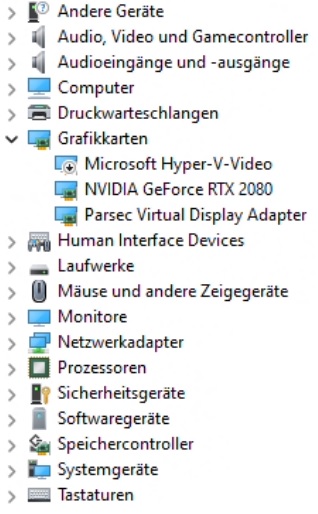

For me the Hyper-V-Video Adapter is also disabled in the device manager. What does work is: Unigine Heaven Benchmark.
But also with a big dowside if the host pc where the VM runs on is used. On the host machine i start Cyberpunk 2077 and the heaven benchmark in the VM and even the desktop experience is really bad. 5FPS in the benchmark (down from 300+ with no host game launched) and stutters on the desktop when moving windows around.
The 25% of the GPU does not get reserved for the VM. What does get reserved is the VRAM which does not get over ~8300MB on the host when the VM is running. CPU seems also completely used by the host which might explain the bad performance on the VM Desktop.
I just found out how to fix Astroneer. Doesn't test it with other games so far. When I start the game with administrator permissions, I got the error RESAMPLEDMO.DLL file is missing. So I checked at my main PC where it's located and copied it to: (1) C:\Windows\SysWOW64 (2) C:\Windows\System32 As soon as I did this, everything works just fine.