

 hoffstadt
Typing rate is noticeably slow using certain Windows default input method
Version of Dear PyGui
Version: 1.3.1 Operating System: Windows 11 build 22538
My Issue/Question
This issue seems to be the same as #544
When typing in text-editing boxes, it seems to be laggy. When I type fast, the editing boxes seem unable to accept/receive the typed characters at equally fast speed; Instead, it append each character at a slow rate, sequentially, afterwards.
The issue is quite noticeable that the input boxes can only accept 3~4 chars per second.
During Dear PyGui is trying to receive those characters, all keyboard/mouse callback freezes and these callback will be handled after all chars are accepted.
To Reproduce
The problem exists while typing with Windows default Chinese input method / Japanese input method.
Whilst with default English input method, the delay is only slightly noticeable.
Screen recording
In this video, I smashed the keyboard at around 30 chars per second using English and Chinese input method respectively.
https://user-images.githubusercontent.com/68492819/150958806-fdb90532-38b0-4dee-8f71-a5b7d24cbc52.mp4
Example
import dearpygui.dearpygui as dpg

dpg.create_context()
dpg.create_viewport()
dpg.setup_dearpygui()

with dpg.window(label="example"):
    dpg.add_input_text(label="")

dpg.show_viewport()
dpg.start_dearpygui()
dpg.destroy_context()


I came across this issue after messing with dpg for a few days and found that disabling vsync when creating the viewport is a good workaround:
import dearpygui.dearpygui as dpg

dpg.create_context()
dpg.create_viewport(vsync=False)
dpg.setup_dearpygui()

with dpg.window(label="example"):
    dpg.add_input_text(label="")

dpg.show_viewport()
dpg.start_dearpygui()
dpg.destroy_context()

dpg.create_viewport(vsync=False)
After I set vsync=False, I will get very high cpu usage and huge gpu usage.


Thanks for the info. We are aware and working on this!
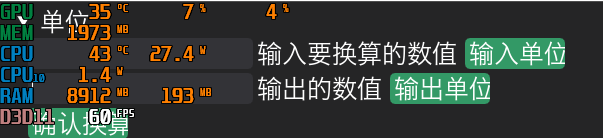
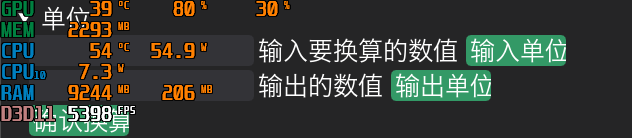
vsync=False can type faster.
But cause FPS render high.
From vsync=True 60FPS(monitor fps) up to more than 6000FPS.
So the power and CPU GPU usage are high.
GPU from 7% to 80%.
POWER also increase much.
Need to set fps mannully in create_viewport or other function to limit fps when set vsync=False.

I came across this issue after messing with dpg for a few days and found that disabling vsync when creating the viewport is a good workaround:
import dearpygui.dearpygui as dpg

dpg.create_context()
dpg.create_viewport(vsync=False)
dpg.setup_dearpygui()

with dpg.window(label="example"):
    dpg.add_input_text(label="")

dpg.show_viewport()
dpg.start_dearpygui()
dpg.destroy_context()
GPU and CPU usage high... How to solve that problem ?
dpg.create_viewport(vsync=False)
After I set
vsync=False, I will get very high cpu usage and huge gpu usage.
Which IME do you use? I switch Sougou to Xunfei. Problem solve....
Microsoft IME also have this problem
dpg.create_viewport(vsync=False)
After I set
vsync=False, I will get very high cpu usage and huge gpu usage.
Microsoft IME also have this problem
I met the same problem with Microsoft Japanese IME and found a workaround. This problem occur with Microsoft's new IME and improved with the previous version of it.
To use the previous version, follow these steps.
-
Select Start -> Settings -> Time & language -> Language & region -> Option -> Microsoft IME -> General -> Compatibility
-
Check Use previous version of Microsoft IME
The explanation of new IME is here.
Compatibility
Microsoft Japanese IME was renewed as of Windows 10 October 2020 Update (Version 2004) and is also available with Windows 11. IME supports a compatibility setting in IME settings > General. If you encounter issues with the new IME, you can enable the previous version of IME by turning on Use previous version of Microsoft IME. We'll continue to improve the new IME, so please consider filing feedback to help us deliver a great input experience to you.
I'm not sure that this workaround also works with Chinese IME.
Environment
DearPyGui version: 1.9.1 OS: Windows 11 22H2 Language: Japanese IME: Microsoft Japanese IME
