

 darktrojan
Problem with Open With extension in FF
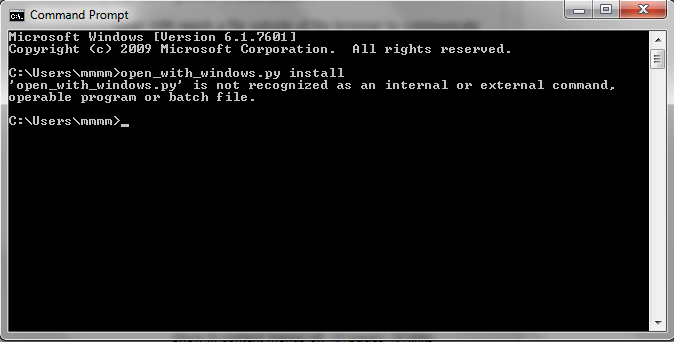
After entering the "open_with_windows.py install" command (w/out quotes) as instructed I get the following result in Command box (see screen-shot below): C:\Users\mmmm>open_with_windows.py install 'open_with_windows.py' is not recognized as an internal or external command, operable program or batch file.
Note: Installation test fails w/ "something went wrong" message. Please refer to additional screen-shots below for more detail.
Please advise and thanks in advance.
Note: I have installed Python by downloading installer and then launching the installer after which I did get the reply that it was successfully installed (for all users) after which I do find Python in Programs & Features. So I'm assuming this is all good. (install path is: C:\Program Files (x86)\Python38-32)
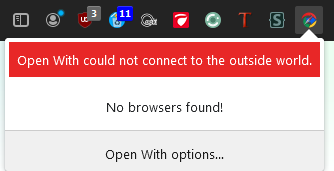
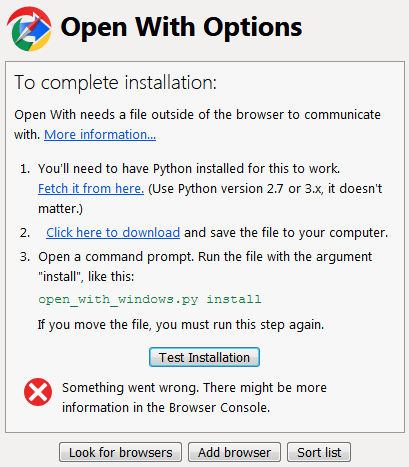 Note: "Look for browsers" button does nothing (see screen-shot above) probably due to Command line problem referenced at top. I have four other browsers installed.

Still waiting for some help with getting "Open With" to work in FF.
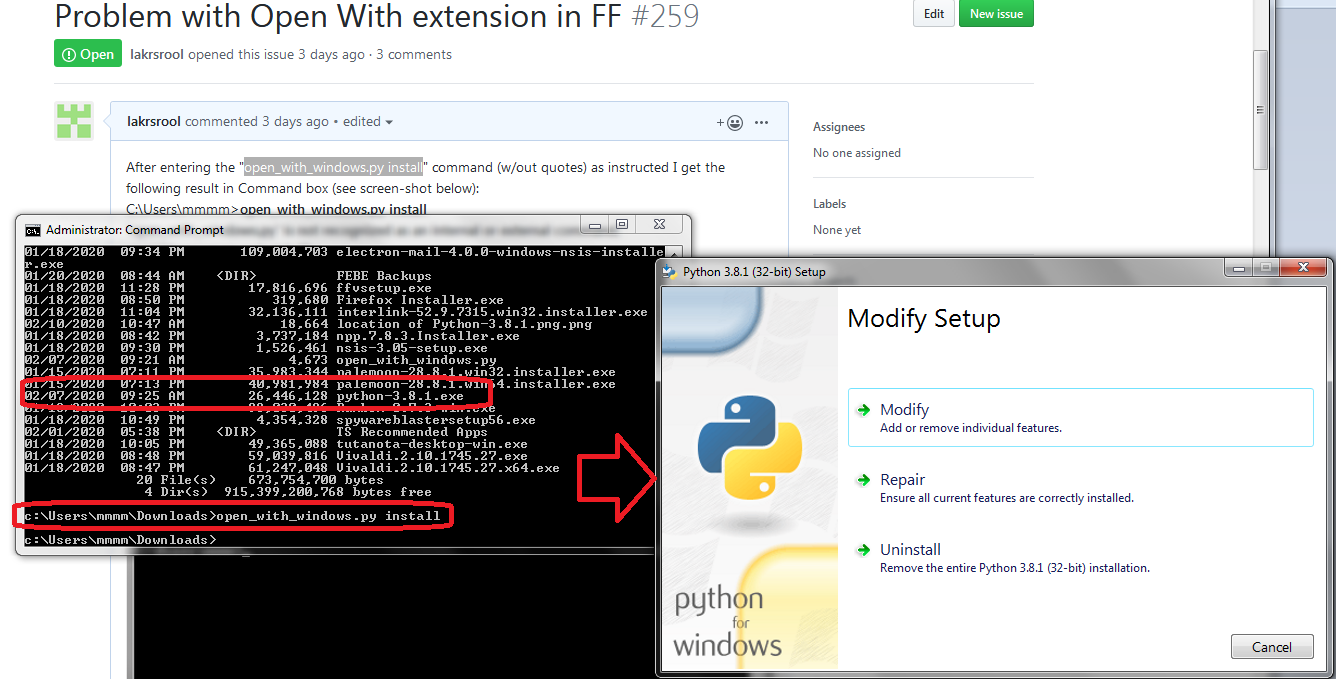
I've tried a different approach by doing step 3 at the location where Python is located (see screen-shot below) and I get the dialogue as seen in the screen-shot:
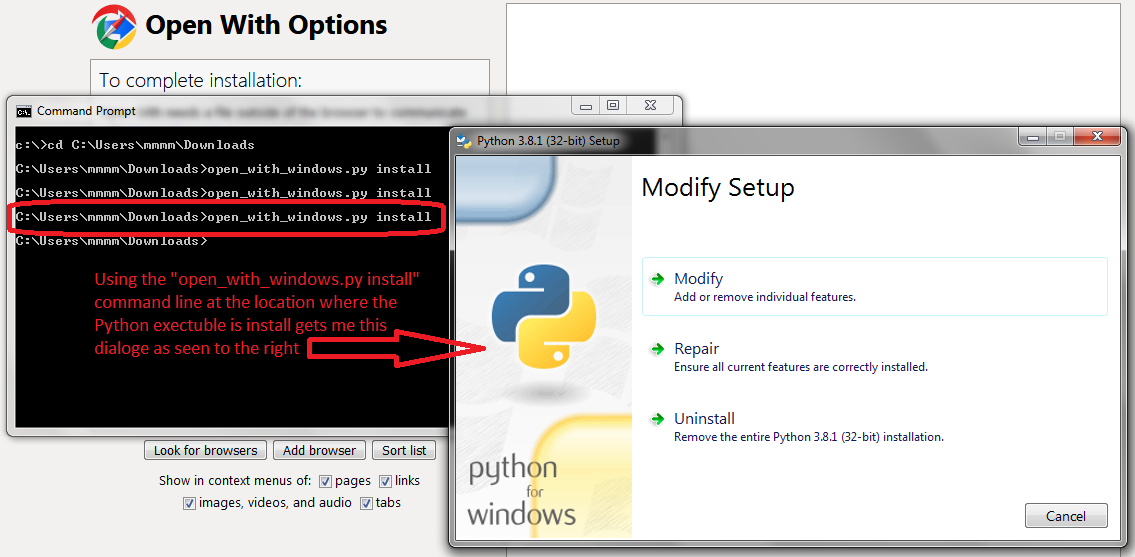
As previously mentioned -- here is where Python is located (python-3.8.1.exe circled below in "Downloads" folder):
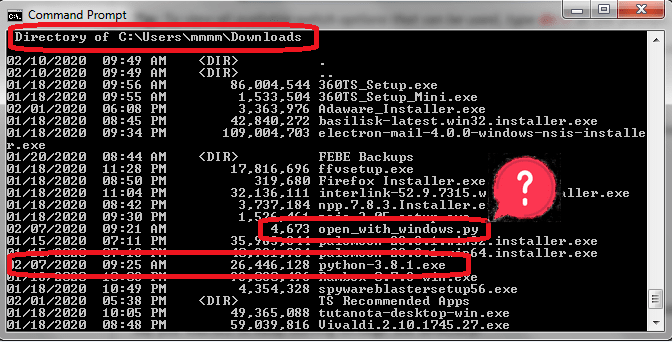 Note: that I have the "open_with_windows.py" listed in the screen-shot of which I have no idea what that's about except possibly it has something to do with the command line "open_with_windows.py install" that you request to do in step 3.
I'm getting nowhere fast -- please HELP!!
This isn't really a help channel, but:
In your first message you were in the wrong directory - moving to Downloads in the second comment fixed this, because that's where the file is, as you showed.
It seems that Windows has changed and you now need to run the command prompt as administrator. I was not aware of this. Go to start, type in command prompt, then right-click and choose run as administrator.

I've raised the command prompt to Admin and then I've run the command line as instructed in step 3 "open_with_windows.py install" so everything should be OK as far as I know and I still get the same error (see screen-shot below):
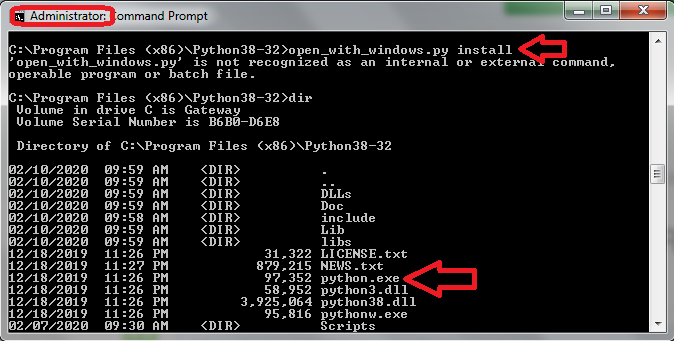
As you can see in the screen-shot (i.e. dir) "Python.exe" is in the same directory that I'm using the command in step 3 and the command prompt is run as Administrator (refer to circled/pointed out items).
Sorry I know nothing about a "help channel" as there is no mention of this in the add-on instructions (only thing I could see was a reference to "github").
If instead of going where Python is installed I go to the Downloads folder where the Python executable is as well I get the following result (similar to what I was getting previously that I've mentioned in prior posts):
 Does the add-on installation instructions still work as instructed?
Or am I still doing something wrong (or what I've already done messed things up)?
Note: I am running Firefox 72 on Windows 7 (if that makes any difference)
Does the add-on installation instructions still work as instructed?
Or am I still doing something wrong (or what I've already done messed things up)?
Note: I am running Firefox 72 on Windows 7 (if that makes any difference)
Take a look at my post above the last one -- pointing at where Python is installed in C:\Programs (86) instead of the downloads folder I do not get this "installer" dialogue but instead get the error I've mentioned in previous posts in the Command prompt (which makes me wonder if raising the command prompt to "Admin" helps or not).
I think probably I need to be in the directory that has Python installed (C:Programs (86)) and not the "Downloads" folder. But as you can see in the post above the one you have replied to that doesn't work either with an error message "'open_with_windows.py' is not recognized as an internal or external command, operable program or batch file." in the Command prompt.
So is there a way to get it to work the way I attempted to do step 3 in the post just above my last one?
This is what I'm talking about that should work:
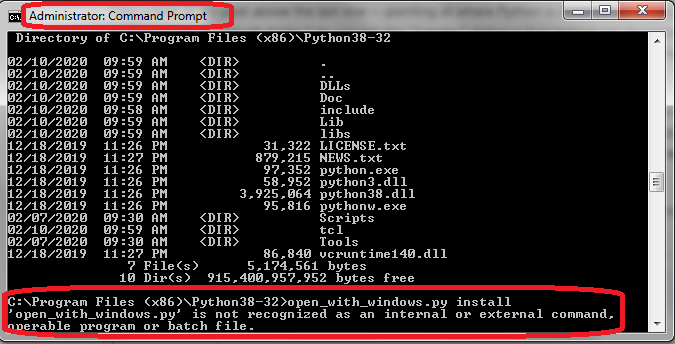 I'm doing step 3 command in the directory where Python is installed and running command as Administrator. I'm assuming I'm doing step 3 correctly but I still get the error I've circled.
Let's start over (I've tried this this 4 times now - removed "Open With" extension and uninstalled all aspects of Python including folders left behind and went through each of the 3 steps one at a time but no luck each time).
Step 1: You'll need to have Python installed for this to work. Fetch it from here. (Use Python version 2.7 or 3.x, it doesn't matter.) Sends me to the download page for Python -- you do not say what to do on that page so I'm assuming that users are expected to download the Python installer. But since Step 2 says "Click here to download and save the file to your computer" I assume users should not install Python but only download the Python Installer (but I have tried installing at this step and it fails in this case as well).
So continuing to Step 2 (after downloading the Python installer)
Step 2.
Click here to download and save the file to your computer.
Clicking on the "Click here to download" I get this:
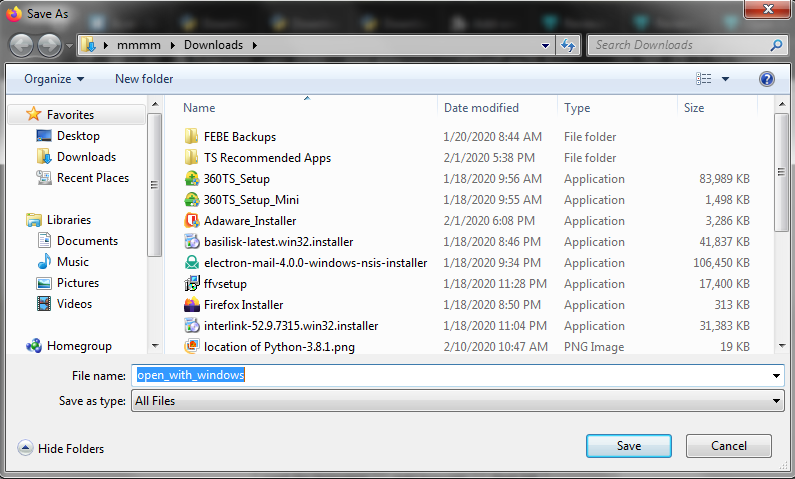 Where I'm apparently expected to save "open_with_windows" (you do not say where to save this so I save it where the save window opens at which is where the Python Installer was downloaded). I then have the "open_with_windows.py" file saved in the "Downloads" folder where the Python Installer is located.
Step 3. Open a command prompt. Run the file with the argument "install", like this: open_with_windows.py install
So I open the command prompt as Administrator and go to where the "open_with_windows" was installed -- is this correct so far?
And I enter the command: "open_with_windows.py install" without quotes like you see in the screen-shot below:
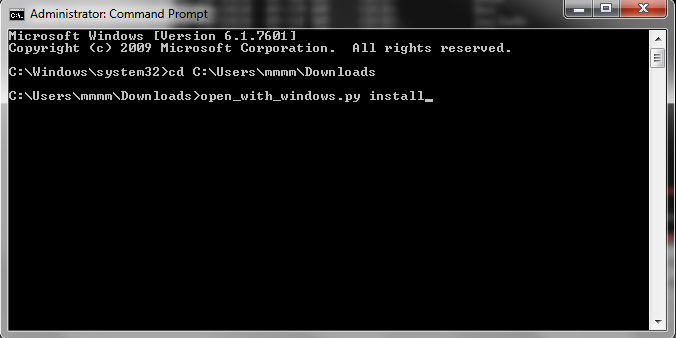
And I get what looks good so far:
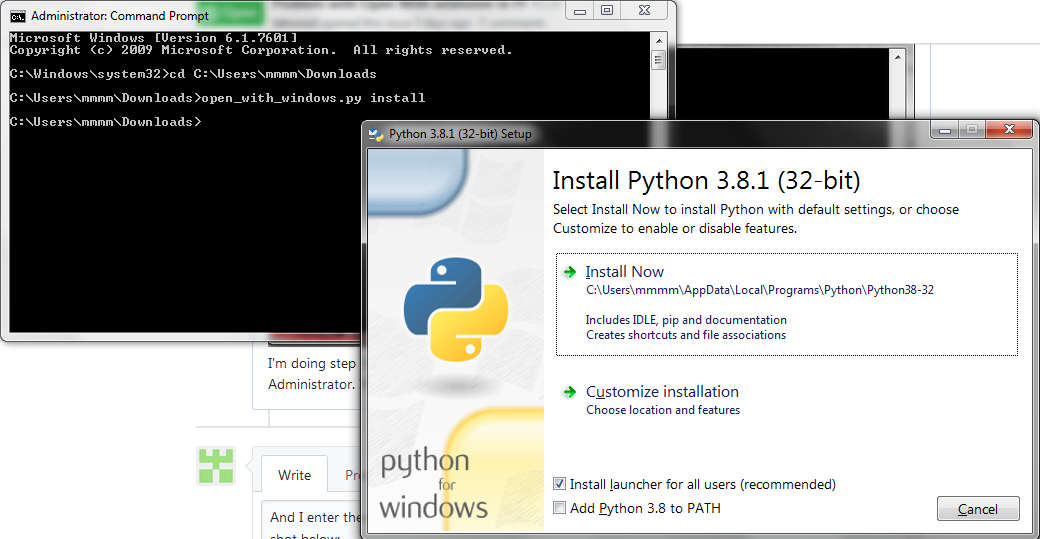
I click on "Install now" and get "setup was successful" message at the end of the install -- everything OKAY so far?
So Step 3 is done successful -- so everything should be OKAY -- and therefore the "Test Installation" should work -- RIGHT?
Well -- it doesn't -- I get the "Something went wrong. There might be more information in the Browser Console." message. And as I've said before "Look for Browsers" button does not work.
And I do have four browsers installed.
I have gone through each step which all looks good through step 3.
Please explain what I'm doing wrong?
FWIW -- here is the last part of Browser Console:
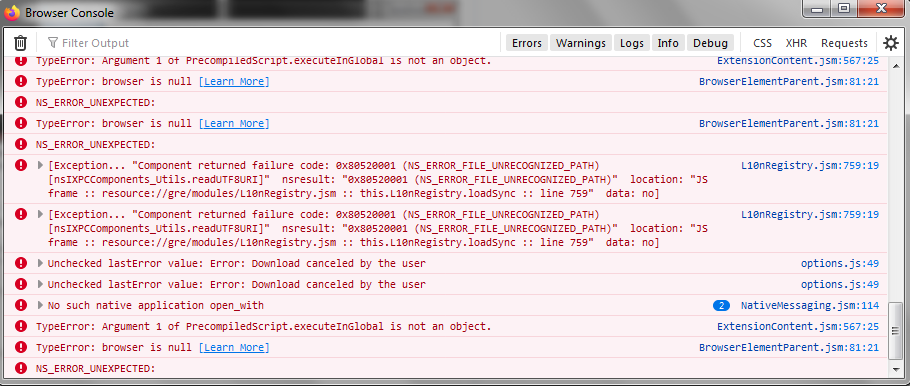
I have gone through all of this at least 4 times without success.
Please let me know what I might be doing wrong.... If I'm not doing anything wrong then it would appear there is something currently wrong with your steps to setup this extension.
Please advise
ADDENDUM: AFTER EXITING FF and then LAUNCHING FF AGAIN -- IF FIND THAT THE "OPEN WITH" EXTENSION IS MISSING! (as if the extension was never installed). It seems to me you have some serious issues with this extension.
I'm going to (for the sixth time) uninstall all aspects of Python once again.
I'd like to be able to use your extension -- so I'll wait for you to reply to this post.
Execute the following steps:
- During the installation of Python, add it to your PATH (mark the last box in this here)
- Instead of
open_with_windows.py installdopython .\open_with_windows.py install.

Thanks crimsonskylark,
Note: to author of add-an: By changing path in Command Prompt to where the Python Installer was saved in "Downloads" folder (like I did before -- which is a step that should be added to instructions -- because if I'm going to need to change the path in the Command prompt, which is apparently required, then as far as I know maybe I would need to have the path point to where Python program is located in "C:Programs...." instead of where the Installer is located. It's not enough to just say enter a given command in Command Prompt imho) and using the command "python .\open_with_windows.py install" I'm able to get a successful Install Test (using "Test Installation" button) thankfully. (also other terms i.e. "fetch or "the file" in instructions is nebulous as to there meaning).
Anyway -- I'm going to try and add the extension to Vivaldi (Pale Moon and Basilisk have their own "Open With" extension that installs immediately without any steps required thankfully. I understand the reasons why it's easier with these browsers and more difficult with FF or Chrome).
Thanks again crimsonskylark for the help.