

 beeware
Windows Code Signing
Scope
Add support to code sign the executable and installer for Windows apps using a user-specified certificate.
Out of scope
- Additional signed artifacts
- Signing additional arbitrary files such as DLLs or other executables.
- Signing or otherwise providing some sort of signature(s) for the Python source itself.
- Applying signatures with tools other than
signtool.exe.- Promising alternatives: mtrojnar/osslsigncode, ebourg/jsign
- I have found two reasons not to use
signtool.exe:- The minimum download and disk requirement for this tool is >500MB.
- It's only available for Windows.
Design
- Tie in to the existing flags/configuration for signing.
- Previous signing flag discussion: #865
- Use Microsoft's
signtool.exeto apply the signatures.- This is automatically included with Visual Studio but also as part of the Windows 10 SDK.
- Locating
signtool.exemay be non-trivial.
- Use a user-specified certificate.
- Signing is possible with a certificate as a file or loaded in to the certificate store.
- Technically, the cert and its private key can be independently sourced.
- Supporting both options is probably best given different use-cases may preclude the other.
- Considerations:
- File format; probably best to let
signtool.exedecide whether to reject a cert...although, the nature of the cert will need to be described in the docs. - Password protected certificates;
signtool.exedoes not prompt for the password but takes it as a param. - Many params are supported to find a cert in the store; requiring the SHA1 hash is probably simplest / most direct.
- Only personal user certs are searched by default; a different store can be specified.
- Files can be time stamped as well as signed....using something like https[:]//timestamp.digicert.com.
- File format; probably best to let
- Signing is possible with a certificate as a file or loaded in to the certificate store.
Related
- https://learn.microsoft.com/en-us/windows/win32/seccrypto/cryptography-tools
- https://learn.microsoft.com/en-us/windows/win32/seccrypto/makecert
- https://learn.microsoft.com/en-us/windows/win32/seccrypto/signtool
- https://learn.microsoft.com/en-us/windows/msix/package/sign-app-package-using-signtool
Fixes
- #366
PR Checklist:
- [ ] All new features have been tested
- [ ] All new features have been documented
- [x] I have read the CONTRIBUTING.md file
- [x] I will abide by the code of conduct

Reference: self-signed code-signing cert on Windows.
Create a code signing cert in the User Store
$cert = New-SelfSignedCertificate -Subject 'My Code Signing Cert' -Type CodeSigningCert -Certstorelocation Cert:\CurrentUser\My
Get cert Later
$cert = Get-ChildItem -Path cert:\CurrentUser\My\<SHA1 thumbprint>
Export without Private Key
Export-Certificate -Cert $cert -FilePath code_signing.crt
Export with Private Key
This seems to only be facilitated by the export function in certmgr.msc.
Import as Trusted Publisher
Import-Certificate -FilePath .\code_signing.crt -Cert Cert:\CurrentUser\TrustedPublisher
Import as Root CA
Import-Certificate -FilePath .\code_signing.crt -Cert Cert:\CurrentUser\Root
This honestly feels like cruel joke...
Installing signtool.exe
Msft doesn't provide the signing tools as a redistributable; so, you have to use the Windows SDK Installer (or a proxy for it like the Visual Studio Installer) to get them.
The Windows SDK provides a (very clunky to use) command line interface to install:
.\winsdksetup.exe /features OptionID.SigningTools /installpath C:\Users\Russell\Downloads\winsdk2 /quiet /norestart
Note: this invokes UAC and likely requires admin access.
This works great....except msft has put a requirement in place that all SDKs must be installed in to the same directory. So, if i run that command again with a different directory:
[5E50:4D9C][2022-10-12T12:55:26]e000: ERROR: Cannot set the path to C:\Users\Russell\Downloads\winsdk3 because another installation has already been detected. Additional programs will have to be installed to the previously selected install path C:\Users\Russell\Downloads\winsdk2\.
So, if users already have a version of the Window SDK installed, this fails. Probably more importantly, though, this would require users to install all future Windows SDKs to this location...
Alternatively, you can run the install without specifying an install location to let msft choose where to install.
Finally, this install runs in the background....so, it's non-trivial to monitor.
Given all this, I'm really just inclined to tell users to do this install themselves if an SDK isn't already installed.
Finding an existing Windows SDK Install
Many versions of the Windows SDK can be installed at once. So, you need to figure out which versions of the SDK are installed and if the install happens to include what you need.
Visual Studio apparently comes with a batch script to help it find suitable installed Windows SDKs. It is surprisingly complicated.
Example location of this script:
C:\Program Files\Microsoft Visual Studio\2022\Professional\Common7\Tools\vsdevcmd\core\winsdk.bat
Relevant Code to Find Windows SDK
:GetWin10SdkDir

if "%VSCMD_DEBUG%" GEQ "3" goto :GetWin10SdkDirVerbose

call :GetWin10SdkDirHelper HKLM\SOFTWARE\Wow6432Node > nul 2>&1
if errorlevel 1 call :GetWin10SdkDirHelper HKCU\SOFTWARE\Wow6432Node > nul 2>&1
if errorlevel 1 call :GetWin10SdkDirHelper HKLM\SOFTWARE > nul 2>&1
if errorlevel 1 call :GetWin10SdkDirHelper HKCU\SOFTWARE > nul 2>&1
if errorlevel 1 exit /B 1
exit /B 0

:GetWin10SdkDirVerbose

call :GetWin10SdkDirHelper HKLM\SOFTWARE\Wow6432Node
if errorlevel 1 call :GetWin10SdkDirHelper HKCU\SOFTWARE\Wow6432Node
if errorlevel 1 call :GetWin10SdkDirHelper HKLM\SOFTWARE
if errorlevel 1 call :GetWin10SdkDirHelper HKCU\SOFTWARE
if errorlevel 1 exit /B 1

exit /B 0

:GetWin10SdkDirHelper

@REM Get Windows 10 SDK installed folder
for /F "tokens=1,2*" %%i in ('reg query "%1\Microsoft\Microsoft SDKs\Windows\v10.0" /v "InstallationFolder"') DO (
    if "%%i"=="InstallationFolder" (
        SET WindowsSdkDir=%%~k
    )
)

@REM get windows 10 sdk version number
setlocal enableDelayedExpansion

@REM Due to the SDK installer changes beginning with the 10.0.15063.0 (RS2 SDK), there is a chance that the
@REM Windows SDK installed may not have the full set of bits required for all application scenarios.
@REM We check for the existence of a file we know to be included in the "App" and "Desktop" portions
@REM of the Windows SDK, depending on the Developer Command Prompt's -app_platform configuration.
@REM If "windows.h" (UWP) or "winsdkver.h" (Desktop) are not found, the directory will be skipped as
@REM a candidate default value for [WindowsSdkDir].
set __check_file=winsdkver.h
if /I "%VSCMD_ARG_APP_PLAT%"=="UWP" set __check_file=Windows.h

if not "%WindowsSdkDir%"=="" for /f %%i IN ('dir "%WindowsSdkDir%include\" /b /ad-h /on') DO (
    @REM Skip if Windows.h|winsdkver (based upon -app_platform configuration) is not found in %%i\um.
    if EXIST "%WindowsSdkDir%include\%%i\um\%__check_file%" (
        set result=%%i
        if "!result:~0,3!"=="10." (
            set SDK=!result!
              if "!result!"=="%VSCMD_ARG_WINSDK%" set findSDK=1
        )
    )
)

if "%findSDK%"=="1" set SDK=%VSCMD_ARG_WINSDK%
endlocal & set WindowsSDKVersion=%SDK%\

if not "%VSCMD_ARG_WINSDK%"=="" (
  @REM if the user specified a version of the SDK and it wasn't found, then use the
  @REM user-specified version to set environment variables.

  if not "%VSCMD_ARG_WINSDK%\"=="%WindowsSDKVersion%" (
    if "%VSCMD_DEBUG%" GEQ "1" echo [DEBUG:%~nx0] specified /winsdk=%VSCMD_ARG_WINSDK% was not found or was incomplete
    set WindowsSDKVersion=%VSCMD_ARG_WINSDK%\
    set WindowsSDKNotFound=1
  )
) else (
  @REM if no full Windows 10 SDKs were found, unset WindowsSDKDir and exit with error.

  if "%WindowsSDKVersion%"=="\" (
    set WindowsSDKNotFound=1
    set WindowsSDKDir=
    set WindowsSDKBinPath=
    set WindowsSDKVerBinPath=
    goto :GetWin10SdkDirExit
  )
)

if not "%WindowsSDKVersion%"=="\" set WindowsSDKLibVersion=%WindowsSDKVersion%

@REM To support Win10 SDK versioned bin directory changes, the command prompts will first check for a
@REM versioned binary path
set "WindowsSdkBinPath=%WindowsSDKDir%bin\"
if EXIST "%WindowsSDKDir%bin\%WindowsSDKVersion%" (
    set "WindowsSdkVerBinPath=%WindowsSDKDir%bin\%WindowsSDKVersion%"
)

if "%WindowsSdkDir%"=="" goto :GetWin10SdkDirExit

@REM strip the trailing backslash from WindowsSdkVersion.
set _WinSdkVer_tmp=%WindowsSdkVersion:~0,-1%

if EXIST "%WindowsSdkDir%UnionMetadata\%_WinSdkVer_tmp%" (
  set "WindowsLibPath=%WindowsSdkDir%UnionMetadata\%_WinSdkVer_tmp%;%WindowsSdkDir%References\%_WinSdkVer_tmp%"
) else (
  set "WindowsLibPath=%WindowsSdkDir%UnionMetadata;%WindowsSdkDir%References"
)

set _WinSdkVer_tmp=

:GetWin10SdkDirExit

if "%WindowsSDKNotFound%"=="1" (
  set WindowsSDKNotFound=
  exit /B 1
)
exit /B 0

:GetWin10SdkDirError

@echo [ERROR:%~nx0] Windows SDK %VSCMD_ARG_WINSDK% : '%WindowsSdkDir%include\%VSCMD_ARG_WINSDK%\um' not found or was incomplete
set /A __winsdk_script_err_count=__winsdk_script_err_count+1

exit /B 1
Finding signtool.exe
These might be reasonable steps to find signtool.exe given VS's approach:
- Get the Windows SDK install directory from
InstallationFolderat one of these registry locations:-
HKLM\SOFTWARE\Wow6432Node\Microsoft\Microsoft SDKs\Windows\v10.0 -
HKCU\SOFTWARE\Wow6432Node\Microsoft\Microsoft SDKs\Windows\v10.0 -
HKLM\SOFTWARE\Microsoft\Microsoft SDKs\Windows\v10.0 -
HKCU\SOFTWARE\Microsoft\Microsoft SDKs\Windows\v10.0
-
- This location is likely to be
C:\Program Files (x86)\Windows Kits\10 - Iterate backwards through versioned binaries in
binto findsigntool.exe.- For example:
C:\Program Files (x86)\Windows Kits\10\bin\10.0.22621.0\x64\signtool.exe
- For example:
- It also appears possible for
C:\Program Files (x86)\Windows Kits\10\bin\x64to containsigntool.exe.- A fresh install of Windows 10 Pro did not create this.....so I dont know how my host machine got this installed.
Time Stamp Authority (TSA) Servers
Timestamping the signature should be required. Without it, OS's are likely to stop trusting the signature when the codesigning cert expires; the timestamp allows trust beyond the expiration of the cert.
TSA server examples List of TSA's that Adobe trusts
It's unclear if signtool.exe only supports RFC3161 for timestamping; but that wouldn't be unreasonable. X9.95 goes beyond RFC3161 to provide additional guarantees but isn't as well adopted.
Several of the TSA's above have practically ubiquitous trust in the modern world. So, it would be reasonable to choose one as the default while allowing the user to specify a different one manually. I'm somewhat hesitant to present a list of options to the user since there isn't any inherent difference among them; however, I can imagine certain parts of the world having different preferences.
Hey, such an important PR! Thanks for tackling this.
Are there any updates on this?

Hey @saroad2, I've been getting derailed with other PRs and then my Windows SSD died, but I'm still planning to bring this to fruition. Fortunately, I was able to recover my local commits :) I have found that Windows provides a lot of options for signing so I've been wrestling with how many need/should to be supported. Nonetheless, I'm hoping to have a working implementation soontm.
Thanks for the update!
I tried to do the same a couple of years ago and didn't manage to go ahead much. Good to know that someone is working on it :)
Signing Semantics
-
Certificate selection by user
-
briefcase package windowstakes-i/--identityargument for:- Certificate SHA-1 thumbprint
- Certificate filepath
-
-
Signing with a certificate in a Certificate Store
- By default, the cert is assumed to be in the Current User's Personal Store
- Use the
/sargument to specify the name of a different Store - Use the
/smargument for the Local Machine certificate stores instead
-
Signing with a certificate in a file
- Certificate file contains the private key
- Use the
/pargument to specify the password for the file
- Use the
- Private key is protected with a Cryptographic Service Provider (CSP)
- Use
/csparguemnt to specify name of CSP - Use
/kcto specify the Container Name in the CSP
- Use
- Certificate file contains the private key
-
Signing options
-
/fd- Signature digest algorithm for a file- Defaults to
sha256 - Adding a
sha1signature allows for more portability for the signature- The
sha256digest is not supported before Windows 8 - Prior art: electron-builder dual signs
- The
- Defaults to
-
/d- App description
-
Scope
There are several layers of scope that can be supported. They compound on each other and become increasingly more complex; it also probably wouldn't be reasonable to support higher layers without the lower ones.
-
Sign using a certificate in the user's personal certificate store.
- This is relatively trivial and seems quite similar to the signing support on macOS.
-
Sign using a certificate from an arbitrary certificate store.
- This should also add support for the Local Machine cert stores as well as the User's.
-
Sign using a file-based password-protected certificate that contains the private key.
- User prompt would be necessary to make the password available.
-
Sign using a certificate with the private key provided by an arbitrary cryptographic service provider (CSP).
- This starts to get complex but would support advanced workflows such as using an HSM.
Scope Decision
Given this is initial windows signing support and a broader plan for how more advanced signing workflows across platforms should be supported (including automation) is still being developed, I'm leaning towards supporting 1 and 2 from above.
@freakboy3742 et al: do you have any opinions/questions on this approach and if the scoping is appropriate to you?
I am imagining more holistic PRs following this that would start to firm up how signing and its configuration should work across platforms. In lieu of that, I am hesitant to add support for file-based certificates support at this time.
@rmartin16 Nice research - thanks. Based on what you've got here, supporting options 1 and 2 definitely seem like a reasonable starting point for a v1 scope for this feature.
The only caveat/clarifications I'd put on any of this are:
- Whatever solution we end up with, it needs to be sufficient for an end-user to be able to install a Briefcase-packaged app and get a "green, known software provided" install screen (rather than the yellow, unknown provider install). Ideally, it should also be possible to sign the app for submission to the Windows Store.
- It should be possible to build release artefacts in CI. That means any requirement on (3) for user input must also be able to be provided by environment variable.
- We need to be clear what the "future state" command line arguments will look like if/when we introduce each options. We currently only expose a single
--identityoption; how will that option be interpreted, and what additional arguments will be required to support other CSPs or certificate storage options?
Actually implementing all those steps isn't necessarily required; but we need to be certain we're not painting ourselves into a corner.

As a POC, I set up a GH repo to demonstrate this implementation can sign a Briefcase App in CI.
Workflow: https://github.com/rmartin16/briefcase-test-toga-app/blob/windows-code-signing/.github/workflows/package.yml Workflow Run: https://github.com/rmartin16/briefcase-test-toga-app/actions/runs/4145734679/jobs/7170495173
I'll work on solidifying the implementation now to iron out the details.
@freakboy3742, after some hiatus, Windows signing is implemented. Before I fill in the tests, docs, etc., can you please comment on the scope and approach to make sure we're on the same page? I added a summary of the implementation to the top of the PR.
One aspect I haven't implemented yet is how users should specify the several options to control signing. We've touched on this before and you mentioned env vars above....but these are really quite insensitive and banal pieces of information. So, setting them in to env vars seems unnecessary and opaque. What about setting them in pyproject.toml?
I agree that WindowsSdkDir and WindowsSDKVersion (Is the capitalization inconsistency on purpose?) are banal
These come from the environment variables that Visual Studio respects; VS ships with a winsdk.bat that a lot of the SDK lookup here is based on. That said, env vars on Windows are not case sensitive and os.environ is also not case sensitive on Windows. So, I'll standardize on Sdk.
it's OK if a signing operation has a long, complex command line invocation
I think I completely forgot command line arguments is an option; I'll add those. Thanks.
The functionality is effectively complete.
In some playing around in Windows with different combos of SDKs installed with different settings during installation, the nature of the installs are varied. For instance, if you only install the signing tools during the Windows SDK installation, you don't get any registry entries.....but if the default install location is used, then signtool.exe will still be found. You seemingly have to select one of the other "Windows SDK" options along with signing tools to get the registry entries.
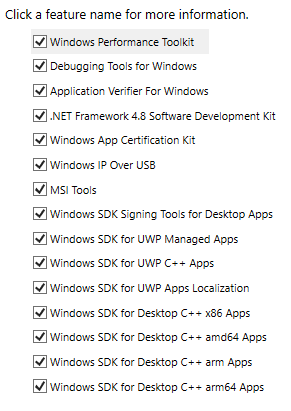
Going to focus on tests and docs to finalize this PR. Comments welcome in the interim.
While I'm thinking about it....I didn't implement dual-signing functionality (such as the electron-builder provides). I believe the underlying rationale for this was old versions of Windows (like XP) that didn't support sha256....so, you had to dual-sign with sha1 so XP could install the software. This was also an issue for Windows Update when they finally retired sha1 signing for updates.
While I'm thinking about it....I didn't implement dual-signing functionality (such as the electron-builder provides).
Yeah - I'm definitely not concerned about signing requirements for operating systems that haven't been officially supported for... 8 years. If Windows 10 doesn't need sha1, I'm not especially worried that we don't support it.
@freakboy3742, for the docs:
-
I duplicated the new signing options for Windows in both
app.rstandvisualstudio.rst....wasn't sure if this is avoidable right now. -
The How-to guide for obtaining a code signing identity I'm not sure if a section for Windows should be added here....since the process is "contact your cert auth and request a code signing cert". I suppose I could add details on how to generate a self-signed code signing cert but this doesn't have any real utility outside of testing Briefcase.
-
A guide for code signing in CI I already have a GitHub CI workflow demonstrating this....but a guide for this potentially feels a bit out of scope for Briefcase's docs. And guides don't exist for other things like this....although, maybe they ideally would.
Furthermore, it isn't really that hard to load a certificate file in to a cert store:
echo "${{ secrets.CODESIGNING_CERT_B64 }}" | Out-File cert.b64
certutil -decode cert.b64 cert.pfx
$CertPassword = ConvertTo-SecureString "${{ secrets.SIGN_CERT_PASSWORD }}" -AsPlainText -Force
Import-PfxCertificate -FilePath .\cert.pfx -CertStoreLocation Cert:\CurrentUser\My -Password $CertPassword
Any feedback on these points or docs, in general, for this is appreciated.
I was tearing my hair out trying to understand why running briefcase package windows app -u -i <identity> multiple times created an unrunnable executable:
❯ briefcase run

[helloworld] Starting app...

Log saved to C:\Users\user\github\beeware\briefcase\tmp\helloworld\logs\briefcase.2023_04_06-16_54_24.run.log

Traceback (most recent call last):
  File "C:\Program Files\WindowsApps\PythonSoftwareFoundation.Python.3.10_3.10.2800.0_x64__qbz5n2kfra8p0\lib\runpy.py", line 196, in _run_module_as_main
    return _run_code(code, main_globals, None,
  File "C:\Program Files\WindowsApps\PythonSoftwareFoundation.Python.3.10_3.10.2800.0_x64__qbz5n2kfra8p0\lib\runpy.py", line 86, in _run_code
    exec(code, run_globals)
  File "C:\Users\user\github\beeware\briefcase\venv-3.10-briefcase\Scripts\briefcase.exe\__main__.py", line 7, in <module>
  File "C:\Users\user\github\beeware\briefcase\src\briefcase\__main__.py", line 25, in main
    command(**options)
  File "C:\Users\user\github\beeware\briefcase\src\briefcase\commands\run.py", line 301, in __call__
    state = self.run_app(
  File "C:\Users\user\github\beeware\briefcase\src\briefcase\platforms\windows\__init__.py", line 100, in run_app
    app_popen = self.tools.subprocess.Popen(
  File "C:\Users\user\github\beeware\briefcase\src\briefcase\integrations\subprocess.py", line 558, in Popen
    return self._subprocess.Popen(
  File "C:\Program Files\WindowsApps\PythonSoftwareFoundation.Python.3.10_3.10.2800.0_x64__qbz5n2kfra8p0\lib\subprocess.py", line 971, in __init__
    self._execute_child(args, executable, preexec_fn, close_fds,
  File "C:\Program Files\WindowsApps\PythonSoftwareFoundation.Python.3.10_3.10.2800.0_x64__qbz5n2kfra8p0\lib\subprocess.py", line 1440, in _execute_child
    hp, ht, pid, tid = _winapi.CreateProcess(executable, args,
OSError: [WinError 193] %1 is not a valid Win32 application
....until it finally dawned on me that rcedit-x64.exe is not compatible with modifying a signed exe.
After the first time briefcase package -i <identity> runs, the app exe has been signed. So, running the build command again allows rcedit-x64.exe to completely corrupt the exe.
While conveniently missing from msft's docs, the signtool apparently supports a remove command. It is entirely unclear when this remove command may have been introduced....however, I did find this post from 2016 talking about it so it seems safe to assume any usable Windows SDK version installed on a user's machine will have this command.
@freakboy3742, for the docs:
- I duplicated the new signing options for Windows in both
app.rstandvisualstudio.rst....wasn't sure if this is avoidable right now.
.. include:: signing-options.rst might be useful here. You can define the common content in a different file, and include it as needed.
- The How-to guide for obtaining a code signing identity I'm not sure if a section for Windows should be added here....since the process is "contact your cert auth and request a code signing cert". I suppose I could add details on how to generate a self-signed code signing cert but this doesn't have any real utility outside of testing Briefcase.
I think at least something cursory is needed. It doesn't need to be a step-by-step hand-held walkthrough; just enough to set someone on the path. Detail like:
- The fact that they can't self-sign, and will need to buy a certificate from a cert authority
- What specifically they need to ask for (to differentiate from other types of certificates)
- What a certificate will look like when they've got one (e.g., file extensions; if it's text, anything in that text that clearly identifies the file content - e.g., the
-----BEGIN RSA PRIVATE KEY-----content in an SSH cert)
Essentially, we need to provide enough detail that someone with the HOWTO would know what to search for on Google to find a vendor, and know they've got the right thing in their hands at the end.
As for the self-signed certificate - I agree that it's probably not worth documenting (beyond addressing the fact that a self-signed certificate isn't a viable option).
- A guide for code signing in CI I already have a GitHub CI workflow demonstrating this....but a guide for this potentially feels a bit out of scope for Briefcase's docs. And guides don't exist for other things like this....although, maybe they ideally would.
CI documentation is a whole other topic that we're not really covering at all at present; I'm happy to call that a separate issue. See #400.
Furthermore, it isn't really that hard to load a certificate file in to a cert store:
echo "${{ secrets.CODESIGNING_CERT_B64 }}" | Out-File cert.b64
certutil -decode cert.b64 cert.pfx
$CertPassword = ConvertTo-SecureString "${{ secrets.SIGN_CERT_PASSWORD }}" -AsPlainText -Force
Import-PfxCertificate -FilePath .\cert.pfx -CertStoreLocation Cert:\CurrentUser\My -Password $CertPassword
Sure - but I didn't know that command until you wrote it here. That's an example of good HOWTO content.