

 WSA-Community
All WSA app crashes after "Starting WSA" splash screen, only WSA settings is working
System: Windows 11 22000.348, WSA version: 1.8.32828.0
After patching all four IMG files with the script (no error messages shown) and registering the modded AppxPackage, the WSA Settings app will appear in start menu and can be launched. However, clicking "Files" or "Show developer options" and WSA will immediately crash after "Starting WSA" splash screen. The Amazon App Store start menu entry also won't be created.
There's no related error message in Windows Event log, either under "Windows Protocols\Applications" or "Program and service protocols\Microsoft\Apps".
Unmodded WSA will launch properly.


Same here. The file was successfully edited and modded. Install went through. Can't manage developer options or launch Play Store because it is simply not there.

Same problem :( "Turned Off" doesn't work for me. i have the same version WsaPackage_1.8.32828.0_x64_Release-Nightly


At this point i used the Magisk on WSA. also has GApps and Works... Nice work tho regardless!

Same for me.. WSA 2203.40000.3.0_x64_Release-Nightly with GApps
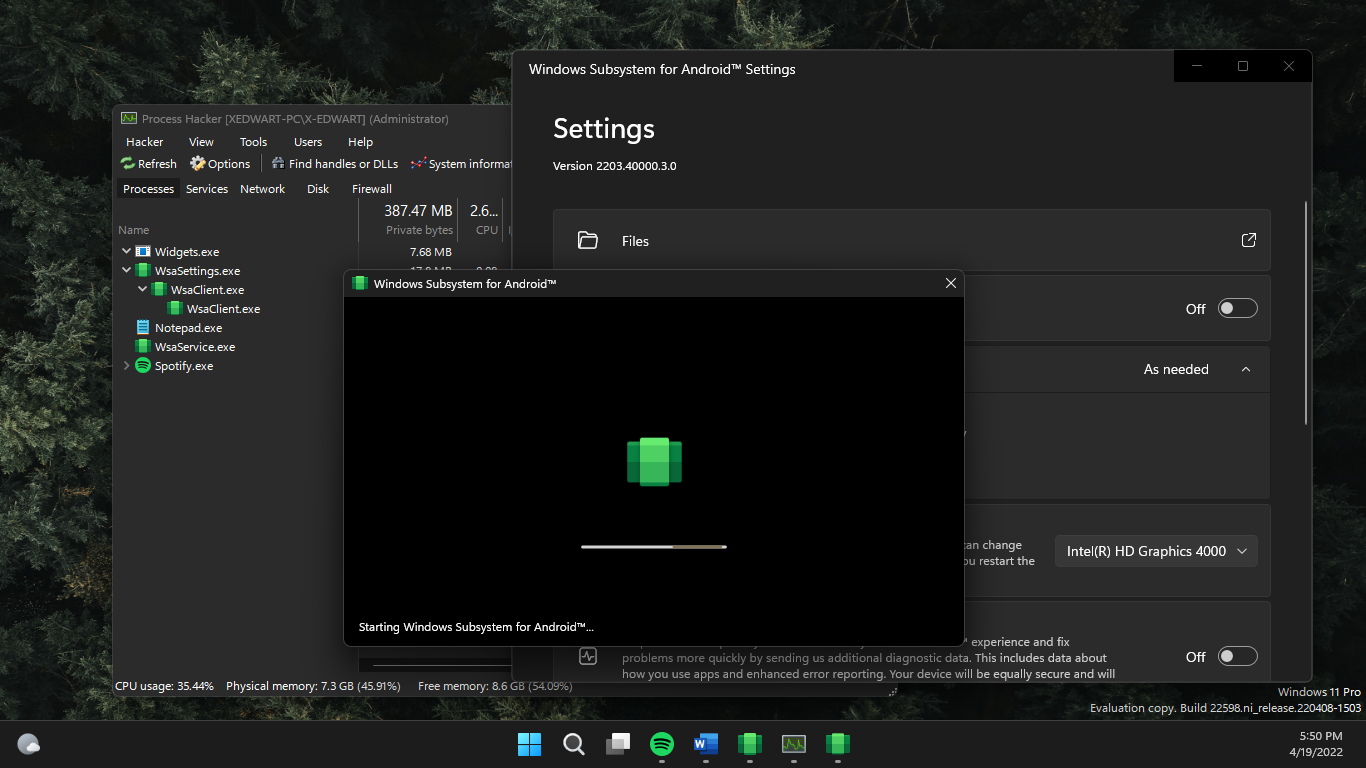 after a few second, its force close..
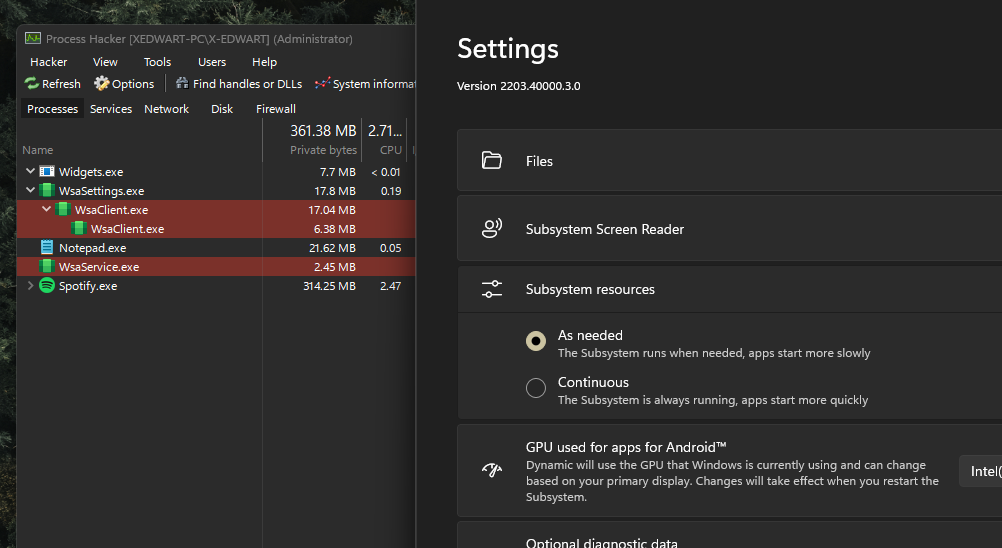

Maybe my issue is unrelated, however I had a similar problem, wsa crashing upon starting, its caused by third party software listening for DNS on port 53, such as acrylic dns. Only when this is disabled does WSA stop crashing.

Turned OFF WSA from WSA Settings, Changed the GPU to Different, Click Files or any app, If not working Turn off and change GPU to another and Open Files

Maybe my issue is unrelated, however I had a similar problem, wsa crashing upon starting, its caused by third party software listening for DNS on port 53, such as acrylic dns. Only when this is disabled does WSA stop crashing.
This was the solution for me! Thank you very much.
I figured that a software called DNSService.exe was running in the background all the time and it was taking port 53.
To find out if your port 53 is taken or not run cmd as administrator and then run this command: netstat -ab
The list of softwares that are listening on different ports will be shown and you can close them using task manager
