T-Troll
GUI app freezes and exits on G7 7790
Describe the bug GUI application opens, freezes for 2~3 seconds and exits.
To Reproduce Steps to reproduce the behavior:
- Open the
alienfx-gui.exeapp - The app freezes and exits.
Expected behavior The app to work.
Screenshots
Version 7.0.0
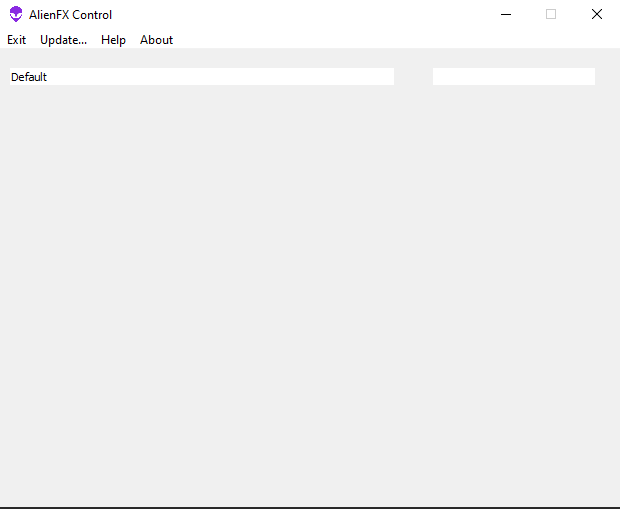
Screenshot from version 7.0.2.1
System:
- Model: Dell G7 7790 (i7-9750h)
- OS: Windows 10 21H2


Check 7.0.2.2.
In case it still not work for you, please open regedit and export some registry entries for me:
-
HKCU\Software\AlienFX_SDK -
HKCU\Software\Alienfxgui
@T-Troll Tested, still doesn't work.
Here are the registry entries.
Aha, i see. You have incorrect data in configuration.... Now i think how can you create this combination... Do you play with zones?
PS: You can just delete alienfangui tree and app will start.
@T-Troll Yes, I deleted and it started working again, thank you!
I think it's solved then.
I have one more question to you, but i'll ask in our discussion thread... hehe
Hold on!
This can return any time!
I need to know, how do you create this mess in configuration? What happened at first app start and what you do?
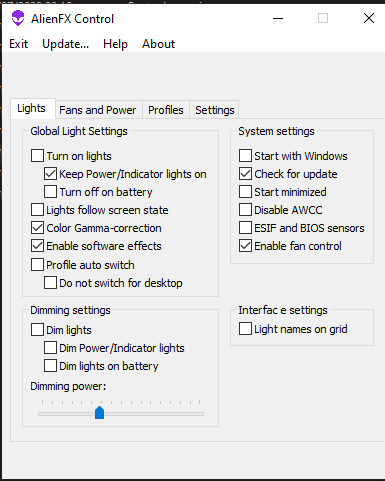
@T-Troll I was messing around in the GUI... Switching tabs (Lights, Fans and Power, etc.), getting familiar with the app.
(Altough my Dell is a G7 7790, I selected the Dell G5 5515 when the app started)
I tried to define some zones...then when I switched to the settings tab, there the GUI froze and the app exited.
@T-Troll Funny enough, the zones in my keyboard were detected only when I selected the "Alienware Aurora R12" profile... (they started to light up, all four zones) And they were detected all wrong (the left keyboard zone was detected as "power button" or something like that...)
I tried to define some zones...then when I switched to the settings tab, there the GUI froze and the app exited.
Got it! But you should not be allowed to work with zones until you don't have at least one light defined.
DO NOT use zones from different devices! They can have the same ID as some of yours, but different settings! BTW, Aurora have IDs 0 and 1. How do you miss it into CLI?
@T-Troll
Here is how it went:
First i opened the GUI, selected G5 5515 (the other options were Alienwares, and my notebook is a G7... It was the most logical choice...).
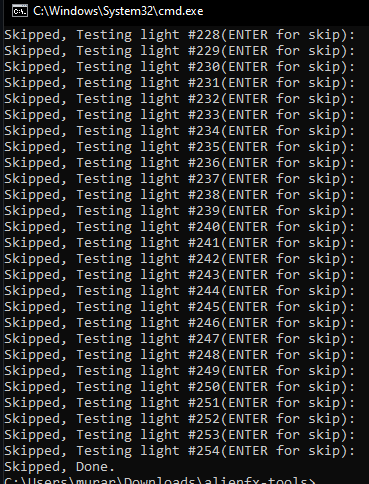
Then the CLI probe only detected 2 zones (and the probe tried to turn on IDs 0, 1, 2, 3), but only 0 and 2 turned on.
Then in the GUI I selected the Autora R12.
Executing probe again, IDs 0, 1, 2 and 3 all got light up correctly (but with wrong names).
Oh, let me guess....
- You create light at Devices
- You switch on Lights and create a zone and set color
- You switch to devices and remove light
- App crashes
Am i right?
@T-Troll Yeah, I think so! I was a bit confused trying to figure out using the app hehehe.
I just messed around.
What I dont understand is: probe with G5 profile doesn't light up all keyboard zones, but probe after selecting Aurora R12 detects all zones correctly. (And both of them try to detect the same device IDs...) 🤔
So, this is a bug (but about other), but you should NOT read a warning at the top of EVERY release to make this! Yes, app require some basic concept understanding. I warn about it and provide a beginner's tutorial.
As i said, using mapping from other model (which use the same chip) is a bad idea. Now you have mess in configuration, it can be solved in UI, but with effort!
I check CLI as well. Do you have AWCCService stopped?
I don't have AWCC, I uninstalled it completelly (the last version was leaking memory).
I check cli probe with same chip and empty configuration. It works correctly. Seems like you still have some AWCC remains, like AWCCService.
@T-Troll I don't have AWCC anymore, I uninstalled it and deleted all folders related to it.

I think that the first time i launched the GUI and selected G5 5515 caused all the trouble and errors. so it was my mistake...
I deleted all registry entries related to alienfx... and restarted the GUI, everything clean.
This are the options:
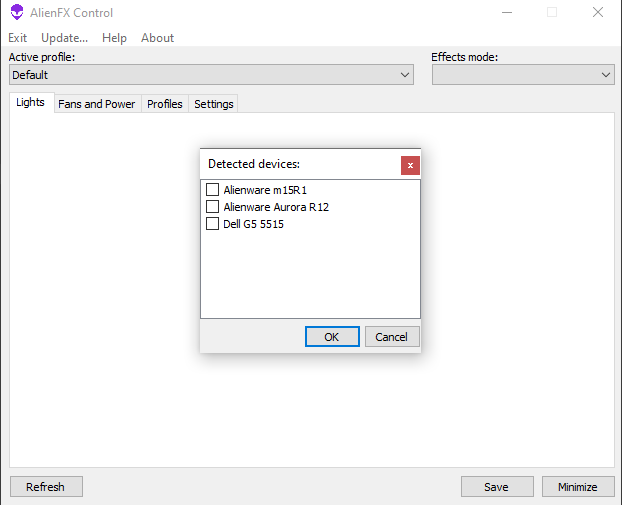
It's kinda hard for someone who owns a G7 to select anything other than the G5 profile...
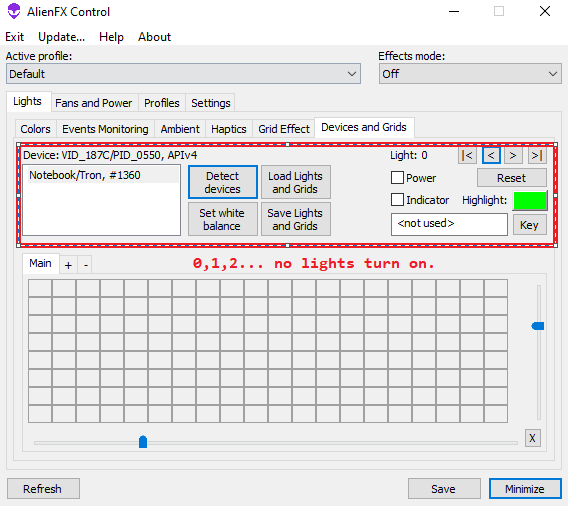
With everything clean, I started the GUI and didn't select any profile (just closed the dialog), but no lights turn on, I try to cycle through the lights, but no lights turn on...
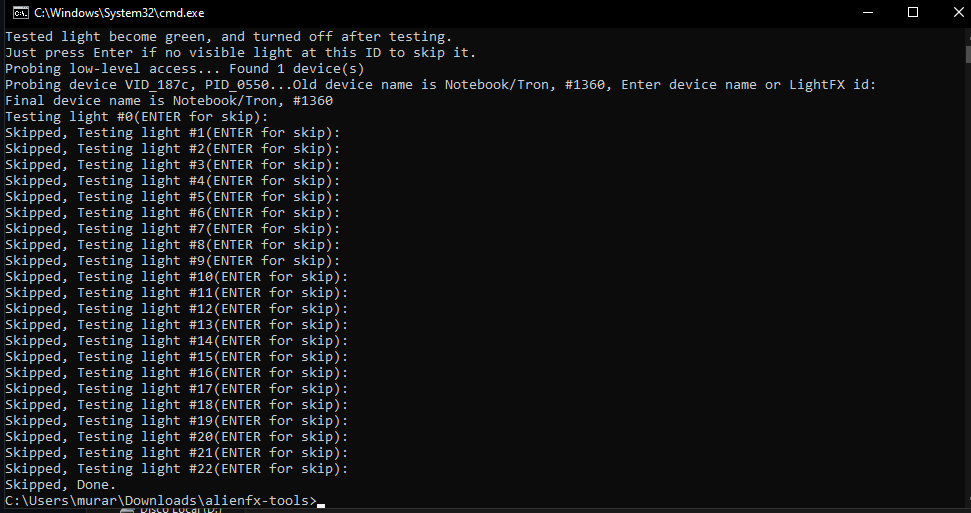
Same thing on the CLI, probe command doesn't turn on any lights... nothing.
The only way to make all the keyboard lights in my keyboard to turn on is to start the GUI and select the Alienware m15R1 profile, after that, the GUI and probe can turn on my keyboard lights.
Actually, the profile that works is the Alienware m15R1, not Aurora, I tested again.
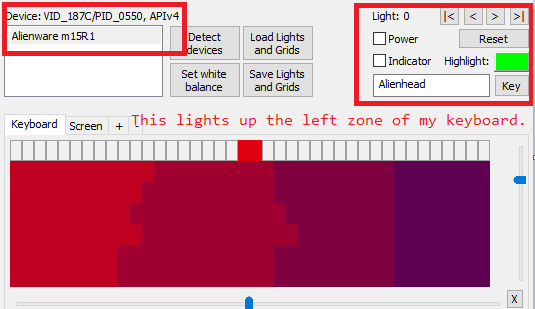
Now my keyboard starts to light up correctly!
0 - Left Zone 1 - Center-left 2 - center-right 3 - right (numpad)
The only difference between some lights set, and no lights set in GUI is GUI turn OTHER lights black if defined, keeping selected only. And don't touch other lights, if it is not defined. CLI always works with active light only.
As i told you, using other hardware profiles is tricky. For m15R1, for example, light 1 set to hardware power button IN CHIP as a result. You can not resolve it by AWCC, my tools only. And removing settings doesn't alter it.
@T-Troll i dont understand, without selecting the m15R1, It doesnt work. The lights wont turn on. Empty configuration doesnt work.
Is there a way to create profile from empty configuration?
I check empty configuration WITH THE SAME CHIP. Both CLI and GUI work correctly.
Do you read beginner's guide? It's about how to set lights from scratch as well!
@T-Troll Yes, I read, specifically this part: https://github.com/T-Troll/alienfx-tools/wiki/How-to-start-(Beginner's-guide)-for-release-v6.x.x.x#assign-lights-to-grids
Assign lights to grid via GUI, did not work, no lights turned on.
Assign lights via CLI with probe=l,255 command, did not work, no lights turned on.
I really don't know what i'm doing wrong... i'm following your guide...