
TPFanCtrl2
 TPFanCtrl2 copied to clipboard
 Shuzhengz
ThinkPad Fan Control 2 (Dual Fan) for Windows 10 and 11
TPFanCtrl2 
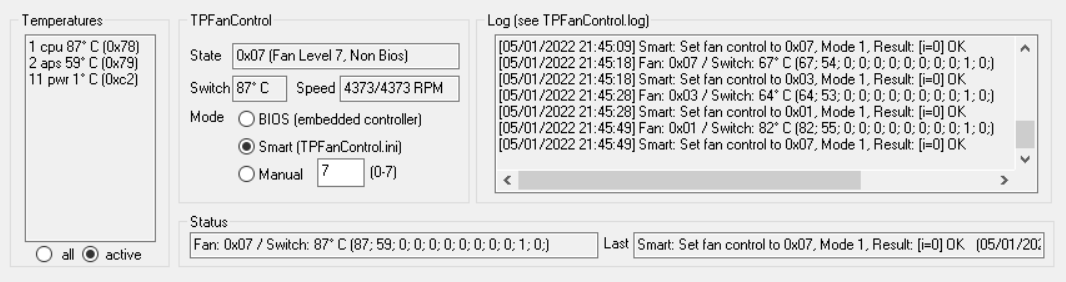
ThinkPad Fan Control 2, a fan control utility for ThinkPad users running Windows 10/11
About
This is a fork of the original TPFC, and is based on byrnes' dual fan mod. It's updated it to work with two fan devices. It has only been tested on X1 Extreme Gen. 1 and P1 Gen. 4, but it should work on most other dual-fan Thinkpads that are released. The default fan profile is a silent one, with the fans only coming on at 60c. This can be changed by editing tpfancontrol.ini.
Visual Studio 2022 Community was used to build and debug. A release build is in the works
Requirements
To avoid errors, either install tvicport manually or install the original version of TPFanControl found here (source code here), and run the dual-fan version instead of the original version.
Administration permission is required for the program to be able to control system fan speed.
Windows 10 or 11 is required to run the program.
Configuring
You can configure the behaviour of the program by editing the values inside the TPFanControl.ini file that comes with the program,
The TPFanControl.ini file should always be in the same directory as the fancontrol.exe executable file.
Example of configurable parameters:
- Temperature refresh cycle time
- Start minimized in the taskbar tray
- Max read errors before the program auto shuts down
- Log program log to file & log data to CSV file
- Configure the fan curve in smart mode
- Configure a second smart mode that is accessable in the tray
- Temperature threshold to exit the manual mode
Manual Fan Levels
| Normal: | Advanced: |
|---|---|
| 0 - Off | 0 - Off |
| 1 - 30% | 50 - 40% |
| 2 - 40% | 60 - 60% |
| 3 - 45% | 70 - 100% |
| 4 - 50% | 80 - 100% |
| 5 - 60% | |
| 6 - 65% | |
| 7 - 65% |
Advanced level value is converted into hex, the value above is a rough estimate of what to expect
The 0-7 range is intended to be used as the fan levels intended by the manufacture (7 being the highest that the laptop BIOS can go), and to take full advantage of the fan you'll need to enter 0-128 in hex (for example, 128 in hex is 0x80, which is entered as 80).
Additional Information
You can find additional information here on the ThinkPad Wiki: https://thinkwiki.de/TPFanControl.
Building Instructions
Building this program requires Microsoft Visual Studio 2022 Community
The project should have the correct configuration upon opening the project file fancontrol.sln, though you might have to manually copy and paste the .ini file into the Debug folder to test the built program
The project currently builds with the configuration: Debug Win32 (You will need admin permission to run the built program)
Do not build the project without TPFCIcon and TPFCIcon_noballons, they are necessary parts of the application and the main fan control software will not function without them
The source code of spinoff releases of the program (i.e. 2.1.5 B) for different machines are stored within the archive direcotry, you can build them by subsituting the main fancontrol directory with the fancontrol directory of the desiered version. Note that TPFCIcon and TPFCIcon_noballons should stay the same for every release.
Note
If you get Linker Tools Error LNK2026: module unsafe for SAFESEH image when building:
- Go to Project properties -> Configuration Properties -> Linker -> Advanced
- Disable option
Image has Safe Exception Handlers(No (/SAFESEH:NO)
Running at startup (Not Recommended)
You can choose to run TPFC at startup:
- Right-click on fancontrol.exe and select copy
- Press Windows-r or search for run in the start menu
- Type
shell:startupin the run box - Right click in the window that opens and select paste shortcut
Note: This won't start TPFC until you reboot.
Uninstall
Delete the folder containing the program and the ini file.
That's it, there's no residual files.
If you added the program to run at startup, you will have to also delete the shortcut from the start up folder.
Known Issues
Sometimes the fans will fail to sync, with one ramping up and the other not. This will usually fix itself, but to fix it manually, switch to BIOS mode, then switch back to the desired mode
It will also sometimes take a longer time for the speed to update and the fans to spin up. This is caused by EC management for the newer ThinkPad BIOS. There is currently no way around it.
ThinkPad P50
P50 Laptop users should use the 2.1.5B release as the fan control parameters are different, but the temperature is currently broken in the build, so it is recommended to use it in manual mode only
Thinkbooks
Some thinkbook models have different EC address, so the program might not work
License
This program has an Unlicense license
The author claims no copyright, copyleft, license or whatsoever for the program itself. You may use, reuse or distribute its binaries or source code in any desired way or form, Useage of binaries or source shall be entirely and without exception at your own risk.
 Shuzhengz