

 OfficeDev
Excel Add-in created not loading and giving error after updating to Windows 11
I am trying to build a new Excel Add-in using the link provided below from Microsoft office docs using Visual Studio 2019 but this is giving me This Add-In could not be started error after Trying out step 2. please find additional details below. When i build the Add-In with same steps in Windows 10 OS its working fine.
Content URL: https://docs.microsoft.com/en-us/office/dev/add-ins/quickstarts/excel-quickstart-jquery?tabs=visualstudio
Product: Excel Technology: add-ins OS: Windows 11 Windows Version: Version 21H2 (OS Build 22000.258) Excel Version: 2110 (build 16.0.14527.20008) 32 bit


Thanks for reporting this issue @VamsiKrishnaNori. Are you seeing the same issues when using the Yeoman Generator version of the quick start?
@millerds, can you please investigate?

@AlexJerabek i haven't checked with Yeoman Generator version because we have built our existing Add-ins using Visual Studio version
I'd start checking the URL. Dive into the manifest file and look for the startup URL, try to open that in your browser and see if that gives some results. You won't be able to run the code that sets the color in Office as you are outside Office in the browser, but your Add-in should at least show some body text on the page.

@aafvstam
The Start up URL is automatically generated by Visual studio with IIS server in local machine.
It was showing me two URLs i tried opening them and they are loading the Directory fine without any issue as per below images.
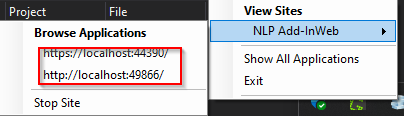
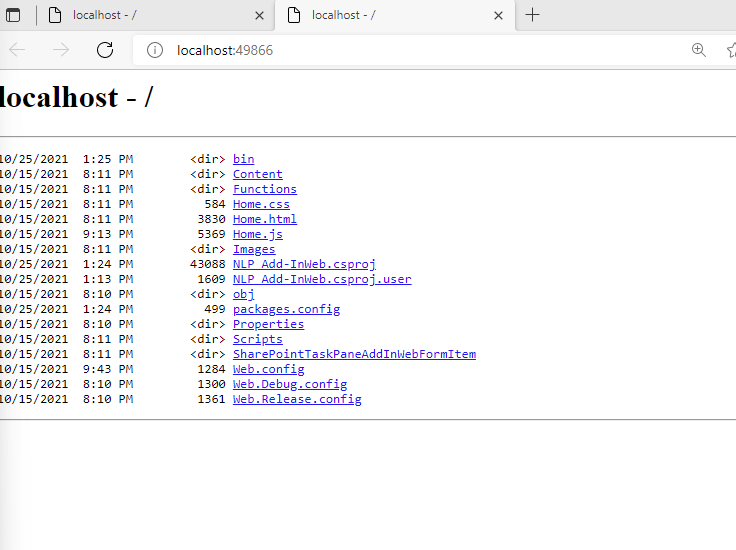
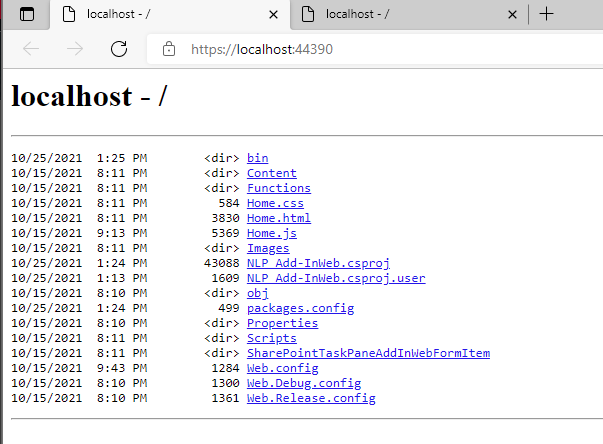
I have also set the project debugging using Edge Browser and Chrome as Internet Explorer is no longer present in Windows 11.
The issue as per my hunch would be related to IE browser as it is no longer present in Windows 11 although browser support is stopped IE is present by default in Windows 10.
Correct me if i am wrong
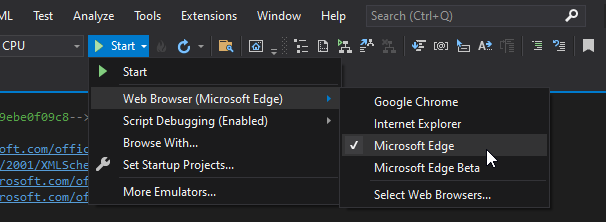
FYI: I have also tried several things like clearing office cache which apparently didn't work
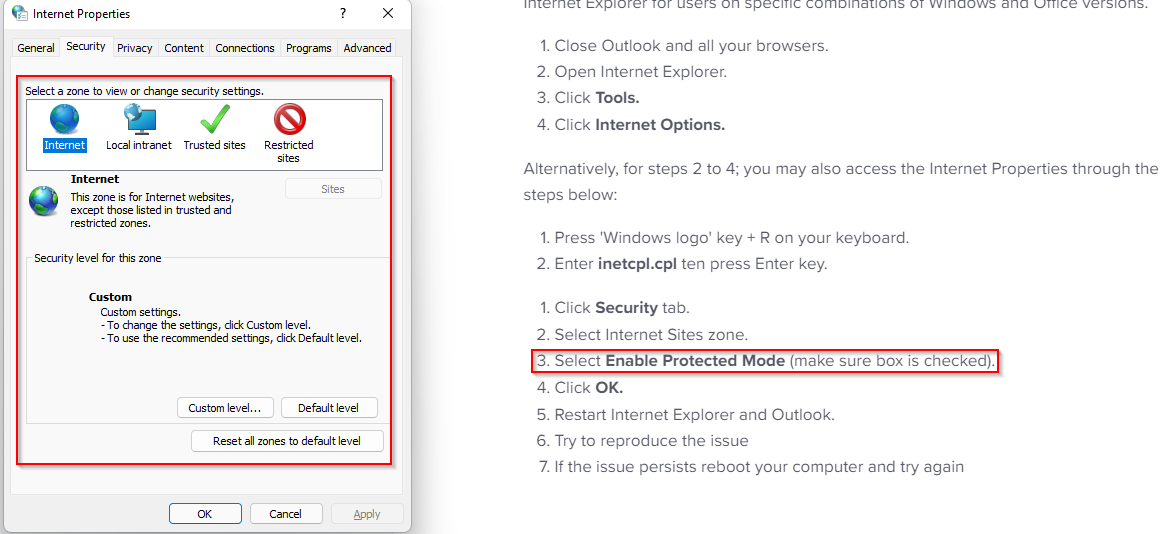
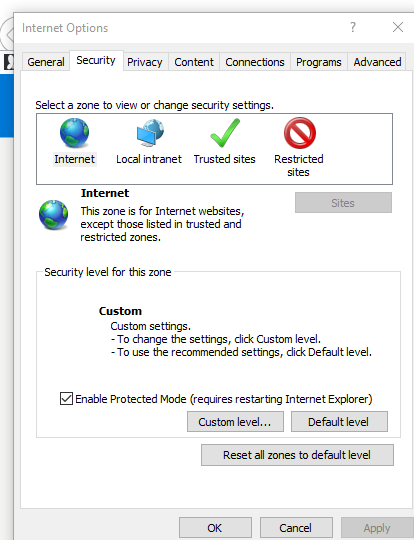
This is one more method which i tried but couldn't complete because Highlighted step in below image is not present in Windows 11 but it is present in Windows 10 because again of IE browser.
Article URL: https://support.cloudextend.io/en/articles/1689593-add-in-error-this-add-in-could-not-be-started-close-this-dialog-to-ignore-the-problem-or-click-restart-to-try-again
Windows 11:
Windows 10:
I tried using 'yo office' on a Win11 machine that had been upgraded to Win11 and the new project worked. I will look at the trying it with VS now.

I was able to go through the walkthrough in Visual Studio and it worked fine for me on Windows 11. I can see that by default it was set to Microsoft Edge instead of IE, but switching it didn't make a difference for me. I am using a 64-bit version of office . . . but to my knowledge that shouldn't make a difference.
Are you trying the same project on two different machines or are they separate projects?
@millerds
I am trying the same project in both the machines which have 2 different OS versions
@millerds
So i tested with 64 bit version and its working fine now.
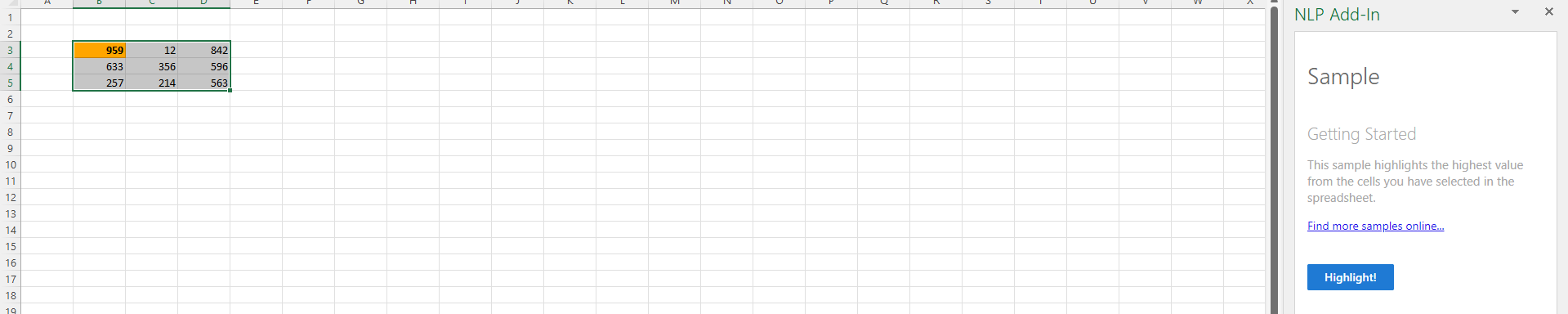
I can say with 90% certainty that issue is with 32 bit version
These are the steps i did to resolve the issue:
- Clear office cache : https://docs.microsoft.com/en-us/office/dev/add-ins/testing/clear-cache
- Enable protect mode : https://support.cloudextend.io/en/articles/1689593-add-in-error-this-add-in-could-not-be-started-close-this-dialog-to-ignore-the-problem-or-click-restart-to-try-again
- Repair (or) Re install Visual Studio
- Update Office from 32 bit to 64 bit
Step 4 resolved the issue
Hmm . . . thanks for the investigation. Well have to look into the 32bit compatibility on Win11.
@millerds
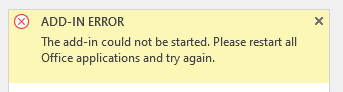
Now i am getting this error. I haven't changed anything just ran the project again and its asking me to restart entire office
I haven't been able to look at this in a while . . . is anyone still having trouble with this?