
ArduinoStrike
 ArduinoStrike copied to clipboard
 DeniedAccessLife
Program for controlling recoil in the game Counter-Strike 2 using an Arduino Leonardo.
ArduinoStrike
ArduinoStrike is a program designed to control the recoil of weapons in Counter-Strike 2 using Arduino Leonardo or any other compatible board. This tool simulates mouse movements for recoil control, implements rapid fire for semi-automatic weapons and adds bunny hop functionality. The software does not interact with the game client in any way, which makes it difficult to be detected by anti-cheat.
Table of Contents
- Introduction
- Key Features
- Getting Started
- Requirements
- Installation
- Configuration
- View
- Contributing
- License
Key Features
| Feature | Description |
|---|---|
| Bhop | Automatically jumps while holding spacebar, improving movement speed. |
| ColorBot | Detects color changes when aiming and fires instantly without delay. |
| RapidFire | Increases the fire rate of semi-automatic weapons for faster shooting. |
| FastReload | Speeds up reloading in certain situations, allowing faster combat readiness. |
| AutoAccept | Automatically accepts match requests when the button appears on the screen. |
| RecoilControl | Reduces recoil by simulating controlled mouse movements for better accuracy. |
Additional Details
- Note: To enable the bhop feature, enter the command
bind mwheeldown +jumpin the game console. - Important: ArduinoStrike does not require a USB Host Shield - the board connects to a PC via USB and works as an HID device.
Getting Started
Requirements
- Software: Arduino IDE or PlatformIO, Counter-Strike 2
- Hardware: Arduino Leonardo (or compatible board with native USB HID support)
Dry Run Mode
For testing purposes, you can run ArduinoStrike without connecting an Arduino device using the dry run mode:
ArduinoStrike.exe --dry-run
# or
ArduinoStrike.exe -d
In dry run mode:
- No Arduino connection is established
- All messages are simulated and logged to file
- Configuration and hotkeys work normally
- Perfect for testing configuration and features
Installation
Option 1: Using PlatformIO (Recommended)
-
Clone the Repository
git clone https://github.com/DeniedAccessLife/ArduinoStrike.git cd ArduinoStrike -
Upload the Firmware
-
Navigate to the
PlatformIOfolder:cd PlatformIO -
Run the
upload.batscript for Windows. -
The script will automatically compile and upload the firmware to your connected Arduino board.
-
Ensure the correct board and port are specified in the
platformio.inifile.
-
-
Adding Support for Custom HID-Compatible Boards
- If you plan to use a custom board with HID emulation, update the
platformio.inifile located in thePlatformIOfolder with the appropriate configurations for your board. - Modify the
upload.batscript in the same folder to support additional options.
- If you plan to use a custom board with HID emulation, update the
Option 2: Using Arduino IDE
-
Clone the Repository
git clone https://github.com/DeniedAccessLife/ArduinoStrike.git cd ArduinoStrike -
Locate the Sketch File
- The sketch file is located in the
PlatformIO/srcfolder asArduinoStrike.cpp.
- The sketch file is located in the
-
Convert the Sketch for Arduino IDE
- Rename
ArduinoStrike.cpptoArduinoStrike.ino. - Create a new folder named
ArduinoStrikein theArduinoprojects directory on your system. - Move the renamed file into the newly created
ArduinoStrikefolder.
- Rename
-
Open the Project in Arduino IDE
- Launch the Arduino IDE and open the newly created
ArduinoStrike.inofile.
- Launch the Arduino IDE and open the newly created
-
Connect and Configure Arduino
- Connect your Arduino board to your computer.
- In the Arduino IDE, select the appropriate Board (e.g.,
Arduino Leonardo) and Port.
-
Upload the Firmware
- Click the Upload button to flash the firmware onto your board.
Configuration
On first launch, an interactive setup wizard will guide you through feature selection, sensitivity settings, and key bindings. Your preferences will be saved in Config.json.
Feature Selection
You will be asked whether to enable the following features:
| Feature | Description | Options |
|---|---|---|
| Bunny Hop | Auto-jumps while holding spacebar for better movement. | Y (enable) / N (disable) |
| Rapid Fire | Increases the fire rate of semi-automatic weapons. | Y (enable) / N (disable) |
| Fast Reload | Reduces reload time for faster weapon switching. | Y (enable) / N (disable) |
Parameter Settings
You will set the following parameters:
| Setting | Description | Range | Example |
|---|---|---|---|
| Sensitivity | Controls general mouse movement speed. | 1 (slow) to 8 (fast) |
8 |
| Zoom Sensitivity | Adjusts sensitivity when aiming down sights. | 0.01 (low) to 3.00 (high) |
1.00 |
| ColorBot Threshold | Determines color variation tolerance for ColorBot activation. Lower values are stricter. | 0 (exact match) to 20 (high tolerance) |
20 |
Key Bindings
You can assign keys to specific actions. Press the desired key when prompted, or ESC to disable the hotkey.
| Action | Description | Type |
|---|---|---|
| Recoil Control Confirmation | Confirms activation of recoil control while held. | Hold |
| ColorBot | Activates ColorBot only while the key is held down. | Hold |
| AutoAccept | Toggles automatic match acceptance on/off. | Toggle |
| Weapons | Assign keys for different weapons (UMP-45, M4A1-S, M4A4, etc.). | Press |
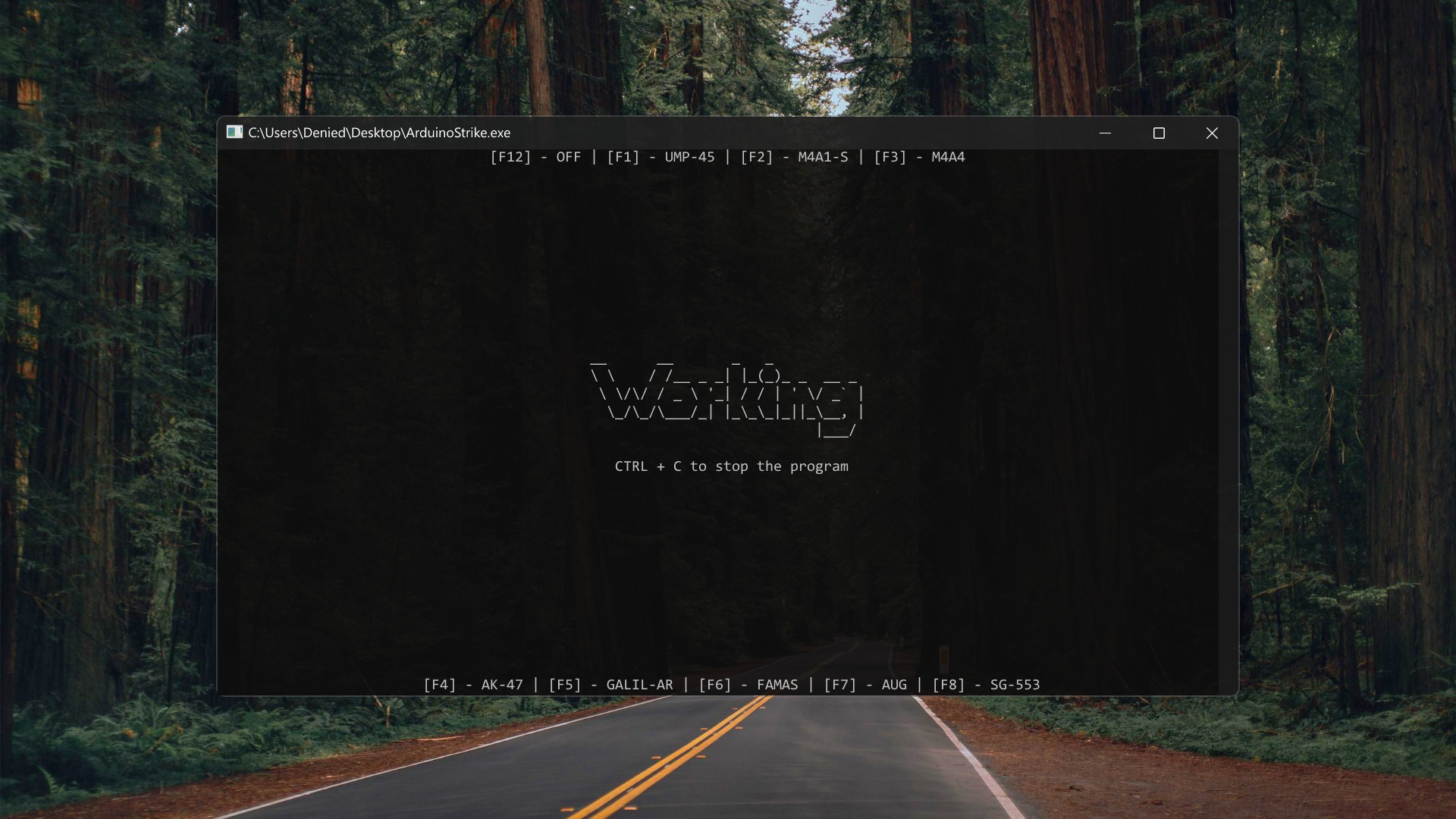
View
Window of the program.
Contributing
If you want to contribute to this project:
- Request enhancements
- Report bugs and errors
- Create issues and pull requests
- Spread the word about this project
Please read CONTRIBUTING for details on our code of conduct and the process for submitting pull requests.
License
This project is licensed under the GNU License - see the LICENSE file for details.
Metadata
Owner
 DeniedAccessLife
Metadata
Program for controlling recoil in the game Counter-Strike 2 using an Arduino Leonardo.