

 CultureHub
Tutorial: First Things to Know About LiveLab
Note: Updated for v1.3.9 beta
Starting LiveLab
To use LiveLab, go to https://livelab.app using Chrome environment. It could also be accessed on Android phones or tablets. (ios devices not supported currently)
Initiation Page
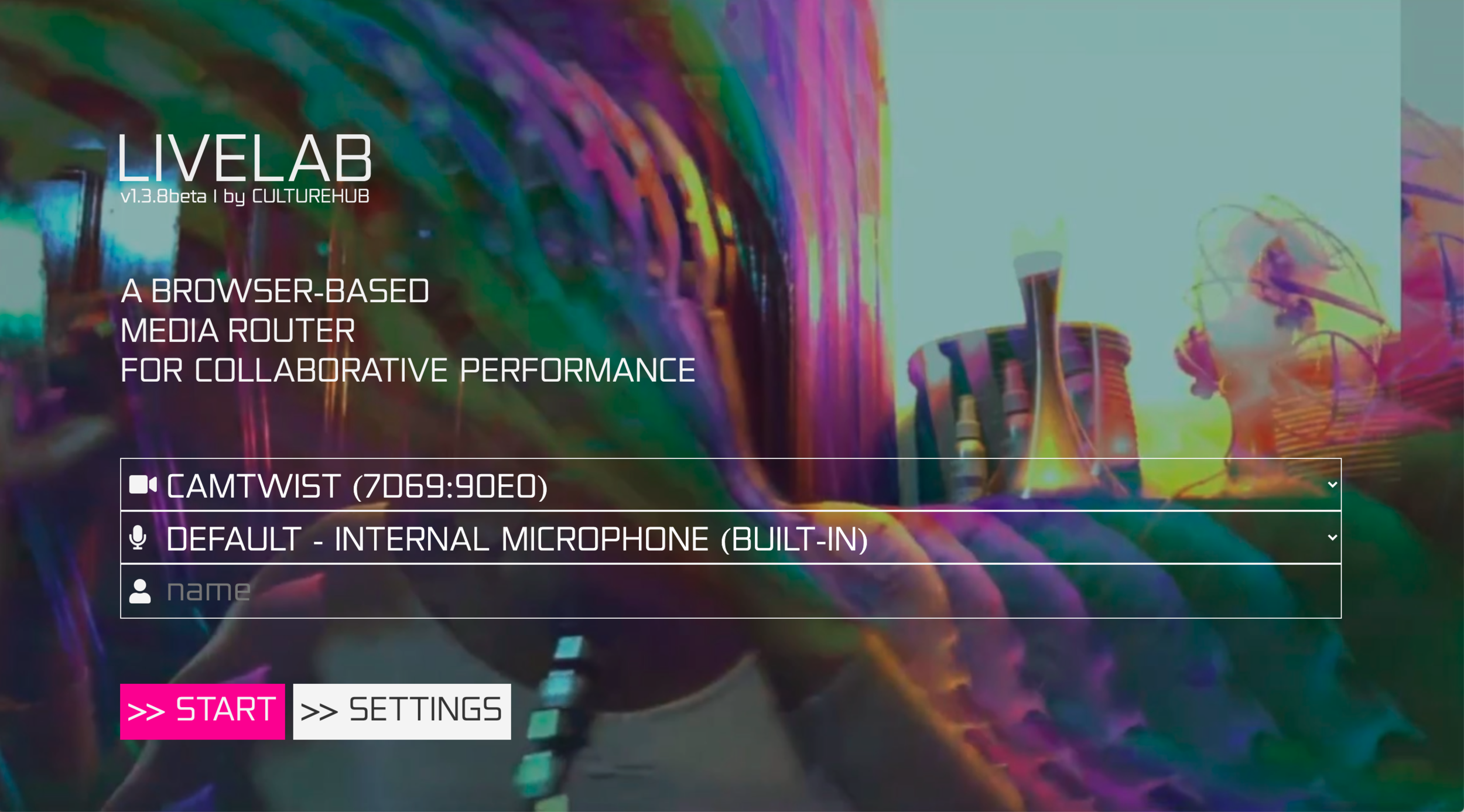
1. Select your initial media devices At the initiation page, once you grant permission for the website to access your camera and microphone as a first-time user, your media list should be auto-loaded, and the media devices connected to your laptop that are available can be selected from the video and audio drop-down menu.
** if your chrome browser doesn't pop up the media access permission box when first visit, check out our issue #3 for how to reset site permissions.
2. Name Type in the name you will be using during the session in the "name" column. Your input will be remembered and automatically filled in next time you use Livelab.
3. Advanced configuration of your media Click on the "settings" button on the initiation page to open the advanced setting menu, in which you can configure your media input. Video: Select your input, and use the input columns to adjust the video resolution and framerate. Audio: Select your audio input, and use the checkbox to turn on/off the audio processing functions.
4. Start a session
Click on the "Start" button. Once you click "start" to start a session, you will join a room with a randomly generated room name, which is shown in the URL. You can now copy and share the URL with other people in order to add them to the session
5. Join a session via a shared URL link If you join LiveLab via an URL link shared by others, click on "start" button will bring you to the room indicated in that shared URL.
Main Workspace
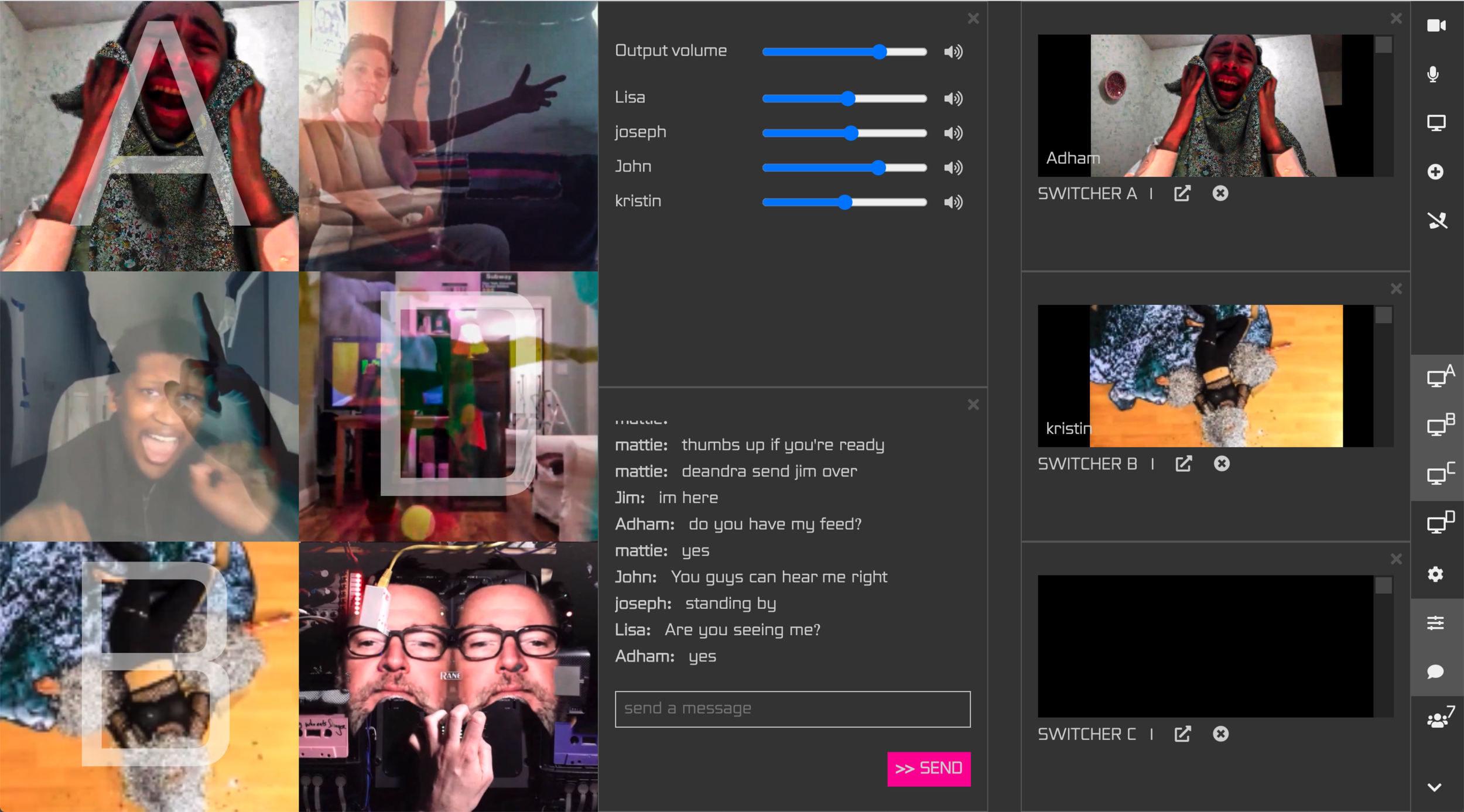
All the functions are integrated into the menu bar on the right side, which includes (from top-down):
-
Turn on/off your camera

-
Mute/unmute your microphone

-
Screen Share

-
Add Media Stream: add additional cameras and audio streams to the same session

-
End Call: end your session and exit the room

-
Settings: -- select the number of output switchers
-- select different layout modes
-
Output Volume Control: use the audio mixer to control the master volume and volumes of individual feeds

-
Chat:

-
Show Participant List: show how many people are in the room with their media feed information


Does Live Lab have the ability to record the session too?
Hi @moldme, currently we do not have a built-in recording function. We use software like OBS or Quicktime if it's just a talk session, or if we do live streaming on Youtube/Vimeo then we work with their built-in function of recording.
Thanks for the fast answer
On Wed, Jul 15, 2020, 3:02 PM Tong Wu [email protected] wrote:
Does Live Lab have the ability to record the session too?
Hi @moldme https://github.com/moldme, currently we do not have a built-in recording function. We use software like OBS or Quicktime if it's just a talk session, or if we do live streaming on Youtube/Vimeo then we work with their built-in function of recording.
— You are receiving this because you were mentioned. Reply to this email directly, view it on GitHub https://github.com/CultureHub/LiveLab/issues/6#issuecomment-658946710, or unsubscribe https://github.com/notifications/unsubscribe-auth/AQIE2LSIKTG73GMP6WMRDHDR3X4NNANCNFSM4N7AJC5Q .
Hi! Is it possible to add an audio stream that is an audio file from the computer? or is it just live inputs? Thanks!

@TunefulJake AFAIK currently its only live feeds, but there are always software plugins on the computer that could be used to add the audio streams. I think if you use loopback/jack/soundflower/blackhole (sorry all MacOs references) and add that as an audio source it might work.
Loopback: https://rogueamoeba.com/loopback/

I've cloned the repo, set up certs, and ran npm run dev, I see it say server listening on port 443. However, when I visit http://localhost:443 nothing comes up. when i manually open index.html the UI comes up, but it doesn't seem to be able to connect to the server. i tried starting up a signal server as well and replacing the server URL, to no avail. Any insight would be helpful as I'm trying to modify the signal server for an experiment i am trying to do. Thank you.


hey @ojack yeah, thanks, that did it. I'm so used to using http on localhost. thank you!!