CommunityToolkit
How add sorted item in ObservableGroupedCollection
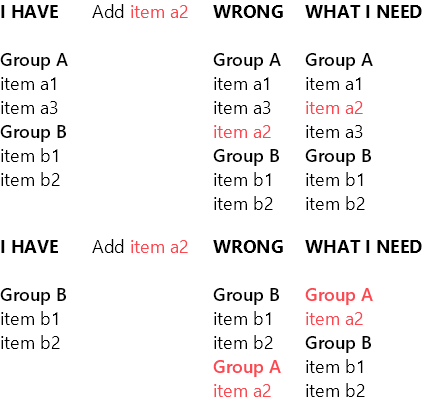
Hello! I have an example from the WindowsCommunityToolkit ObservableGroup (https://github.com/windows-toolkit/WindowsCommunityToolkit/tree/master/Microsoft.Toolkit.Uwp.SampleApp/SamplePages/ObservableGroup). Everything works. But all new groups and items are always added to the end. How can I add a new item (and a new group with a new item) in alphabetical order? I tried: _contactsSource.Add(new ObservableGroup<string, Person>(groupName, new[] { newContact })); And tried: ObservableGroupedCollectionExtensions.AddItem(_contactsSource, groupName, newContact); But it did not help.

Hello Hot-Gun, thank you for your interest in Windows Community Toolkit!
I have automatically added a "needs triage" label to help get things started. Our team will analyze and investigate the issue, and escalate it to the relevant team if possible.. Other community members may also answer the question and provide feedback 🙌

@Hot-Gun Thanks for highlighting the issue but it does seem like that the only letters that are triggered to be added at end of the list (not in alphabetical) are not part of the existing Items list. I am not certain if it's intended by design. I will tag this and see if community members can provide further insight.
Attached is the video of the sample
https://user-images.githubusercontent.com/35208324/108754888-654b9e80-74fb-11eb-958c-45759fb70a86.mp4

FYI @vgromfeld @Sergio0694 who have knowledge in this space.
But Add will always add to the end of a collection, there should be an InsertItem method you can call as well.
You'd have to figure out where you need to insert the item into your collection I believe, otherwise the sorting part should be handled by the CollectionViewSource?

So, @Sergio0694 didn't help me. But I found a solution. Maybe someone will show a more elegant option, but here's what I replaced, based on an example from the WindowsCommunityToolkit: I will do tests in the future to make sure that this is not causing the problem. Original from example:
        var groupName = GetGroupName(newContact);
        var targetGroup = _contactsSource.FirstOrDefault(group => group.Key == groupName);
        if (targetGroup is null)
        {
            _contactsSource.Add(new ObservableGroup<string, Person>(groupName, new[] { newContact }));
        }
        else
        {
            targetGroup.Add(newContact);
        }
My code:
        var groupName = GetGroupName(newContact);
        var targetGroup = _contactsSource.FirstOrDefault(group => group.Key == groupName);
        if (targetGroup is null)
        {
                List<string> tempList = _contactsSource.ToDictionary(x => x.Key).Keys.ToList();
                tempList.Add(groupName);
                tempList.Sort();
                _contactsSource.Insert(tempList.IndexOf(groupName), new ObservableGroup<string, Person>(groupName, new[] { newContact }));
        }
        else
        {
                List<Person> tempList = targetGroup.ToList();
                tempList.Add(newContact);
                var query = tempList.OrderBy(x => x.Name);
                tempList = query.ToList();
                targetGroup.Insert(tempList.IndexOf(newContact), newContact);
        }
@Hot-Gun, the sample page is very basic. It only uses Add() because it was simpler to showcase the behavior of the ObservableGroupedCollection<TKey, TValue>.
Since it mostly just wraps an ObservableCollection<T>, it is up to you to insert the data where you want using InsertItem as @michael-hawker said.
You can simplify your code by doing a binary search in the groups list or the existing group content to find the insertion index.
Sadly, ObservableCollection<T> does not have it implemented but you can easily add your own.
This will improve the performances.

@Hot-Gun this should ideally be supported by the CollectionViewSource helpers, we have some in the Toolkit, but not one that supports sorting and grouping. I've opened this WinUI issue on the topic please up-vote that one.
Though there is certainly room to improve our sample here as well.
Closing this, as #168 did add new APIs to insert items in the right (sorted) position 🙂