

 AcademySoftwareFoundation
GPU/NVIDIA drivers in RQD docker file for Ubuntu 18.04 for Blender GPU rendering
I've been trying to enable GPUs on the RQD for a few days now, but can't see where on the docker file I'd add the driver.
Also, is there anywhere on Opencue submit where you can specify a GPU?
I realise that this may not be the right spot to ask, so apologies! Any help would be greatly appreciated.
I have set up OpenCue and can successfully render on the right version of Blender on CPU, with no problem.
The last roadblock I have is that I can’t get the GPUs to become an available resource on the RQD instances (render nodes).
From what I understand, the docker container needs the NVIDIA driver installed as well as the CUDA tool kit, but there is no documentation that I can see that covers this. When I try to add it to the docker file, the RQD builds incorrectly.
I’ve attempted various methods for the last couple of days, but no luck.
Someone did attempt to create a docker image with Ubuntu 18.04 with NVIDIA drivers (https://github.com/fananimi/rqd-gcp) but I have not successfully built the docker image.
So, in summary here is my checklist, with my last roadblock
✓ OpenCue SQL database ✓ OpenCue bot to handle requests ✓ OpenCue SUBMIT running on local machine ✓ OpenCue GUI running on local machine ✓ Google Cloud bucket for render results mounted on local machine ✓ The ability to submit jobs ✓ RQD (instance) appears as an available host and renders jobs successfully on CPU ✓ RQD has a GPU ✓ RQD has Blender 2.8a installed via Docker and successfully renders test frames ✓ RQDs are set up as instance templates and within a scalable instance group x RQDs render on the GPU (not the CPU) via OpenCue
Dockerfile without my cloud bucket name
#   Copyright 2019 Google LLC
#
#    Licensed under the Apache License, Version 2.0 (the "License");
#    you may not use this file except in compliance with the License.
#    You may obtain a copy of the License at
#
#        https://www.apache.org/licenses/LICENSE-2.0
#
#    Unless required by applicable law or agreed to in writing, software
#    distributed under the License is distributed on an "AS IS" BASIS,
#    WITHOUT WARRANTIES OR CONDITIONS OF ANY KIND, either express or implied.
#    See the License for the specific language governing permissions and
#    limitations under the License.
#
#
# Pull the base image from your local Docker Repository.
# The following line references the base RQD image which you created in the previous step.
FROM opencue/rqd:demo


# Update [YOUR_BUCKET_NAME] with the name of your bucket in the following line:
# This variable is referenced in rqd_startup.sh
ENV GCS_FUSE_BUCKET XXXX

## This is the GCS bucket mount point on your Render Host. /shots is correct for this tutorial. Referenced in rqd_startup.sh
ENV GCS_FUSE_MOUNT /shots

# Create directory mount point
RUN mkdir /shots
RUN chmod 777 /shots

# Install gcsfuse
ENV PATH $PATH:/usr/local/gcloud/google-cloud-sdk/bin
COPY install_gcsfuse.sh /opt/opencue/
RUN chmod 777 /opt/opencue/install_gcsfuse.sh
RUN /opt/opencue/install_gcsfuse.sh

RUN yum update && \
	yum install -y \
		curl \
		bzip2 \
		libfreetype6 \
		libgl1-mesa-dev \
		libXi-devel  \
		mesa-libGLU-devel \
		zlib-devel \
		libXinerama-devel \
		libXrandr-devel \
	yum -y autoremove && \
	rm -rf /var/lib/apt/lists/*

RUN yum -y install bzip2

# Download and install Blender 2.82

RUN mkdir /usr/local/blender

RUN curl -SL https://download.blender.org/release/Blender2.82/blender-2.82a-linux64.tar.xz \
        -o blender.tar.xz

RUN tar -xf blender.tar.xz \
        -C /usr/local/blender \
        --strip-components=1

RUN rm blender.tar.xz

COPY rqd_startup.sh /opt/opencue
RUN chmod 777 /opt/opencue/rqd_startup.sh

ENTRYPOINT ["/opt/opencue/rqd_startup.sh"]
Describe the solution you'd like An example Docker file for CentOS that installs NVIDIA drivers and CUDA for use on Google Clour

Just so I understand -- the dockerfile you've added here builds, but doesn't render using GPUs, right?
When you try to add the driver, what lines did you add and what's the error you're getting when you try to build the image?
What's the error you get when you try to build fananimi's image?
I've heard that getting GPU running within Docker is tricky and TBH I don't have any first-hand experience with it -- is running within Docker a necessity for you? Another approach you could take is to just run RQD directly on the host machine. If that sounds like an option but you're not sure how to proceed I can point you in the right direction.
I would also make sure you're running the latest OpenCue release -- if you're following the OpenCue on GCP guide, that doc was written a while ago and the version it uses is quite old at this point.

Thanks for getting back to me!
Yes, GPU is important, I'm afraid, because it will significantly reduce the cost of rendering frames on the google cloud.
Ah! The tutorial on Google Cloud has a link to download this version
git clone --branch 0.3.6 https://github.com/AcademySoftwareFoundation/OpenCue
I see now we're up to v0.4.55... I'll definitely upgrade to the latest version!
Yes, the dockerfile builds and successfully appears as a host on the GUI, and renders the test files with CPU.
I've been attempting to add the NVIDIA drivers with these lines of code to the Docker file:
#install driver
FROM nvidia/cuda:10.2-base
CMD nvidia-smi
If I add that command at the beginning of the Docker file, after the FROM opencue/rqd:demo I get the error
/opt/opencue/install_and_run.sh: No such file or directory
If I add the #install driver after ENTRYPOINT ["/opt/opencue/rqd_startup.sh"]
... the docker builds correctly, but once the instance is launched with the container, opencue gets caught in a loop with the error log
"CMD nvidia-smi" command not found
If I remove the "CMD nvidia-smi" then it builds and runs, but I have no idea if the drivers have installed correctly, or how to specify for Opencue Submit to use GPU.
I love the idea of setting up an RQD directly on a host machine, but to be honest, I had a bit of trouble following the installation instructions on the how to section, as it all seemed to be docker related. If you could point me to the right section of installing on a host machine to so I could do that, I'll try that next... it would be great to skip the 'Docker' step!
Oh, and the error on fananimi's image is:
Step 7/44 : COPY build/nvidia/cuda/cuda-repo-ubuntu1804_10.0.130-1_amd64.deb .
COPY failed: stat /var/lib/docker/tmp/docker-builder826608525/build/nvidia/cuda/cuda-repo-ubuntu1804_10.0.130-1_amd64.deb: no such file or directory
Yes, GPU is important, I'm afraid, because it will significantly reduce the cost of rendering frames on the google cloud.
Absolutely get why GPU is important -- I was asking if Docker is important. It sounds like it's not. Sorry if that wasn't clear.
Based on your description it sounds like the Docker problem is due to having multiple FROM lines. Typically you only want one FROM in your dockerfile, as that indicates the base image you'll be starting to build onto. For example if FROM nvidia/cuda:10.2-base comes after FROM opencue/rqd:demo that means any later instructions will be building on top of the cuda image, which won't have RQD installed.
However there are ways to make use of multiple FROM lines which could be useful here.
I'm guessing it's probably simpler to install RQD on top of the cuda image than it is to install CUDA on top of the existing RQD image, but either way could work. For example you could try structuring it like:
FROM opencue/rqd as rqd

FROM nvidia/cuda:10.2-base

# --from lets you copy files from a previous image layer. In this case we copy the RQD package
# from that image.
COPY --from=rqd /opt/opencue/rqd-*.tar.gz ./

# Install RQD from the previous line's .tar.gz
# This may require installing Python / pip first -- I'm not sure what the cuda image already contains.
RUN tar xvzf <RQD tarball>
RUN cd <extracted RQD directory> && pip install -r requirements.txt && python setup.py install

# Install other rendering software

# Start RQD (final two instructions from the original RQD Dockerfile)
EXPOSE 8444
ENTRYPOINT ["/bin/bash", "-c", "set -e && rqd"]
(As you can probably tell these are rough steps -- I haven't had a chance to actually test this yet).
If you want to try running RQD directly on the host, the process would look something like:
- Create a machine image that contains RQD, any rendering software you need, and any drivers you need.
-
Create a startup script that a) sets the
CUEBOT_HOSTNAMEenvironment variable, then b) launches RQD. - Launch a single VM using that image and startup script to test things out.
- Once that's working, create an instance template from that instance for use in a Managed Instance Group.
So, a couple different potential approaches there. Let me know if you get stuck on anything.
I made good progress with the second option
- Create a machine image that contains RQD, any rendering software you need, and any drivers you need. (success, using these commands on Ubuntu 18.0.4
sudo apt install ubuntu-drivers-common
sudo ubuntu-drivers autoinstall
- Installing RQD (success) but I have hit a roadblock on launching.
With:
telnet $CUEBOT_HOST 8443
I get the expected result, i.e. I connection is accpeted, but then when I start up RQD the GRPC connection fails with this error message:
WARNING   rqd3-__main__   RQD Starting Up
WARNING   rqd3-rqnetwork  GRPC connection failed. Retrying in 15 seconds
Any idea how I might trouble shoot this? I've tested the db on cuebot by logging in and running a test query, and also the CPU enabled docker images connect to cuebot successfully. I'm thinking it may be a permissions or firewall setting on Google Cloud for that particular instance? Do I need to allow cuebot to accept an incoming connection from the host?
Are your Cuebot and RQD instances running within the same VPC Network? That should allow communication between the two without any special firewall rules, I believe. But in general yes, GCP networking needs to be set up like a) Cuebot network allows 8443 from RQD network and b) RQD network needs to allow 8444 from Cuebot network.
That telnet -- you ran it from the RQD instance? Or somewhere else? If you can telnet to Cuebot from an RQD instance but gRPC is still failing, the problem might be elsewhere.
In that telnet command you're using CUEBOT_HOST, but RQD requires CUEBOT_HOSTNAME -- maybe just need to rename that environment var?
HI, yep, they are both running on the same VPC Network, on Google cloud services.
I'm running the telnet -- from the RQD instance to the cuebot, and it connects successfully, and I'm using CUEBOT_HOSTNAME as the ENV var for RQD.
I'm not sure how I would check this, I spent some time looking at how to find an error log or more info on that.
GCP networking needs to be set up like a) Cuebot network allows 8443 from RQD network and b) RQD network needs to allow 8444 from Cuebot network
I got a bit disheartened. I'm able to launch renders from the command line with the CPU from the google drive bucket. . I checked all is installed correctly:
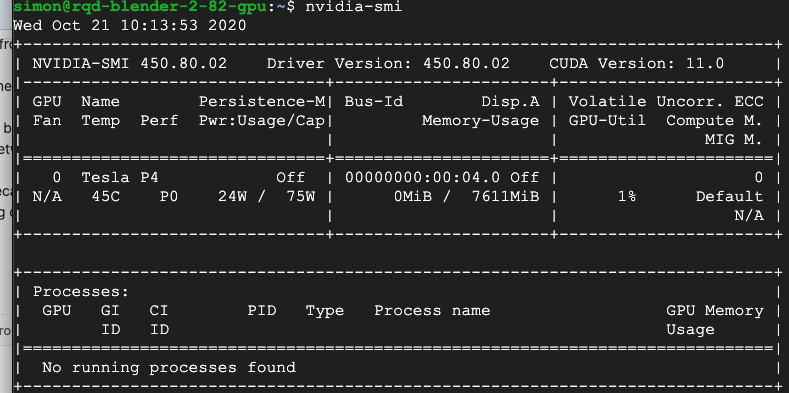
Then ran the same render from command line and calling a python file to force CUDA
./blender -b /shots/xxxx/GPU_RenderTest.blend -f 1 -P use_gpu.py
Here's the Python file:
import bpy
# force rendering to GPU
bpy.context.scene.cycles.device = 'GPU'
cpref = bpy.context.preferences.addons['cycles'].preferences
cpref.compute_device_type = 'CUDA'
# Use GPU devices only
cpref.get_devices()
for device in cpref.devices:
    device.use = True if device.type == 'CUDA' else False
But... it still renders on CPU... I don't know what to do next, when I expect it to run on GPU
Ok, sounds like network is not the issue then. Could you give more detail on how you're setting CUEBOT_HOSTNAME, with some example code maybe? Maybe there's some issue there I can identify.
As for forcing Blender to use GPU, let me reach out to some folks who have more Blender experience than I do to see if they have any suggestions.
One area that of interest to CI groups that may be relevant for researching an answer to this challenging config is NVIDIA EGL Eye. https://developer.nvidia.com/blog/egl-eye-opengl-visualization-without-x-server/
Let us know how that goes. I have a few other bread crumbs I can scan the nooks and crannies for also if that doesn't help.
